
Automating Device Categorization in Microsoft Intune: A Comprehensive Guide
Effortlessly manage and group devices within Microsoft Intune using device categories. While device categorization is essential, manually assigning categories for each device can be challenging and impractical. This blog addresses a common query in forums: automating device category assignment based on Autopilot enrollment profiles, catering to both Autopilot and Windows 365 (Cloud PC) devices.
This post showcases a streamlined 1-to-1 matching process between enrollment profiles and device categories. Learn how to scale this approach by creating dynamic groups and leveraging runbooks, as detailed here. Alternatively, discover how if statements within the script can achieve similar scalability, providing flexibility in implementation.
Additionally, explore an alternative method utilizing Win32 app deployment during the ESP (Enrollment Status Page) or optimizing categorization speed through different scheduling techniques not covered in this post. Uncover the vast automation potential awaiting within Intune.
Optimize device management and streamline workflows by automating device categorization in Microsoft Intune with these versatile methods and strategies.
Bear with me here, this is a quite lengthy post. I kept some of the steps at a high level in attempt to keep more as brief as possible. Prerequisites:
-
Permissions to create an Azure App Registration.
-
Permissions to create an Azure Key Vault
-
Permissions to create an Azure Automation Account.
PowerShell
<#
.DESCRIPTION
This script will get the member of a specified Azure AD group, check those devices in Intune to ensure that they have a device category assigned, and assign the category if it is missing or incorrect.
All actions are logged in the runbook output.
Authentication is done using an Azure App registration.
Required cmdlets and modules:
Get-MgBetaDevice - Microsoft.Graph.Beta.Identity.DirectoryManagement
Get-MgBetaGroup - Microsoft.Graph.Beta.Groups
Get-MgBetaDeviceManagementManagedDevice - Microsoft.Graph.Beta.DeviceManagement
Get-MgBetaDeviceManagementDeviceCategory - Microsoft.Graph.Beta.DeviceManagement
Invoke-MgGraphRequest - Microsoft.Graph.Authentication
Required Azure AD App permissions:
Microsoft Graph Group.Read.All
Microsoft Graph GroupMember.Read.All
Microsoft Graph Device.ReadWrite.All
Microsoft Graph DeviceManagementManagedDevices.ReadWrite.All
References:
Authentication module cmdlets in Microsoft Graph PowerShell:
https://learn.microsoft.com/en-us/powershell/microsoftgraph/authentication-commands?view=graph-powershell-1.0#use-delegated-access-with-a-custom-application-for-microsoft-graph-powershell
PJM - 10/31/2025
#>
######## Begin Setting Required Variables ########
$Timestamp = get-date -f yyyy-MM-dd-HH-mm-ss
Write-Output "Script began at $Timestamp"
# Connecto Managed Identity
Connect-AzAccount -Identity
# Credentials from Key Vault
$TenantId = Get-AzKeyVaultSecret -VaultName '' -Name 'tenantid' -AsPlainText
$ClientId = Get-AzKeyVaultSecret -VaultName '' -Name 'clientid' -AsPlainText
$ClientSecretCredential = Get-AzKeyVaultSecret -VaultName '' -Name 'clientsecret' -AsPlainText
$Creds = [System.Management.Automation.PSCredential]::new($ClientId, (ConvertTo-SecureString $ClientSecretCredential -AsPlainText -Force))
# Device Catergory and Group Names
$CategoryName = ''
$GroupName = ''
# Get the current UTC time as a [datetime] instance and subtract 1 hour.
$CurrentTime = [DateTime]::UtcNow
$M1Time = $CurrentTime.AddHours(-1)
$D7Time = $CurrentTime.AddDays(-7)
# Base URL for the beta endpoint
[string]$baseUrl = "https://graph.microsoft.com/beta"
# Added to work around an error
$MaximumFunctionCount = 8192
$MaximumVariableCount = 8192
######## End Setting Required Variables ########
######## Begin Functions ########
####################################################
# Get device info from Intune
function Get-DeviceInfo {
Get-MgBetaDeviceManagementManagedDevice -Filter "AzureAdDeviceId eq '$ComputerID'" -all `
| Select-Object DeviceName, DeviceCategoryDisplayName, id
}
####################################################
# Set the device category
function Set-DeviceCategory {
[CmdletBinding()]
param (
[parameter(Mandatory)][string] $DeviceID,
[parameter(Mandatory)][string] $CategoryID
)
Write-Output "Updating device category for $Computer"
$requestBody = @{
"@odata.id" = "$baseUrl/deviceManagement/deviceCategories/$CategoryID"
}
$uri = "$baseUrl/deviceManagement/managedDevices/$DeviceID/deviceCategory/`$ref"
Write-Output "request-url: $uri"
Invoke-MgGraphRequest -Method PUT -Uri $uri -Body $requestBody
Write-Output "Device category for $Computer updated"
}
####################################################
# Check to see if the group has changed in the last hour - iF no changes in the last hour let's loop for 10 min before continuing!
function Get-GroupChanges {
$url = "https://graph.microsoft.com/Beta/groups/$($objid)?`$select=membershipRuleProcessingStatus"
$LastChange = (Invoke-MgGraphRequest -Method GET -Uri $url).membershipRuleProcessingStatus
$Updated = $LastChange.lastMembershipUpdated
Write-Output "Last update to the group was $Updated"
}
######## End Functions ########
######## Script entry point ########
# Connect to MgGraph
Write-Output "connecting to: MgGraph"
Connect-MgGraph -TenantId $TenantId -ClientSecretCredential $creds -NoWelcome
# Get the object ID of the target group
$Group = (Get-MgBetaGroup -Filter "DisplayName eq '$GroupName'" ) | Select -ExpandProperty DisplayName
if ($Group) {
$objid = (Get-MgBetaGroup -Filter "DisplayName eq '$Group'" ) | Select -ExpandProperty id
Write-Output "Found $GroupName group having ID: $objid"
# Get the last time the group membership changed. If no changes in the last hour loop for 10 minutes waiting for changes.
Get-GroupChanges
if ($Updated -ge $M1Time) {
Write-Output 'No changes in the last hour, checking 10 more times (once every minute)'
1..10 | foreach {
Get-GroupChanges
#$Updated = $LastChange.lastMembershipUpdated
If ($Updated -ge $M1Time) {
Write-Output "Still no changes, keep looping."
}
else {
Exit
}
Sleep 60
}
}
else {
Write-Output 'Recent changes need to be processed!'
}
# Get the members of the group
$Computers = Get-MgBetaGroupMember -GroupId $objid -All | ForEach { Get-MgBetaDevice -DeviceId $_.Id | Select DisplayName, DeviceID, ApproximateLastSignInDateTime }
Write-Output "Found $($Computers.Count) computers in $Group"
# Check each group member for the proper category and change if needed.
if ($Computers) {
# Set Device Category
if ($CategoryName) {
# Validate category name is valid
Write-Output "validating requested category: $CategoryName"
Write-Output "Getting List of Categories from Intune"
$Categories = Get-MgBetaDeviceManagementDeviceCategory -All
$CatNames = $Categories.DisplayName
Write-Output "Found $($Categories.Count) Categories in Intune"
$Category = $Categories | Where-Object { $_.displayName -eq $CategoryName }
if (!($Category)) {
Write-Output "Invalid category name specified. Exiting with making any changes!"
$Timestamp = get-date -f yyyy-MM-dd-HH-mm-ss
Write-Output "Script ended at $Timestamp"
Exit 1
}
$CategoryID = $Category.id
Write-Output "$CategoryName category has ID: $CategoryID"
}
else {
Write-Error "No category name was specified. Exiting with making any changes!"
$Timestamp = get-date -f yyyy-MM-dd-HH-mm-ss
Write-Output "Script ended at $Timestamp"
Exit 0
}
# Set the device categories
foreach ($Computer in $Computers) {
# Determine the last time the device signed in and skip it if more than 7 days to avoid working on stale devices.
##### THE LAST SIGNIN NEEDS TO BE TESTED TO ENSURE NEW AUTOPILOT DEVICES SHOW A SIGNIN DATE #####
$LastSignin = $Computer.ApproximateLastSignInDateTime
$ComputerID = $Computer.DeviceID
$DisplayName = $Computer.DisplayName
if ($LastSignin -gt $D7Time) {
Write-Output "$Computer.DisplayName last signed in $LastSignin. Likely a valid device, let's work on it."
$Device = Get-DeviceInfo
Write-Output "Found $($Device.Count) devices in Intune"
if (!($device)) {
Write-Error "$DisplayName not found in Intune"
}
else {
$DeviceID = $Device.id
if ($Device.deviceCategoryDisplayName -ne $CategoryName) {
Write-Progress -Status "Updating Device Category" -Activity "$DisplayName ($deviceId) --> $($device.deviceCategoryDisplayName)"
Write-Output "Device Name = $DisplayName"
Write-Output "Device ID = $DeviceID"
Write-Output "Current category is $($Device.deviceCategoryDisplayName)"
Write-Output "Setting category to $CategoryName"
Set-DeviceCategory -DeviceID $DeviceID -category $CategoryID
}
else {
Write-Output "$DisplayName is already in $CategoryName"
}
}
}
Else {
Write-Warning "$DisplayName last signed in $LastSignin. Likely an invalid device, let's skip it."
}
}
}
Else {
Write-Output "No computers found in $Group. Exiting without any changes."
$Timestamp = get-date -f yyyy-MM-dd-HH-mm-ss
Write-Output "Script ended at $Timestamp"
Exit 0
}
}
else {
Write-Error "You have specified an invalid group."
}
$Timestamp = get-date -f yyyy-MM-dd-HH-mm-ss
Write-Output "Script ended at $Timestamp"
<#
.DESCRIPTION This script will get the member of a specified Azure AD group, check those devices in Intune to ensure that they have a device category assigned, and assign the category if it is missing or incorrect. All actions are logged in the runbook output. Authentication is done using an Azure App registration. Required cmdlets and modules: Get-MgBetaDevice - Microsoft.Graph.Beta.Identity.DirectoryManagement Get-MgBetaGroup - Microsoft.Graph.Beta.Groups Get-MgBetaDeviceManagementManagedDevice - Microsoft.Graph.Beta.DeviceManagement Get-MgBetaDeviceManagementDeviceCategory - Microsoft.Graph.Beta.DeviceManagement Invoke-MgGraphRequest - Microsoft.Graph.Authentication Required Azure AD App permissions: Microsoft Graph Group.Read.All Microsoft Graph GroupMember.Read.All Microsoft Graph Device.ReadWrite.All Microsoft Graph DeviceManagementManagedDevices.ReadWrite.All References: Authentication module cmdlets in Microsoft Graph PowerShell: https://learn.microsoft.com/en-us/powershell/microsoftgraph/authentication-commands?view=graph-powershell-1.0#use-delegated-access-with-a-custom-application-for-microsoft-graph-powershell PJM - 10/31/2025 #> ######## Begin Setting Required Variables ######## $Timestamp = get-date -f yyyy-MM-dd-HH-mm-ss Write-Output “Script began at $Timestamp”
Connecto Managed Identity
Connect-AzAccount -Identity
Credentials from Key Vault
$TenantId = Get-AzKeyVaultSecret -VaultName '
Device Catergory and Group Names
$CategoryName = '
Get the current UTC time as a [datetime] instance and subtract 1 hour.
$CurrentTime = [DateTime]::UtcNow $M1Time = $CurrentTime.AddHours(-1) $D7Time = $CurrentTime.AddDays(-7)
Base URL for the beta endpoint
[string]$baseUrl = “https://graph.microsoft.com/beta”
Added to work around an error
$MaximumFunctionCount = 8192 $MaximumVariableCount = 8192 ######## End Setting Required Variables ######## ######## Begin Functions ######## ####################################################
Get device info from Intune
function Get-DeviceInfo { Get-MgBetaDeviceManagementManagedDevice -Filter “AzureAdDeviceId eq ‘$ComputerID’” -all ` | Select-Object DeviceName, DeviceCategoryDisplayName, id } ####################################################
Set the device category
function Set-DeviceCategory { [CmdletBinding()] param ( [parameter(Mandatory)][string] $DeviceID, [parameter(Mandatory)][string] $CategoryID ) Write-Output “Updating device category for $Computer” $requestBody = @{ “@odata.id” = “$baseUrl/deviceManagement/deviceCategories/$CategoryID” } $uri = “$baseUrl/deviceManagement/managedDevices/$DeviceID/deviceCategory/`$ref” Write-Output “request-url: $uri” Invoke-MgGraphRequest -Method PUT -Uri $uri -Body $requestBody Write-Output “Device category for $Computer updated” } ####################################################
Check to see if the group has changed in the last hour - iF no changes in the last hour let’s loop for 10 min before continuing!
function Get-GroupChanges { $url = “https://graph.microsoft.com/Beta/groups/$($objid)?`$select=membershipRuleProcessingStatus” $LastChange = (Invoke-MgGraphRequest -Method GET -Uri $url).membershipRuleProcessingStatus $Updated = $LastChange.lastMembershipUpdated Write-Output “Last update to the group was $Updated” } ######## End Functions ######## ######## Script entry point ########
Connect to MgGraph
Write-Output “connecting to: MgGraph” Connect-MgGraph -TenantId $TenantId -ClientSecretCredential $creds -NoWelcome
Get the object ID of the target group
$Group = (Get-MgBetaGroup -Filter “DisplayName eq ‘$GroupName’” ) | Select -ExpandProperty DisplayName if ($Group) { $objid = (Get-MgBetaGroup -Filter “DisplayName eq ‘$Group’” ) | Select -ExpandProperty id Write-Output “Found $GroupName group having ID: $objid” # Get the last time the group membership changed. If no changes in the last hour loop for 10 minutes waiting for changes. Get-GroupChanges if ($Updated -ge $M1Time) { Write-Output ‘No changes in the last hour, checking 10 more times (once every minute)’ 1..10 | foreach { Get-GroupChanges #$Updated = $LastChange.lastMembershipUpdated If ($Updated -ge $M1Time) { Write-Output “Still no changes, keep looping.” } else { Exit } Sleep 60 } } else { Write-Output ‘Recent changes need to be processed!’ } # Get the members of the group $Computers = Get-MgBetaGroupMember -GroupId $objid -All | ForEach { Get-MgBetaDevice -DeviceId $.Id | Select DisplayName, DeviceID, ApproximateLastSignInDateTime } Write-Output “Found $($Computers.Count) computers in $Group” # Check each group member for the proper category and change if needed. if ($Computers) { # Set Device Category if ($CategoryName) { # Validate category name is valid Write-Output “validating requested category: $CategoryName” Write-Output “Getting List of Categories from Intune” $Categories = Get-MgBetaDeviceManagementDeviceCategory -All $CatNames = $Categories.DisplayName Write-Output “Found $($Categories.Count) Categories in Intune” $Category = $Categories | Where-Object { $.displayName -eq $CategoryName } if (!($Category)) { Write-Output “Invalid category name specified. Exiting with making any changes!” $Timestamp = get-date -f yyyy-MM-dd-HH-mm-ss Write-Output “Script ended at $Timestamp” Exit 1 } $CategoryID = $Category.id Write-Output “$CategoryName category has ID: $CategoryID” } else { Write-Error “No category name was specified. Exiting with making any changes!” $Timestamp = get-date -f yyyy-MM-dd-HH-mm-ss Write-Output “Script ended at $Timestamp” Exit 0 } # Set the device categories foreach ($Computer in $Computers) { # Determine the last time the device signed in and skip it if more than 7 days to avoid working on stale devices. ##### THE LAST SIGNIN NEEDS TO BE TESTED TO ENSURE NEW AUTOPILOT DEVICES SHOW A SIGNIN DATE ##### $LastSignin = $Computer.ApproximateLastSignInDateTime $ComputerID = $Computer.DeviceID $DisplayName = $Computer.DisplayName if ($LastSignin -gt $D7Time) { Write-Output “$Computer.DisplayName last signed in $LastSignin. Likely a valid device, let’s work on it.” $Device = Get-DeviceInfo Write-Output “Found $($Device.Count) devices in Intune” if (!($device)) { Write-Error “$DisplayName not found in Intune” } else { $DeviceID = $Device.id if ($Device.deviceCategoryDisplayName -ne $CategoryName) { Write-Progress -Status “Updating Device Category” -Activity “$DisplayName ($deviceId) —> $($device.deviceCategoryDisplayName)” Write-Output “Device Name = $DisplayName” Write-Output “Device ID = $DeviceID” Write-Output “Current category is $($Device.deviceCategoryDisplayName)” Write-Output “Setting category to $CategoryName” Set-DeviceCategory -DeviceID $DeviceID -category $CategoryID } else { Write-Output “$DisplayName is already in $CategoryName” } } } Else { Write-Warning “$DisplayName last signed in $LastSignin. Likely an invalid device, let’s skip it.” } } } Else { Write-Output “No computers found in $Group. Exiting without any changes.” $Timestamp = get-date -f yyyy-MM-dd-HH-mm-ss Write-Output “Script ended at $Timestamp” Exit 0 } } else { Write-Error “You have specified an invalid group.” } $Timestamp = get-date -f yyyy-MM-dd-HH-mm-ss Write-Output “Script ended at $Timestamp”
1
Create a Dynamic Group
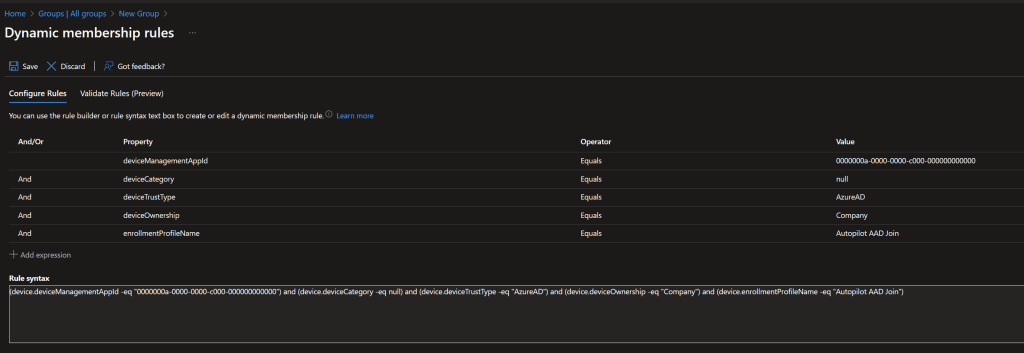
- Create a dynamic device group in Azure AD using the following as the dynamic membership rule. I named my group, “Uncategorized Corporate Devices” but you can use whatever you’d like. Just be sure to remember the group name as it will be used in the script later in this post. Also, be sure to use one, or more, of your Autopilot or Windows 365 enrollment profile names in place of “Autopilot AAD Join” in my example.
- This group will be populated with devices that are managed by Intune, Azure AD joined, are company owned, have no device category set, and have the specified enrollment profile assigned. (note: You may need to tweak the rule to fit your specific requirements)
- Record the group name, you will need it later when you are configuring the script.
(device.deviceManagementAppId -eq “0000000a-0000-0000-c000-000000000000”) and (device.deviceCategory -eq null) and (device.deviceTrustType -eq “AzureAD”) and (device.deviceOwnership -eq “Company”) and (device.enrollmentProfileName -eq “Autopilot AAD Join”)
2
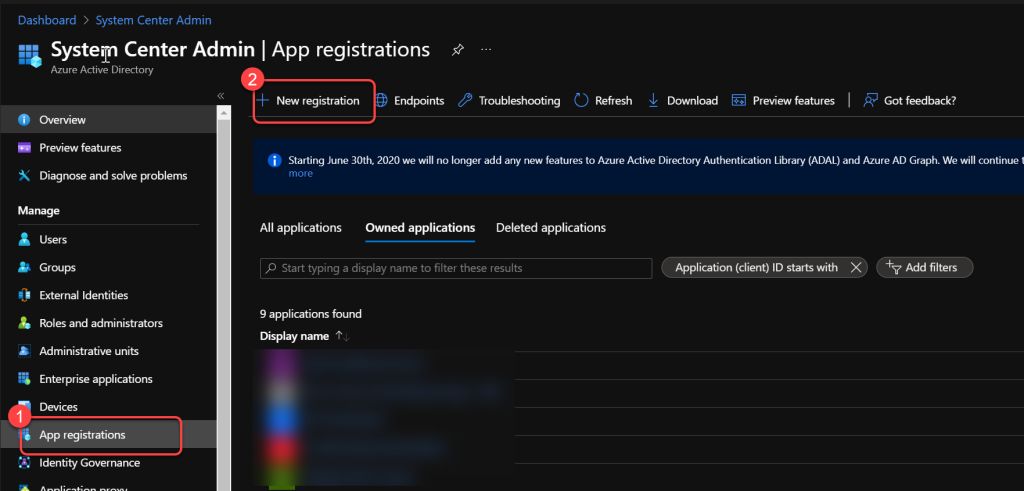
Create Azure App Registration
- For detailed steps to create an Azure AD App registration you can see this page in our BI for Intune docs.
- This app registration requires different permissions though. Ignore the permissions listed in the document linked above and instead add the following application permissions:Microsoft Graph > Group.Read.All
- Microsoft Graph > GroupMember.Read.All
- Microsoft Graph > Device.ReadWrite.All
- Microsoft Graph > DeviceManagementManagedDevices.ReadWrite.All Be sure to complete steps 19 - 24 in the document linked above.
- Record the Value data of the Client Secret.
- Record the Application (client) IDfrom the overview tab.
- Record the Directory (tenant) IDfrom the overview tab.
3
Create Azure Automation Account
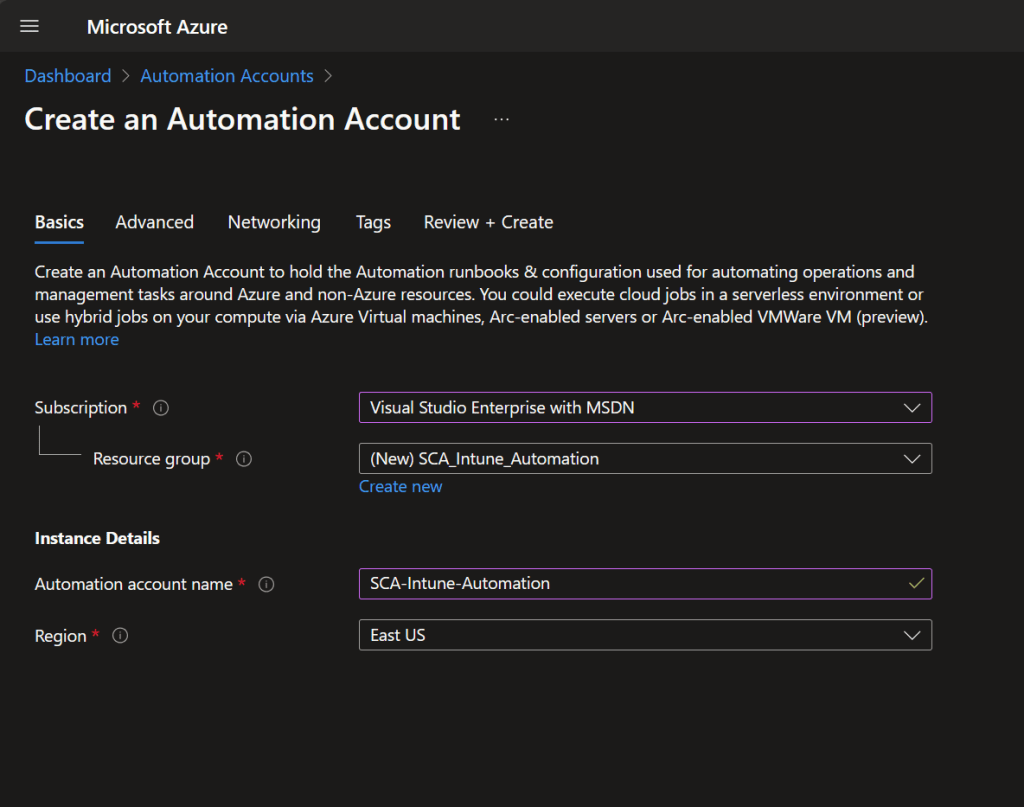
- Follow this Microsoft guide to create an Azure Automation account with a System Assigned Managed Identity.
- The public/private endpoint is not relevant, we won’t be using it.
- Under Account Settings, select Identity.
- Record the Object (principal) IDof the System Assigned Managed Identity. For more information, see this Microsoft document.
4
Create Azure Key Vault
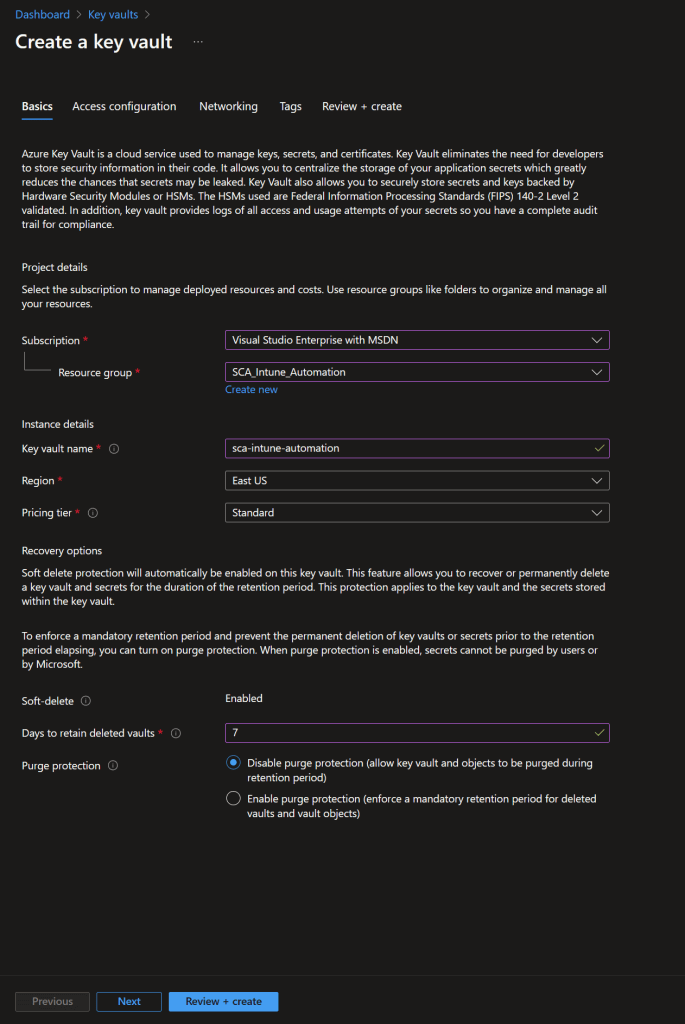
- Follow this Microsoft guide to create an Azure Key Vault.
- Just use the default options on all pages other than the Basics page where you will enter a name, resource group, region, and pricing tier.
- Record the vault name, you will need it later when you are configuring the script.
5
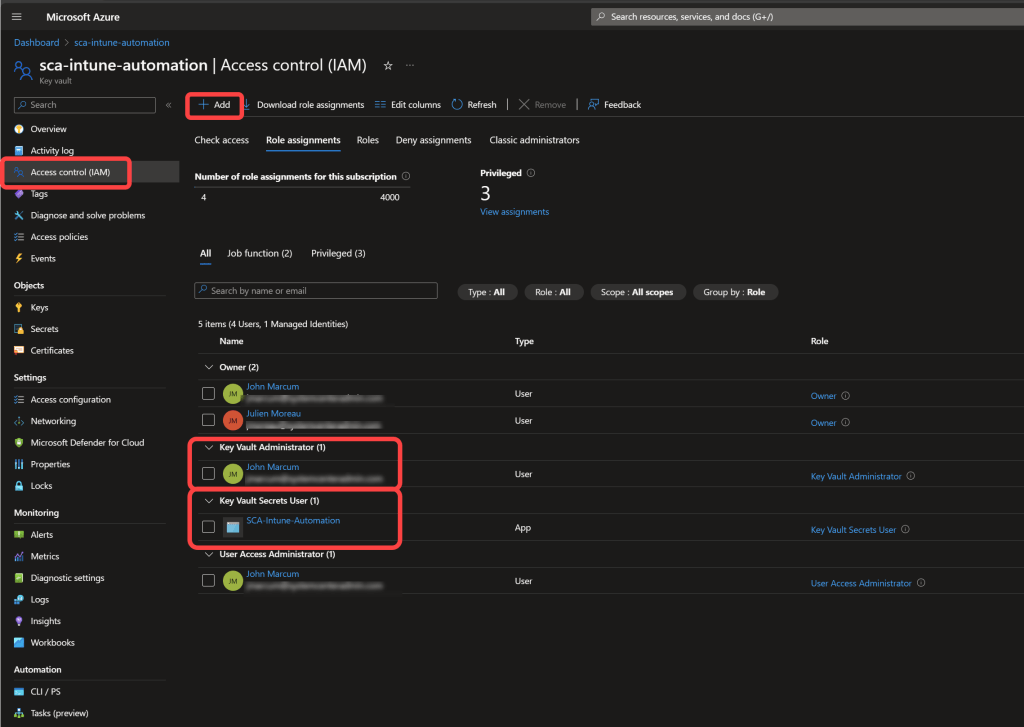
Assign Access to the Key Vault
- In the Key Vault select Access Control (IAM)
- Select Add > Add role assignment.
- Grant the account that you are signed in the Key Vault Administrator role.
- Grant the Azure Automation System Assigned Managed Identity the Key Vault Secret Userrole.
- For more information see this Microsoft document.
6
Add Secrets to the Vault
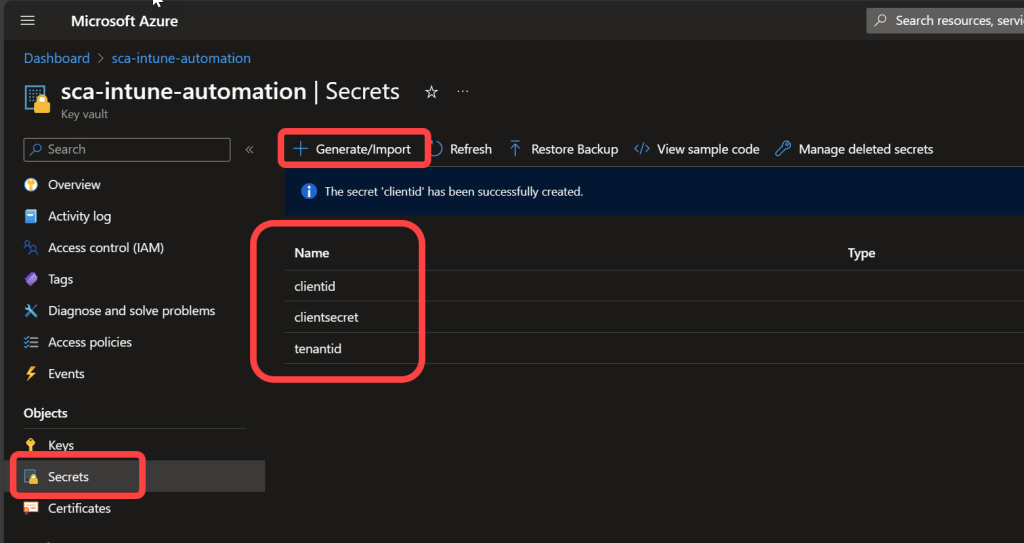
- In the Key Vault select Secrets.
- Select Generate/Import to add the following manual secrets: (Note: If you do not use the names exactly as shown here you will need to change the value in the script to match whatever you use)Name: clientid Secret value: The Application (client) ID that you recorded when creating the Azure App Registration.
- Name: tenantid Secret value: The Directory (tenant) ID that you recorded when creating the Azure App Registration.
- Name: clientsecret Secret value: The Value that you recorded when creating the Azure App Registration. NOTE: clientsecret is where most people make a mistake! Ensure that you are using the “Value” and not the “Secret ID”. The Value will contain special characters and can only be viewed when it is created. You cannot go back and get it later. If you didn’t save it, you will need to generate a new one.
7
Edit the Script
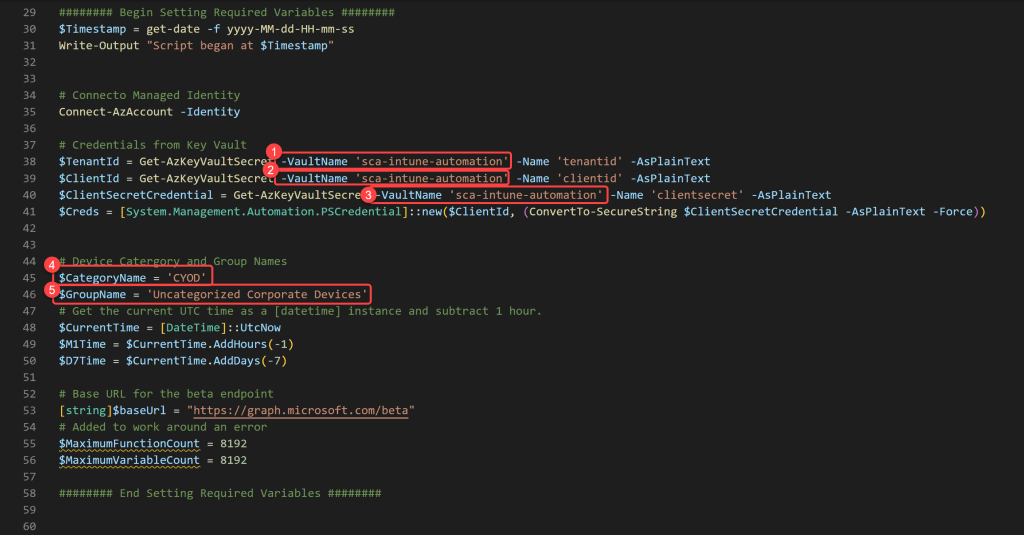
- Copy the PowerShell script from above into your favorite code editor.
- Enter your Azure Key Vault name on lines 38, 39, and 40.
- Enter the Device Category name that you would like to assign to the devices on line 45.
- On line 46 enter the group name of the group that you created in step 1 of this post.
- The script has some logic in it that you might want to change.By design the script runs once each hour. If it does not find any membership changes in the group in the last 60 minutes the script will loop each minute for 10 minutes looking for membership changes in the group. If it finds no membership changes after 10 minutes, it will continue to process the group members.
- When devices are found in the group the script will check the ApproximateLastSignInDateTime of the device and if that time is more than 7 days old it will skip trying to set the category of the device.
- Everything that the script does is logged in the Runbook log.
Save the modified script, but do not close the script editor.
8
Add Required Modules to the Automation Account
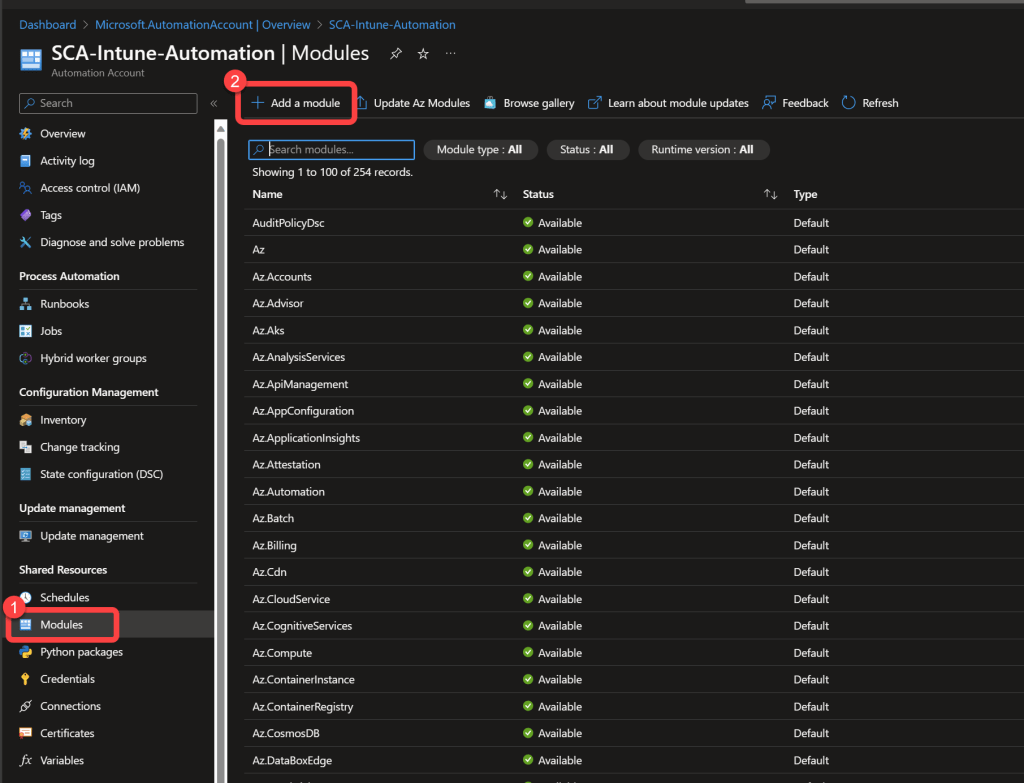
- In the Azure Automation Account select Modules below Shared Resources.
- Select Add a module.
- Add the following version 5.1 modules from the gallery: (Note: Add Microsoft.Graph.Authentication first. It takes a few minutes for each module to complete installing and this one is a pre-requisite for the others.)Microsoft.Graph.Authentication
- Microsoft.Graph.Beta.Identity.DirectoryManagement
- Microsoft.Graph.Beta.DeviceManagement
- Microsoft.Graph.Beta.Groups
9
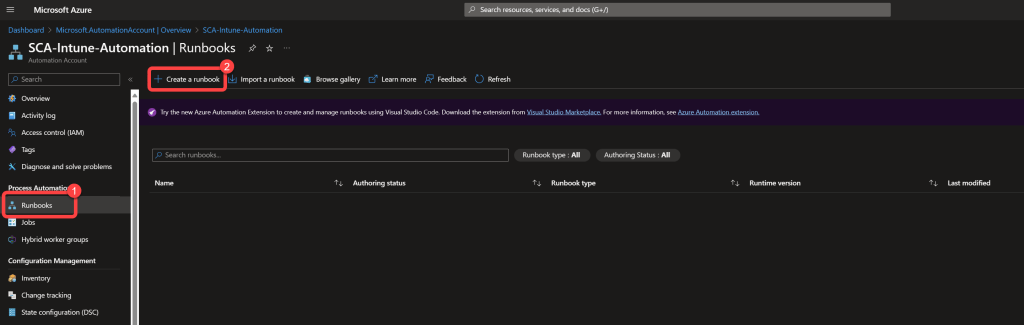
Create the Runbook
- In the Azure Automation Account select Runbooks.
- Select Create a Runbook.
- Enter a name for the Runbook.
- Select PowerShell as the Runbook type.
- Select 5.1 as the Runtime version.
- Select Create.
10
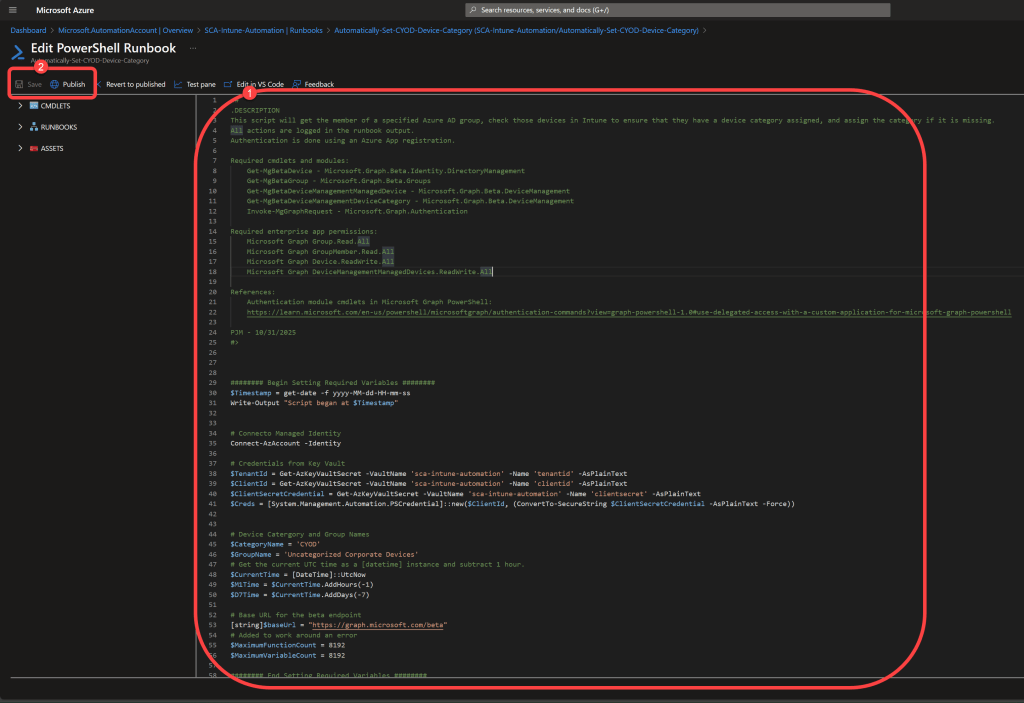
Add the Script to the Runbook
- Copy and paste the contents of the script directly into the code editor of the Runbook.
- Save the Runbook.
- Publish the Runbook.
11
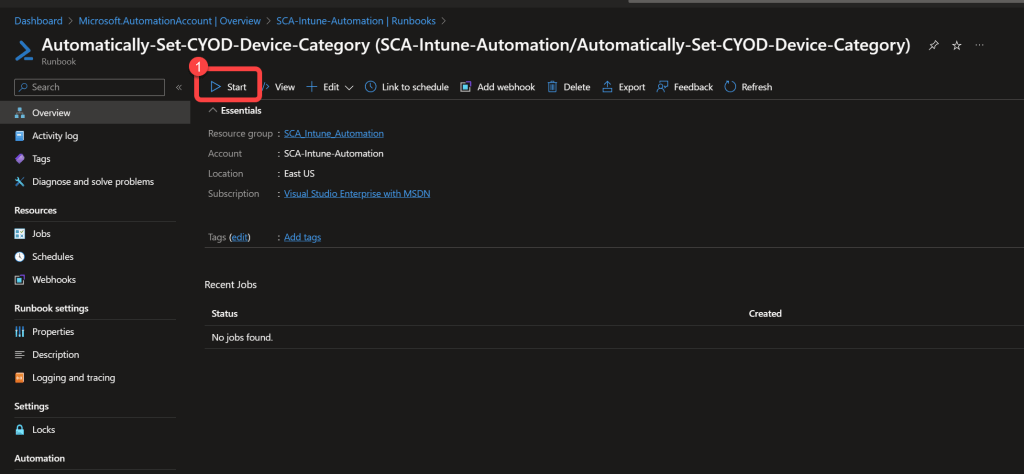
Test the Runbook
- Start the Runbook.
- Select All Logs.
- It takes a minute or two for logs to start showing.
12
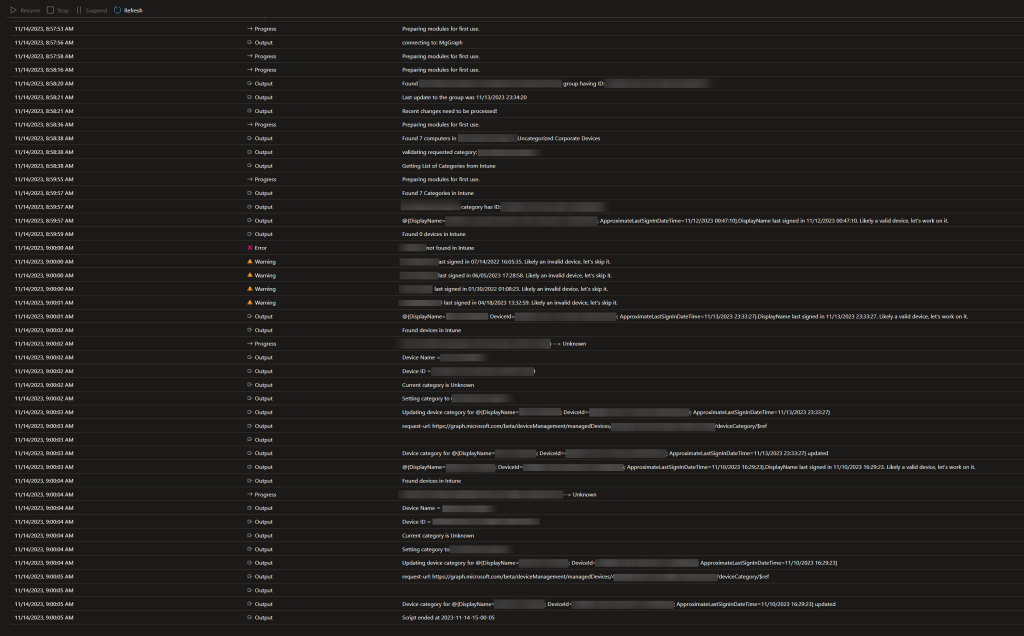
Review the Logs
- Review the logs to ensure you have the desired results.
13
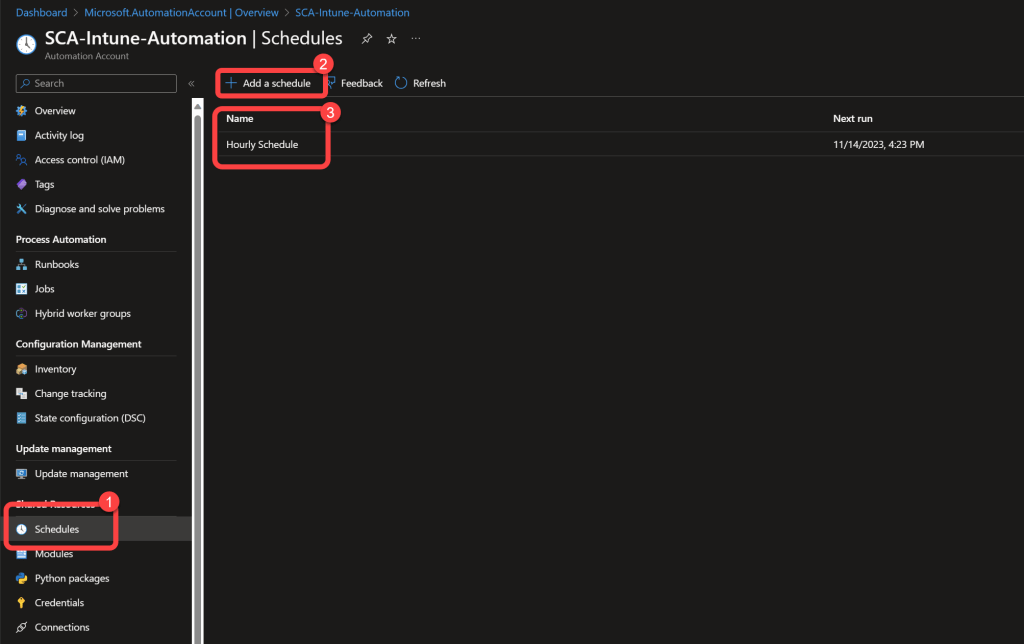
Schedule the Runbook
- In the Runbook select Schedule.
- Select Add a Schedule.
- Add a reoccurring hourly schedule.
Read also: How to Bypass Intune Device Platform Enrollment Restrictions on Windows
Need better visibility into your Intune device categories? BI for Intune provides pre-built Power BI dashboards for device inventory, categorization, compliance, and more — helping you understand your managed environment at a glance. Start a free trial →