
Easy Method to Rerun Failed Win32 App Deployments on a Device
I acknowledge the existence of numerous other online resources detailing the process of rerunning failed Intune Win32 app deployments on individual devices. These resources typically prescribe a similar approach, involving steps such as retrieving the app ID from Intune, obtaining the user GUID from Azure, logging onto the respective device, searching logs for the path to the GRS keys, opening regedit, locating the associated registry key(s), and deleting them.
Having utilized these methods myself, I found them to be relatively cumbersome yet effective. Recognizing the potential for improvement, I endeavored to devise a more efficient solution. Given my ongoing exploration of PowerShell over the past few years, I considered this challenge an opportunity to continue expanding my scripting skills.
Below, you’ll find the script I’ve developed, which systematically scans the registry for any Intune Win32 app instances that exited with exit codes indicative of failure (i.e., codes other than 0 or 3010), along with high-level steps on how to deploy it. Upon identifying such instances, the script removes the associated registry key for the failed Win32 app, allowing for a reinstallation attempt. Notably, this script differs from existing solutions by retrieving the path to the GRS key directly from the registry, rather than relying on log searches. Additionally, it deletes the GRS key and restarts the IME as part of its execution.
This script is intended to be run using the new remediations on-demand feature of Intune, eliminating the necessity for physical access to the target device. It can also be easily modified to function solely as a detection script.
It is imperative to exercise caution and thorough understanding when utilizing any script obtained from online sources. While I have endeavored to cover a wide range of exit codes, there may still be instances overlooked. Neither I nor PowerStacks can assume responsibility for any adverse outcomes resulting from the execution of this script. Thoroughly test before releasing this into a production environment!
UPDATED: 7/31/2024 - Fixed script issues, separated the script into two scripts (detection and remediation)
The script(s) referenced above are available on GitHub:

Get the scripts on GitHub: powerstacks-corp/intune-win32-app-tooling
The script also has a page in our free scripts library, with a short description and the download: Retry Failed Intune Win32 App Installs Without Touching the Device.
1. Create a Remediation Package
- Create a remediation package in Intune using the provided script as the detection script.
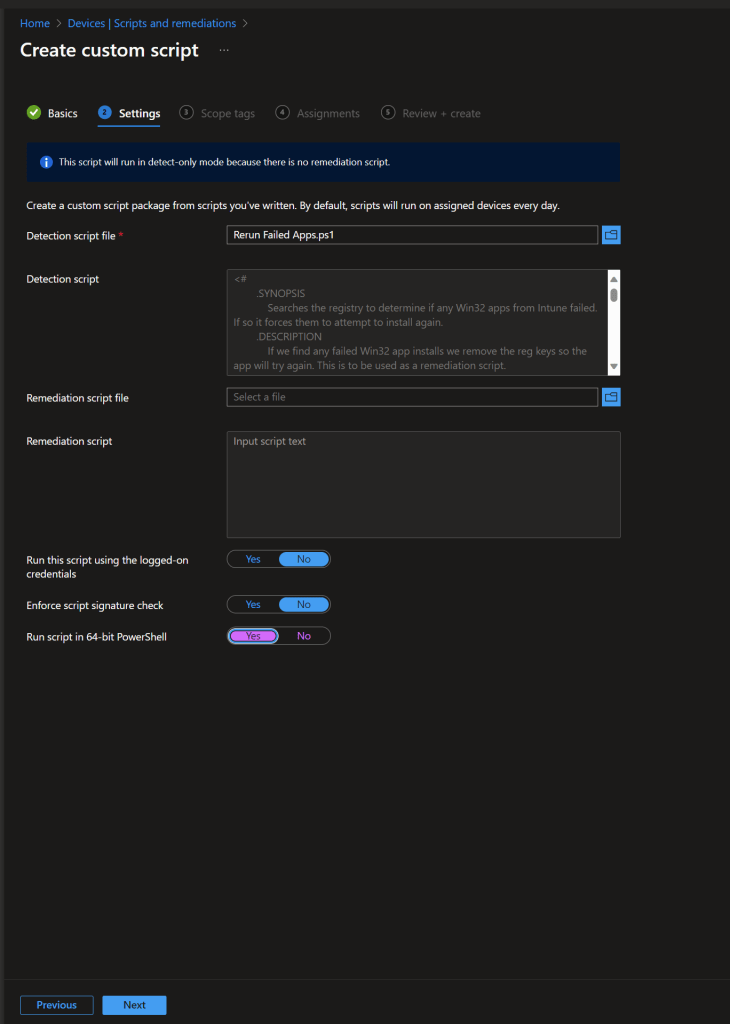
2. Locate a Target Device
- In Intune locate a device that you would like to attempt to reinstall all failed Win32 apps.
- Select Run Remediation from the list of Remote Actions.
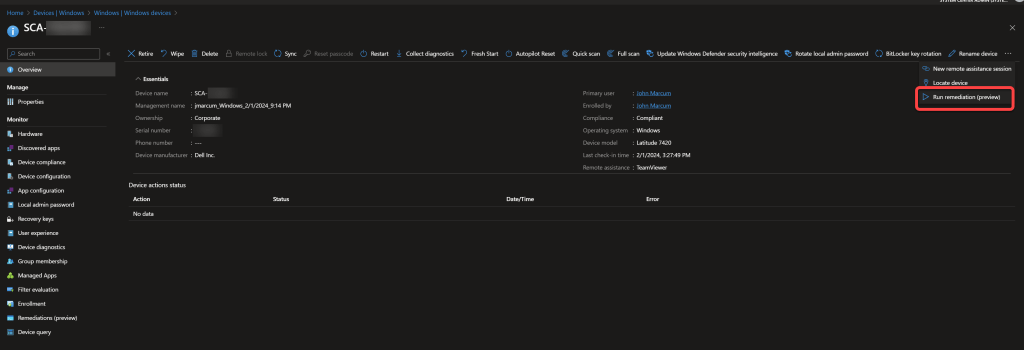
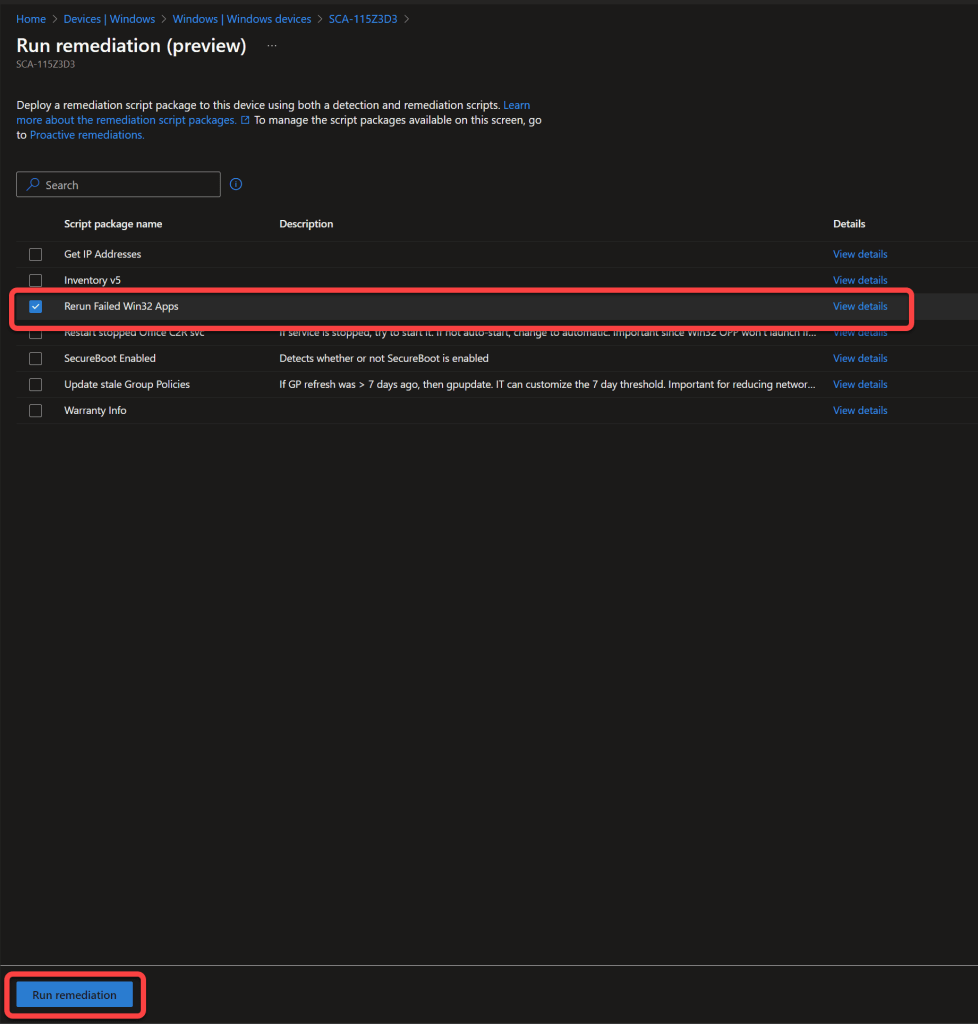
3. Run the Remediation on Demand
- Select the remediation packagethat contains the provided script.
- Select Run remediation.
- The script logs to C:\ProgramData\Microsoft\IntuneManagementExtension\Logs so that you can use Collect diagnostics in Intune to get full details of the actions taken by the script.
 Learn about also: Intune Win32 App Maintenance Windows
Want to track Win32 app failures across your fleet? BI for Intune provides pre-built Power BI dashboards for app deployment status, installation failures, and remediation outcomes — giving you the visibility to act before users report issues. Start a free trial →