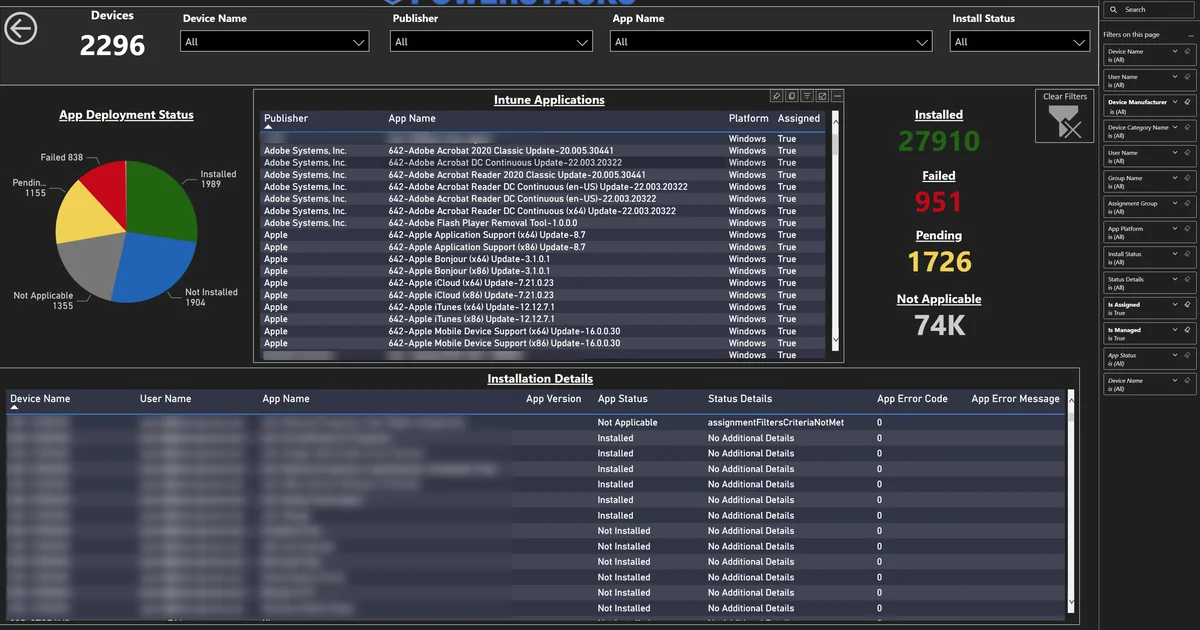
Knowing exactly what software is installed across your managed devices is the foundation of half of what an endpoint admin does — license reconciliation, vulnerability response, shadow IT detection, version drift, audit prep. For years the Intune data source for this was Discovered apps, accessible under Apps > Monitor > Discovered apps in the admin center.
That feature is being replaced. As of May 2026, Microsoft has begun rolling out App Inventory (sometimes called Enhanced App Inventory) as the successor to Discovered apps. The per-device data is dramatically richer — roughly 17 fields per app instead of 2 — but the problem most IT teams actually care about hasn’t moved: getting that data out of the admin center and into something you can analyze across your whole fleet.
This post explains what changed, what didn’t, and how BI for Intune turns Intune’s installed-software inventory into a proper Power BI star schema you can slice any way you need.
What Changed: Discovered Apps → App Inventory
The legacy Discovered apps view only captured two pieces of data per app: a display name and a device count. That was enough to answer “is this installed somewhere?” but not much more.
The new App Inventory feature, configured via a dedicated inventory policy, captures around 17 fields per detected application, including:
- Installation scope — device-wide vs. per-user installs
- Architecture — x86, x64, ARM64
- Install date and install location
- Uninstall and modify commands from Add/Remove Programs
- Both Win32 registry apps and Store / MSIX packages
- Coverage for Windows 10/11 devices that are Microsoft Entra joined
This is a real upgrade. The data is finally good enough to support license reconciliation, vulnerability triage, and clean uninstall automation.
What Didn’t Change: The Export Problem
The richer per-device data still has to be aggregated across your fleet to be useful, and that’s where both the old and new features fall short:
No Aggregated Reporting via Graph
The new App Inventory data is not exposed through Microsoft Graph for fleet-wide aggregation. You can see it per-device, but you can’t easily answer “show me every device running 7-Zip versions older than 23.01” across 5,000 endpoints.
Same Manual Export Friction
Like Discovered apps before it, the admin center is built for lookup — type a name, get a device list. There’s no bulk export of the full inventory, no cross-filtering against compliance state or ownership, no version distribution charts.
Hard Caps and Policy Requirements
App Inventory has a per-device cap (around 1,000 apps), requires an inventory policy to be explicitly deployed (it doesn’t auto-collect), and the cached data can lag uninstalls by hours. None of those are deal-breakers, but they all add up to “the admin center is not your reporting tool.”
No Drill-Through, No Cross-Filtering
If you find a problematic version of an app, you can’t pivot from there to the affected devices, their compliance status, their primary user, or their last check-in. Every cross-cut question is a new query.
In short: Microsoft fixed the per-device data. The fleet-wide reporting gap is the same one Intune has always had.
How BI for Intune Handles Installed Apps
BI for Intune pulls Intune’s installed-software inventory into a Power BI star schema, sitting alongside device inventory, compliance, deployments, and configuration data — all in your own Power BI workspace.
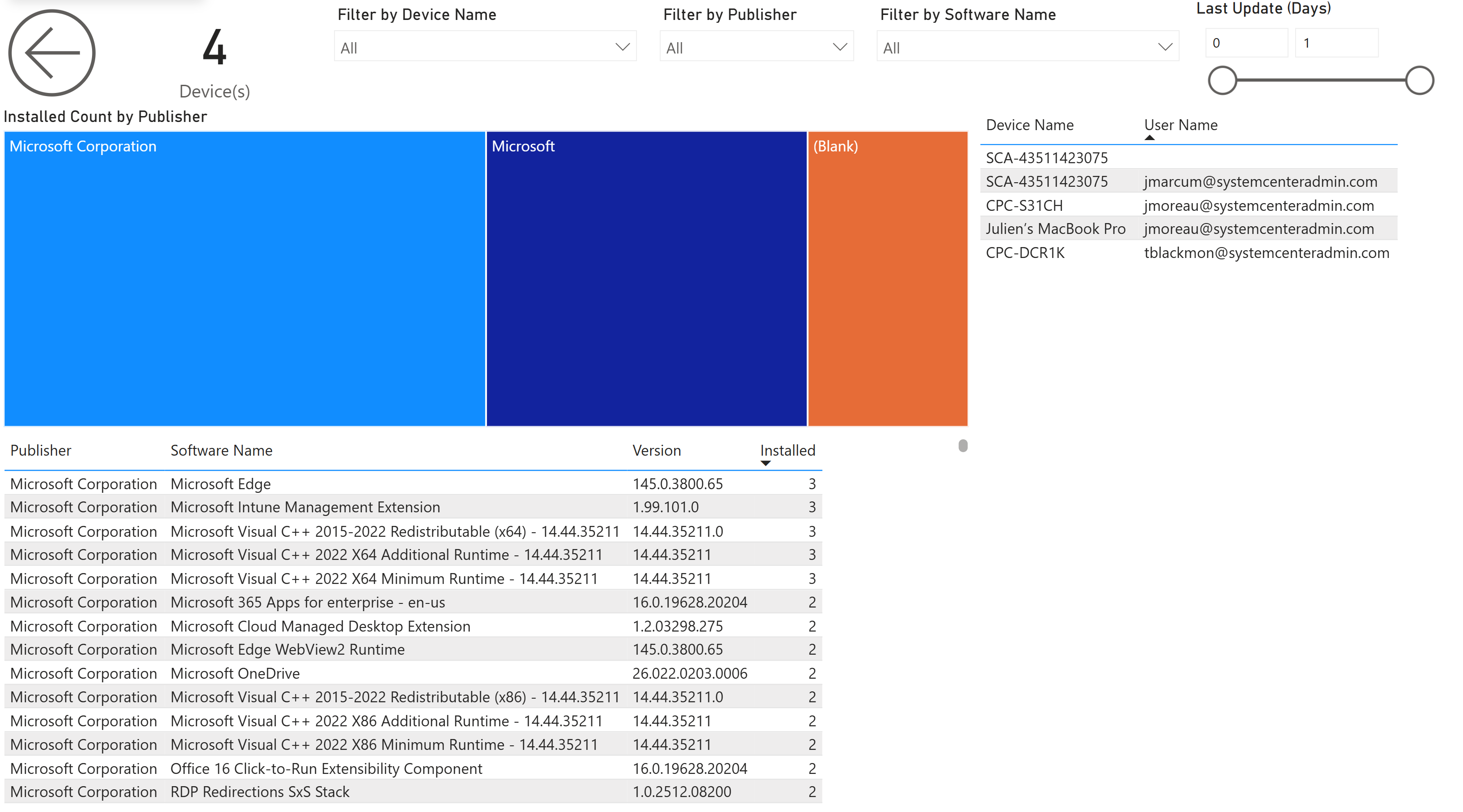
Because everything is in a proper data model, you can slice the same inventory data five different ways without writing a new query each time:
- By app and version — find every device on an outdated version of Chrome, Edge, Zoom, or whatever you’re tracking
- By publisher — see all software from a given vendor across your fleet, including the long tail you didn’t know was installed
- By install scope — separate machine-wide installs from per-user installs (a distinction the legacy Discovered apps couldn’t even surface)
- By architecture — confirm x86 hold-outs as you migrate to x64 / ARM64
- Cross-filtered with compliance — show only installed apps on non-compliant devices, or only on personally-owned devices
App Inventory Meets the Rest of Intune
The real unlock isn’t any single chart — it’s that installed software finally lives in the same data model as everything else you know about a device. Once it does, the questions you can answer change:
- “Which non-compliant devices have app X installed?” — Cross-filter compliance + app inventory
- “What’s the install footprint of Adobe Reader on Windows 11 vs. Windows 10?” — Slice by OS version
- “Are personal devices running apps they shouldn’t have?” — Filter by ownership, review the application list
- “How many devices haven’t reported inventory in the last 7 days?” — Combine last-sync with the inventory presence flag
These aren’t theoretical reports — they’re the questions endpoint admins get from security, compliance, and procurement teams every week.
Common Installed Apps Questions BI for Intune Answers
“What unauthorized software is on our corporate devices?” Filter by ownership (Corporate), then review the application list against your approved software catalog. Anything not deployed by Intune is a candidate for investigation.
“How many devices have outdated versions of Chrome / Edge / Zoom?” Filter by app name, then look at the version distribution. Devices on older versions may need attention, a redeployment, or a Win32 supersedence.
“Which apps appear most often in version drift?” Sort apps by the number of distinct versions present in the fleet. The apps at the top are the ones lifecycle management isn’t catching.
“How much of our installed software is unmanaged?” Cross-reference Intune’s installed apps against your deployed apps. Anything on a device but not delivered through Intune represents shadow IT or pre-existing installs that should be brought under management.
“Where are the orphan apps from people who left the company?” Filter by primary user state. Inactive or off-boarded primary users with high-value app installs are reclamation candidates.
From Lookup to Discovery
The native Intune App Inventory view, like Discovered apps before it, is designed for lookup — you go there when you already know what you’re looking for. BI for Intune’s installed apps dashboard is designed for discovery — surfacing patterns and outliers you didn’t know to look for.
When a new vulnerable version of a common app lands in the news, you’ll see your fleet exposure in the dashboard before you’ve finished reading the CVE. When a department starts running unauthorized software, it shows up in your normal Power BI refresh. When supersedence is silently failing on a subset of devices, the version distribution makes it obvious in minutes rather than hours.
Getting Started
BI for Intune delivers all of this without installing agents on endpoints. It connects to the same Microsoft Graph APIs that power the Intune admin center, transforms the data into a proper star schema, and delivers it as Power BI dashboards that refresh on your schedule.
Your installed apps data — along with device inventory, compliance, and deployment status — stays in your Power BI workspace, governed by your Microsoft 365 tenant policies.
Want complete visibility into your Intune app inventory? BI for Intune provides pre-built dashboards for installed apps, app deployment status, device inventory, compliance, and more — all in your Power BI workspace. No agents, no data leaving your tenant. Start a free trial →