A recent post from Ben Whitmore at Patch My PC caught my attention because it described a problem that was very familiar to me.
Ben opened the post with a question:
“Why is Autopilot evaluating hundreds of apps on a brand new device?”
More importantly, he said it is “one of the more common questions our support team gets” from customers using Patch My PC with Windows Autopilot.
I immediately recognized the problem because I had been one of those customers.
Years ago, while using a competitor’s third-party patching tool in a production Intune environment, I ran into exactly this behavior. New Autopilot devices could take an unexpectedly long time to finish processing applications, even though most of those applications were not actually required on the device.
The underlying behavior comes from how Intune processes required Win32 application assignments. The problem becomes much more noticeable when application update solutions publish large numbers of Win32 update apps and assign them broadly to All Users, All Devices, or large user or device groups whose members may or may not actually have the application being updated installed.
In that model, targeting is intentionally broad and the endpoint is left to determine applicability. Every targeted device evaluates the update’s requirement rules to determine whether the update applies, even when the application being updated is not installed and the update ultimately does nothing.
As the number of published updates grows, so does the amount of unnecessary evaluation work performed by the Intune Management Extension.
I have not evaluated the current targeting capabilities of every product in this space, and those capabilities continue to evolve. At the time I encountered the problem, however, the update automation solution I was using did not provide a native inventory-based method to target an application update only to devices that actually had that application installed.
The common approach was to publish the update into Intune, assign it broadly, and rely on requirement rules to determine whether each individual device needed it.
That worked functionally, but it meant every targeted device still had to evaluate the update.
As the number of published applications grew, so did the amount of unnecessary work being handed to the Intune Management Extension.
That was the problem I wanted to solve.
And it ultimately became one of the design principles behind App Store for Intune: don’t send an application update to a device unless we already have a good reason to believe that device needs it.
The Problem: Assigned Doesn’t Mean Applicable
A common approach with products that automate third-party application updates in Intune is to publish updates as Win32 applications and assign them broadly, often to All Devices.
The application’s requirement rules then determine whether the update actually applies.
For example, suppose you publish updates for:
- Google Chrome
- Mozilla Firefox
- 7-Zip
- VLC
- Zoom
- Notepad++
- Adobe Reader
- dozens, or potentially hundreds, of other applications
A device may only require five of those updates.
From an administrator’s perspective, broad assignment can seem perfectly reasonable. Assign all the updates and let the requirement rules determine which five are needed.
The problem is that Intune still has to evaluate the other applications to determine that they aren’t needed.
In Ben’s recent blog, he explains the behavior clearly. When a required Win32 app is assigned to a device, the Intune Management Extension has to determine whether the application applies. For update applications, that may involve evaluating requirement and detection logic even when the final result is simply “do nothing.”
That work adds up.
Ben’s article estimates that an update using script-based requirement and detection rules can consume roughly five seconds of IME processing time per evaluation. The example illustrates just how quickly that can become significant:
| Required update apps | Approximate evaluation time |
|---|---|
| 100 | 8 minutes |
| 300 | 25 minutes |
| 600 | 50 minutes |
| 1,000 | 83 minutes |
| 1,500 | 125 minutes |
These are illustrative numbers rather than guaranteed deployment times, but they demonstrate the underlying problem very well.
A computer doesn’t need to install 1,000 applications to spend time processing 1,000 application assignments.
It only needs to be targeted by them.
Why Autopilot Makes the Problem So Visible
This becomes particularly noticeable with newly provisioned devices.
Administrators naturally assume that if only a handful of applications are configured as Enrollment Status Page blocking applications, those are the applications Intune will concern itself with during or immediately after provisioning.
Unfortunately, ESP blocking applications and application assignments are two different things.
Selecting specific blocking applications controls what ESP waits for. It does not mean other required Win32 applications assigned to the device disappear.
Ben’s blog also explains that non-blocking required Win32 applications can still be evaluated after first sign-in, which can leave a newly provisioned computer busy processing applications long after the user reaches the desktop.
This explained exactly what I had been seeing in my own environment.
The more applications and updates we published, the more required Win32 assignments our devices had to work through. The update automation was doing what it was designed to do: create and maintain application updates in Intune. The problem was that without inventory-aware targeting, those updates could be assigned much more broadly than the population of devices that actually required them.
That raised what I thought was a much more important question:
Why were we targeting a device with an update for software we already knew it didn’t have?
Coming From ConfigMgr, the Answer Seemed Obvious
I spent many years working with Configuration Manager before Intune became the center of Microsoft’s endpoint management strategy.
In ConfigMgr, I wouldn’t normally deploy an update for an application to every computer in the environment.
I would create a collection containing the computers that actually had that application installed and target the deployment appropriately.
Want to update Zoom?
Create a collection of computers with Zoom.
Want to update Firefox?
Create a collection of computers with Firefox.
The targeting happens before the client receives the deployment.
That distinction matters.
With broad Intune assignments, the endpoint is often being asked:
“Do you need this?”
With inventory-based targeting, the management system is first asking:
“Which devices are likely to need this?”
Only those devices receive the assignment.
Intune doesn’t provide the same kind of arbitrary inventory-based query collections that ConfigMgr administrators have relied on for decades.
So I built my own.
Query-Based “Collections” for Intune
I created a process using BI for Intune, Power BI, Power Automate, Logic Apps, and Microsoft Entra ID groups to approximate ConfigMgr-style query collections in Intune.
The idea was straightforward.
BI for Intune already knew which applications were installed on which devices.
Instead of assigning an application update to every device and asking each device to determine whether the update applied, why not use that inventory data to maintain an Entra ID group containing only the devices where the application was actually installed?
For example:
Zoom Installed Devices
contains only devices reporting Zoom in inventory.
The Zoom update can then be assigned to that group instead of All Devices.
Now a newly provisioned Autopilot device without Zoom isn’t asked to evaluate the Zoom update at all.
Repeat that approach across the application estate and the number of required Win32 applications a device has to evaluate can drop dramatically.
I eventually documented the entire concept in my November 2024 article, How to Create Query Based “Collections” In Intune.
The solution wasn’t limited to application updates. It was designed as a general mechanism for building dynamic groups based on inventory data, similar to the query-based collections ConfigMgr administrators are accustomed to. But application targeting was one of the problems this approach was specifically intended to solve.
I also publicly discussed the application evaluation problem and the approach I was using with PMPC employees on social media.
We Didn’t Want App Store for Intune to Have the Same Problem
When we later designed App Store for Intune, this experience directly influenced how we approached application updates.
Any product that automates application updates through Intune can take the relatively simple approach of creating the Win32 application, assigning it broadly, and allowing requirement rules on every endpoint to determine whether the update is needed.
But we had already seen the potential downside of that model.
If App Store for Intune created hundreds of application updates and broadly targeted every one of them, we could recreate the exact problem I had originally built the query-based collection process to solve.
We didn’t want to do that.
So we took the concept from the original workaround and built it into the product.
Today that capability is called Group Automations.
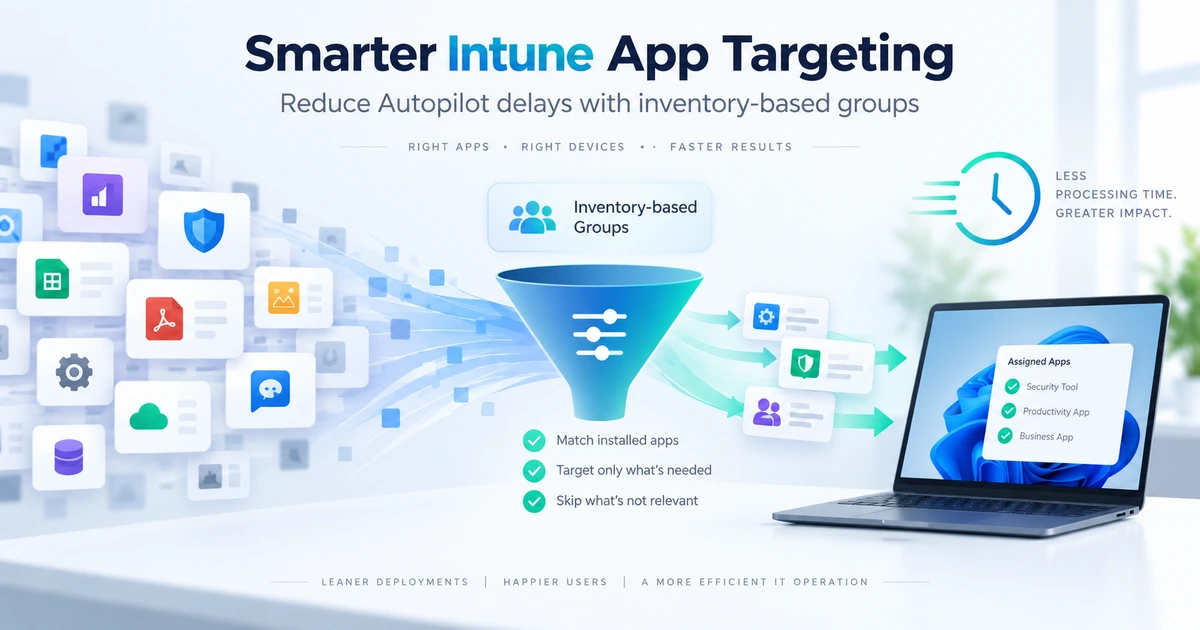
Group Automations uses application inventory from BI for Intune to automatically maintain Microsoft Entra ID device groups based on installed application information.
An administrator can define criteria such as application name, publisher, or version, and App Store for Intune keeps the corresponding Entra device group synchronized with the devices that match those conditions.
That means an application update can be targeted specifically to the devices where the application is known to exist.
Instead of:
Publish update → Assign it broadly → Every device evaluates it → Most devices decide it doesn’t apply
we can do:
Inventory identifies applicable devices → Group membership is maintained automatically → Update is assigned only to those devices
That difference is fundamental.
The requirement and detection logic is still there as a safety net.
But it no longer has to serve as the primary targeting mechanism.
Less Work for Every Endpoint
There are several benefits to approaching application updates this way.
The obvious one is Autopilot performance.
If a brand-new computer doesn’t require 200 third-party application updates, there is little value in asking the Intune Management Extension to repeatedly evaluate all 200 simply to determine that they don’t apply.
But the benefit isn’t limited to Autopilot.
More precise targeting means fewer unnecessary application evaluations across the entire managed device population.
Instead of using requirement rules as your primary targeting mechanism, requirement and detection rules become what they should be: a final validation on devices that were already reasonably expected to need the application.
There is an important difference between:
“Is this update applicable?”
and:
“Which devices should receive this update in the first place?”
Requirement rules are very good at answering the first question.
Inventory-based targeting is better at answering the second.
Sometimes the Best Feature Starts With a Problem You Had Yourself
One of the reasons I found Ben’s recent post interesting was the validation.
This wasn’t an obscure edge case I had happened to encounter years ago.
Patch My PC now says questions about Autopilot evaluating hundreds of applications are among the more common questions its support team receives.
Ben’s technical explanation also confirms the underlying Intune behavior that originally led me down this path: broad required assignments mean IME has more applications to evaluate, even when most of those applications ultimately have nothing to do on the device.
My first answer to that problem was a home-grown system for creating ConfigMgr-like query collections in Intune.
When we built App Store for Intune, we had the opportunity to solve the same architectural problem at the product level rather than asking customers to build that plumbing themselves.
That’s what Group Automations is intended to do.
It allows us to use inventory to decide which devices should receive an update before Intune ever asks the endpoint whether the update applies.
Same idea as the original workaround.
Much less plumbing.
And, most importantly, we designed App Store for Intune so that it doesn’t have to rely on broad application targeting and recreate the same problem that caused me to build the solution in the first place.
Learn More
How to Create Query Based “Collections” In Intune
Read the original PowerStacks solution that inspired Group Automations.
Group Automations (Preview)
Learn how App Store for Intune can automatically maintain Entra ID groups based on installed application inventory.
Using Patch My PC Win32 Apps with Autopilot
Read Ben Whitmore’s explanation of how required Win32 application evaluation affects Autopilot and first sign-in.