
By definition a Power BI report is a multi-perspective view into a dataset, with visuals that represent different findings and insights from that dataset. A report can have a single visual or pages full of visuals. Very often, in new releases of our products, we will add new pages to the out-of-the-box reports (bi_for_intune or bi_for_sccm) however we strongly encourage customers not to use the out-of-the-box reports. This leads to a situation where it can be time consuming to get the new pages into your custom reports. Here I will explain a quick and easy way to copy full pages or individual visuals from one set of reports to another.
1. Open the Out-of-the-Box Reports
- Begin by opening the out-of-the-box reports.
- Select Edit. (Don’t forget to always “reset to default” before entering edit mode)
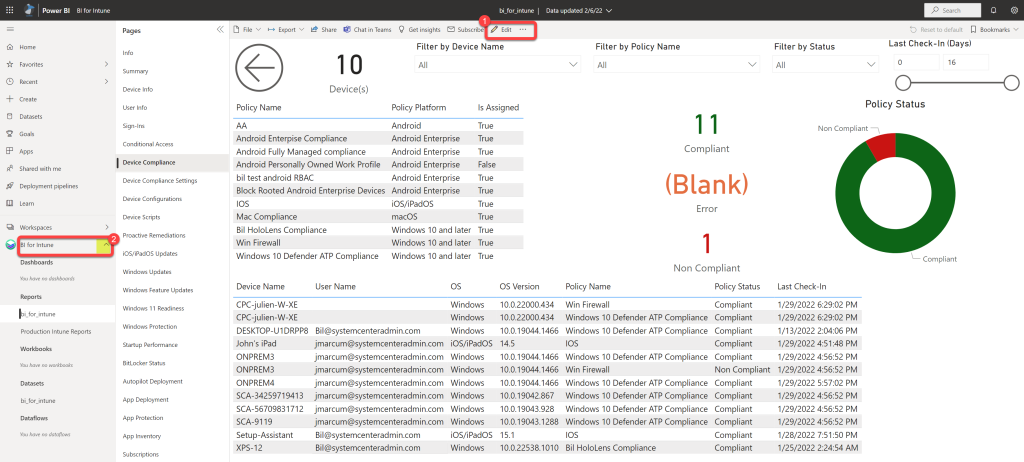
2. Copy the Source Page
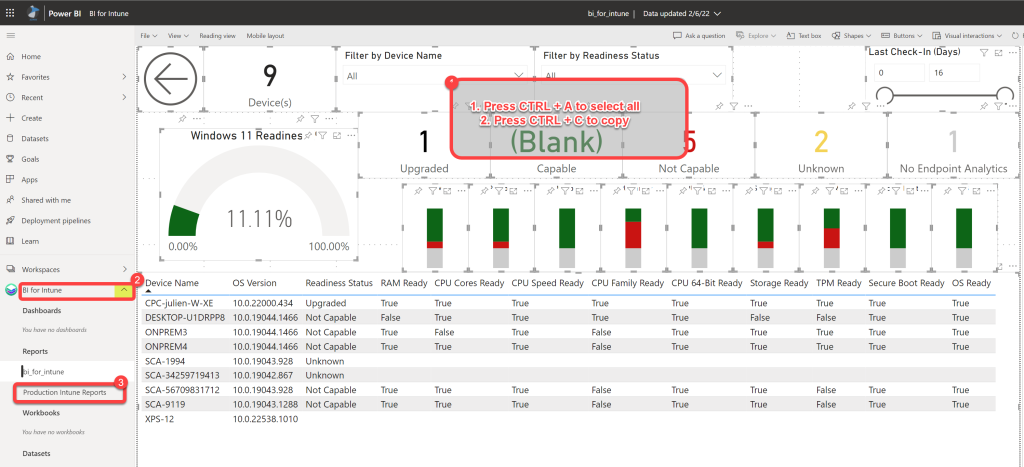
- Open the page that you’d like to copy.
- Press CTRL + A to select all. Alternatively, you may select individual visualizations rather than all content on the page.
- Press CTRL + C to copy.
- On the left navigation menu, below “Workspaces” you will see your PowerStacks workspace, select the caret icon to expand the workspace. (Note: Your workspace name may vary from the screenshot)
- On the left navigation menu, in your PowerStacks workspace, select the report to which you would like to insert into. This could be a new page or to correct problems with an existing page.
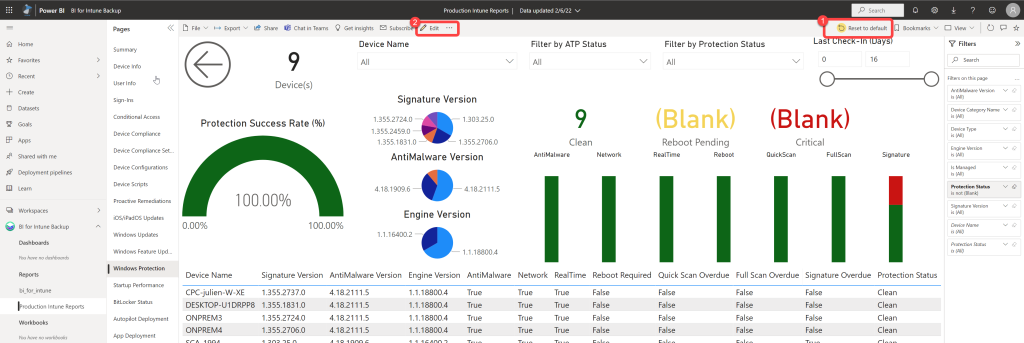
3. Switch the Destination Report to Edit Mode
- Select Edit. (Don’t forget to always “reset to default” before entering edit mode)
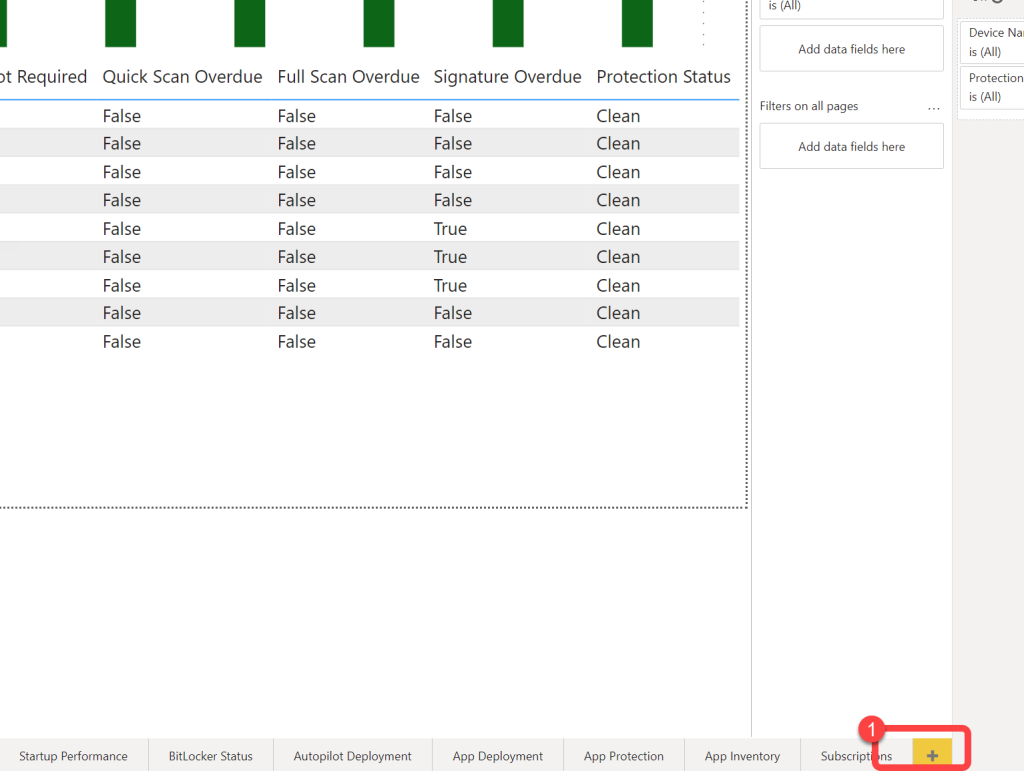
4. Create a New Page
- Select the yellow plus (+) sign to create a new page. Alternatively, select the existing page that you would like to paste the copied data in to.
5. Rename the New Page
- If applicable, Right-click the new page tab and select Rename.
- Rename the page.
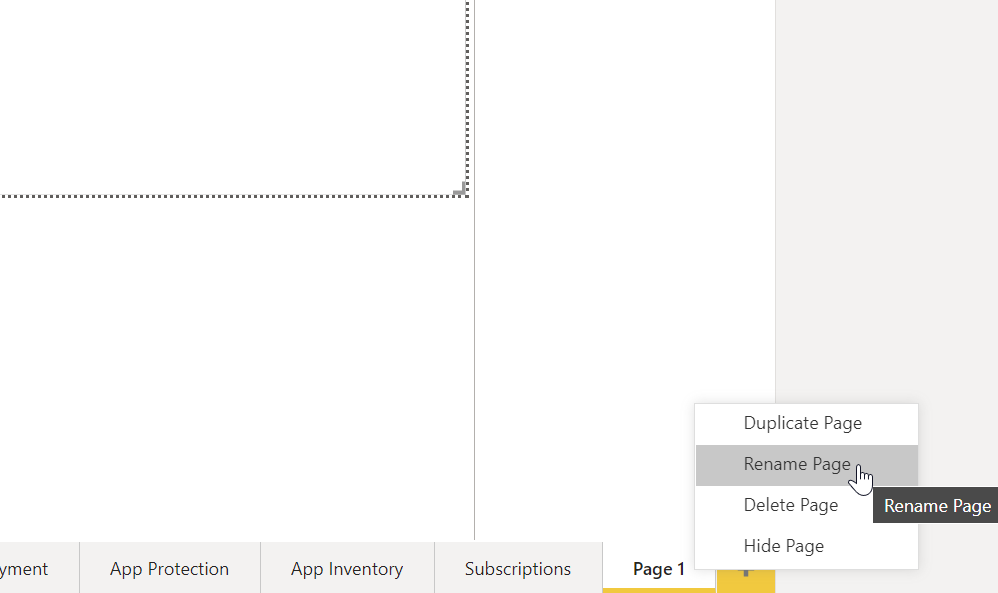
6. Paste and Save
- If pasting into an existing page first delete the visualizations that you wish to replace.
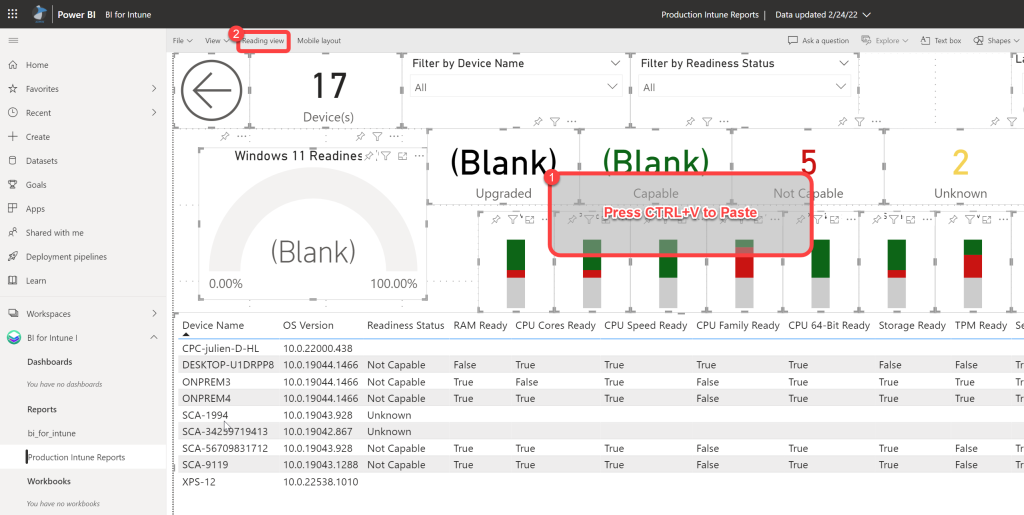
- Press CTRL + V to paste.
- Exit Edit mode and save the changes.
Looking for pre-built reports to customize? BI for Intune and BI for SCCM ship with dozens of Power BI report pages covering compliance, device health, software updates, and more — ready to copy, customize, and share using the techniques in this article. Start a free trial →