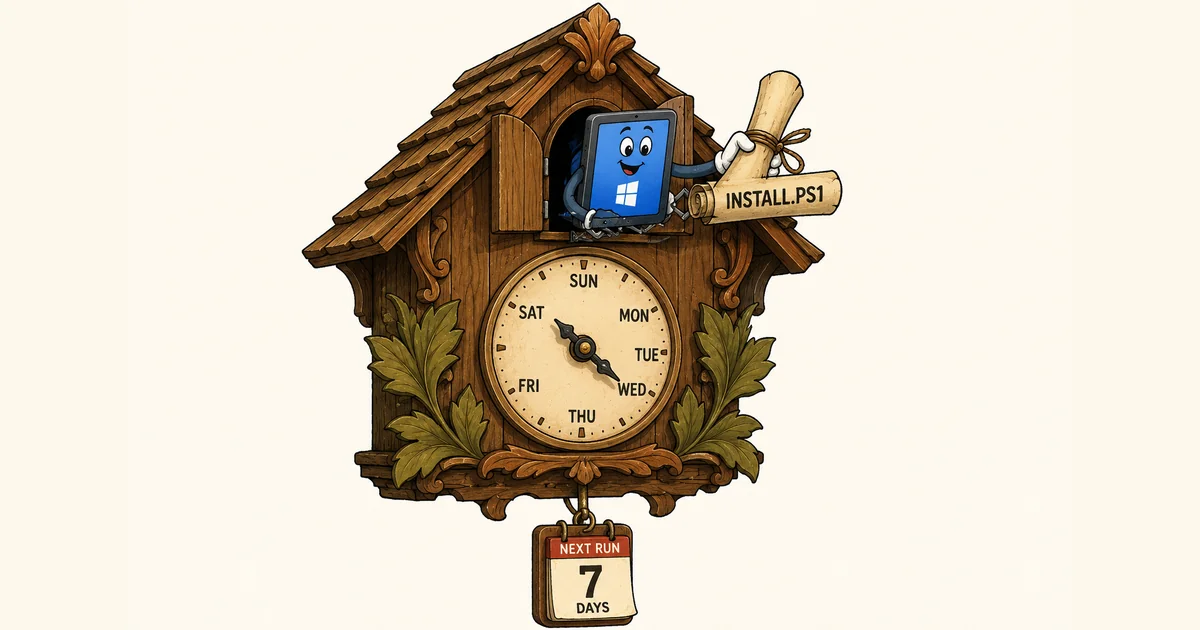
If you’ve ever needed an Intune Win32 app to re-run on a schedule, you’ve probably run into the same wall I have: Win32 apps don’t have a native concept of “run this every N days.” They install once, detection says “installed,” and that’s the end of it.
Proactive Remediations solve this, but they require the right licensing and they don’t support content. If your script needs supporting files (certificates, configs, executables, a CSV, whatever), Remediations are off the table.
Here’s the pattern I use to get scheduled re-execution with content out of plain Win32 apps. It uses a registry timestamp as the detection signal, and it’s stupidly simple once you see it.
Download the scripts
All scripts are available on GitHub:

The script also has a page in our free scripts library, with a short description and the download: Re-Run an Intune Win32 App on a Schedule Instead of Once.
Each script is self-contained, easy to modify, and ready to deploy. Pulling from GitHub means you always get the latest version, including any fixes or improvements made after this post was published.
The core idea
Two scripts:
- A worker script that does the actual work, then writes the current date to the registry on success.
- A detection script that reads that date, compares it to the current date, and returns “not installed” once the interval has elapsed.
Intune re-evaluates Win32 app detection roughly every 8 hours. When the detection script reports “not installed,” Intune re-runs the install command, which is our worker. The worker does its thing, stamps a fresh date, and the cycle continues.
That’s the whole pattern. Everything below is just making it foolproof.
Detection script semantics: get this right
Before any code, the most important thing to internalize is how Intune evaluates detection script output. Per Microsoft’s documentation:
If the script exits with a nonzero value, the script fails and the application detection status isn’t installed. If the exit code is zero and STDOUT has data, the application detection status is installed. However, if any data is written to STDERR, the detection result is evaluated as not installed, even if data is written to STDOUT and the script exits with an exit code of zero.
So:
| Output | Result |
|---|---|
| Any STDERR | Not installed (regardless of exit code or STDOUT) |
| Non-zero exit | Not installed |
| Exit 0 + STDOUT has data | Installed |
| Exit 0 + no STDOUT | Not installed |
I use Exit 1 for “not installed” in my detection scripts. It reads cleanly: the script literally says “exit 1” right next to a Write-Host explaining why. The STDERR rule is the one that bites people. A single Write-Error or unhandled exception in the wrong place will override everything else and silently flip detection to “not installed” forever. We’ll account for that.
Why a timestamp in the registry
A few options exist for tracking “when did this last run”:
- A file on disk with a
LastWriteTime - A scheduled task’s
LastRunTime - A registry value
I use a registry value because it’s:
- Easy to inspect in regedit during troubleshooting
- Less likely to be accidentally deleted than a file on disk
- Trivial to read and write from PowerShell
- Survives the worker being repackaged or reinstalled (path is independent of script location)
- Easy to clean up in the uninstall command
PowerShell doesn’t have a native “date” registry type. The registry itself doesn’t have one. So we store the date as an ISO 8601 UTC string ('o' format). That format is human-readable in regedit and culture-independent (no MM/dd/yyyy vs dd/MM/yyyy mess). It also round-trips cleanly through [datetime]::Parse.
The layout looks like this:
HKLM:\SOFTWARE\<CompanyName>\<AppName> LastExecutionDate REG_SZ 2026-05-26T14:32:10.1234567Z Version REG_SZ 1.0Note the Version value alongside the timestamp. That’s the second half of the pattern; more on it in a moment.
The detection script
Configuration is hardcoded in the detection script. Win32 app detection scripts don’t accept runtime arguments from Intune, so there’s no point in a param() block, and putting one there just creates a foot-gun (someone tests with overrides, packages with the test values still in place, devices misbehave).
Five details worth knowing when you read Detect-ScheduledWorker.ps1:
- The 64-bit relaunch shim at the top is standard. SYSTEM context on x64 Windows can spawn the 32-bit PowerShell host, and registry reads from there hit the WOW6432Node view, which isn’t where we wrote anything.
- Every
Exit 1is preceded by aWrite-Hostdescribing exactly why. When something misbehaves on one device out of 300k, the IME log tells you the reason immediately. - The parse failure goes through
Write-Host, neverWrite-Error.Write-Errorwrites to STDERR, which would force “not installed” regardless of what we did with the exit code. We want intentional control of that signal. -ErrorAction SilentlyContinueon theGet-ItemPropertyis there becauseTest-Pathalready confirmed the key exists. A transient access error shouldn’t throw a hard exception.- The
Test-PayloadStillInPlaceblock is commented out by default. Uncomment and implement it when the worker’s payload could be reverted between runs (cert deleted, file removed, scheduled task unregistered, registry value changed). With it enabled, detection triggers a re-run as soon as the verification fails, instead of waiting out the full interval with broken state on the device.
The worker script
The worker is the install command. It’s parameterized (runtime arguments work here, unlike detection), so you can ship one script and configure it per app by changing the install command line.
Three behaviors in Invoke-ScheduledWorker.ps1 that matter:
The timestamp is only written on success. If the payload throws, the Catch block skips the stamp and exits non-zero. Detection will see the stale timestamp on the next cycle and trigger another re-run. A broken worker doesn’t silently suppress retries for the full interval.
The log file is overwritten on each run. No rotation logic, no orphaned files, no disk-space worries on a 300k-device fleet. The startup banner captures everything you need to diagnose a single device’s behavior at scale (RunAs identity, computer name, PowerShell version, all configuration values).
The startup banner is intentionally verbose. When somebody comes to you with “this one device isn’t behaving,” the first thing you want is the runtime context, and it’s right at the top of every log.
The Version field: your emergency lever
The detection script doesn’t just check the timestamp. It also checks that the Version value in the registry matches $ExpectedVersion. If they don’t match, detection returns “not installed” regardless of how recent the timestamp is.
Why does this matter? Suppose you’ve been running this app on a 7-day interval for three months. Then you find a bug in the worker payload. You fix it and ship a new package. Without the version check, devices that ran yesterday won’t re-run for another six days; they’re stuck with the broken state.
With the version check: bump $ScriptVersion in the worker and $ExpectedVersion in the detection script to 1.1, repackage, and within the next evaluation cycle, every device sees a version mismatch and re-runs the new worker. Stale state is fixed within hours, not weeks.
Win32 app packaging
| Setting | Value |
|---|---|
| Install command | powershell.exe -ExecutionPolicy Bypass -NoProfile -File .\Invoke-ScheduledWorker.ps1 |
| Uninstall command | powershell.exe -ExecutionPolicy Bypass -NoProfile -Command "Remove-Item 'HKLM:\SOFTWARE\PowerStacks\ScheduledWorker' -Recurse -Force -ErrorAction SilentlyContinue" |
| Install behavior | System |
| Device restart behavior | No specific action |
| Detection rule | Use a custom detection script (Detect-ScheduledWorker.ps1) |
| Run script as 32-bit | No |
The uninstall command just removes the registry key. That’s all you need. The next time the user retires the app or you remove the assignment, the device is clean.
Things to watch out for
A few gotchas I’ve hit, so you don’t have to.
Minimum practical interval is about 8 hours. Intune re-evaluates Win32 app detection roughly every 8 hours, plus on IME service restart and on sync. A 1-hour interval will not run hourly. If you need sub-8-hour cadence, you’re in scheduled-task territory, not Win32 app territory.
The two scripts must agree. CompanyName and AppName must match between worker and detection, or detection will look at a path the worker never wrote to and the app will re-run every cycle forever. ExpectedVersion (detection) must match ScriptVersion (worker), or the version check will trigger constant re-runs.
Don’t use Write-Error in the detection script. Anything to STDERR forces “not installed” regardless of exit code. Use Write-Host for status, Exit 1 for the not-installed signal. Reserve exceptions strictly for the Try/Catch block, which converts them to Write-Host + Exit 1.
Store dates in UTC. SYSTEM context across time zones and roaming devices will bite you if you don’t. The 'o' format string produces an ISO 8601 UTC string that’s round-trip safe.
Don’t stamp on failure. I said this above and I’ll say it again because it’s the easiest thing to get wrong. If the payload fails, the worker must exit without writing the timestamp. Otherwise a broken run silently suppresses retries for the full interval.
That’s the pattern
Two scripts and a registry key. The worker does the work and stamps success. The detection script reads the stamp and decides whether to ask for another run.
Not glamorous. But it works with content, which is the whole reason to use this instead of Proactive Remediations.
Both scripts are in the companion repo. Drop in your payload, set your interval, package it, ship it.
John Marcum (PJM), @PJ_Marcum