A few days ago, I was asked to create a new Entra ID group and a new Intune scope tag, then add both of them to hundreds of Win32 apps and Windows configuration profiles.
Creating the group and scope tag was the easy part.
The thought of opening hundreds of apps and configuration profiles in Intune and adding the same group and scope tag to each one by hand wasn’t especially appealing. So, as tends to happen, what should have been a fairly boring administrative task turned into a PowerShell project.
I wrote Update-IntuneAssignment, a Windows GUI wizard for bulk adding assignments and role scope tags to Intune apps and configuration profiles.
Then, two days later, the plan changed.
I was asked to remove the group and scope tag from everything I had just added them to.
So the script learned how to remove things too.
Sometimes requirements gathering happens after development.
What it does
Update-IntuneAssignment lets an Intune administrator make the same assignment or scope-tag change across a large number of objects without working through them one at a time in the Intune admin center.
It supports:
- Win32 apps, including
win32LobAppandwin32CatalogApp - Settings Catalog policies and templates
- Legacy Windows device configuration profiles
- ADMX / Administrative Templates
- Windows compliance policies
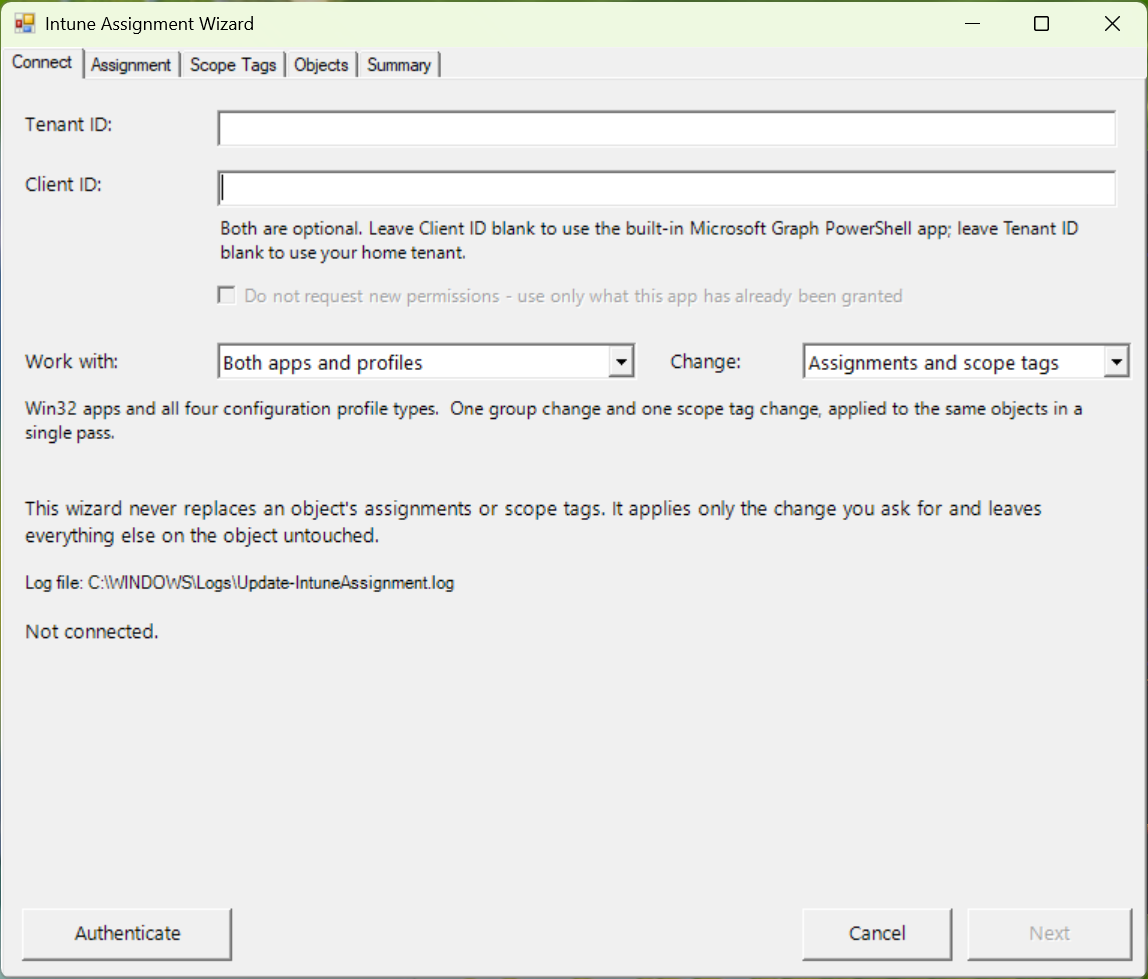
You can work with apps, configuration profiles, or both in the same run, and independently choose whether you want to change assignments, scope tags, or both. Everything starts on the Connect tab.
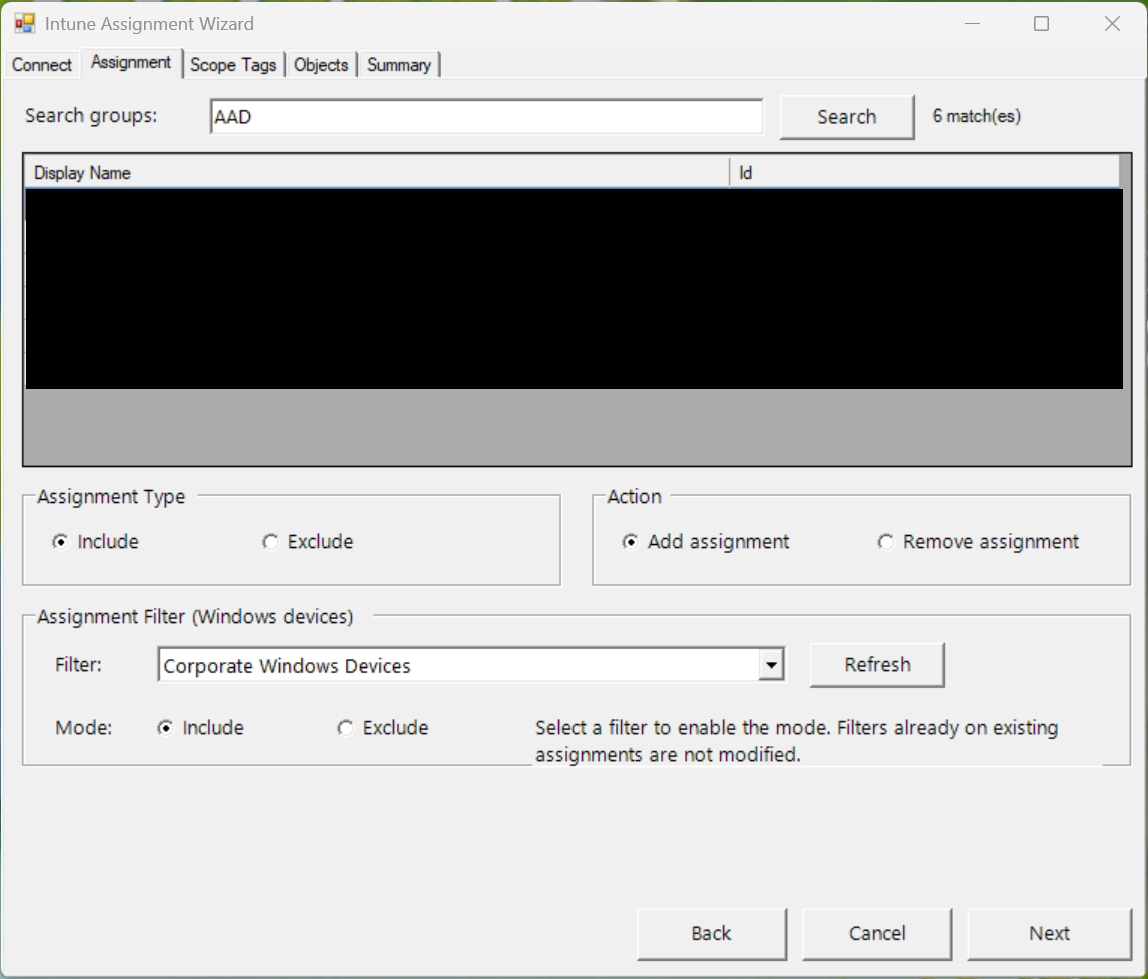
For assignments, search for an Entra ID group, choose Include or Exclude, choose Add or Remove, and optionally select a Windows assignment filter.
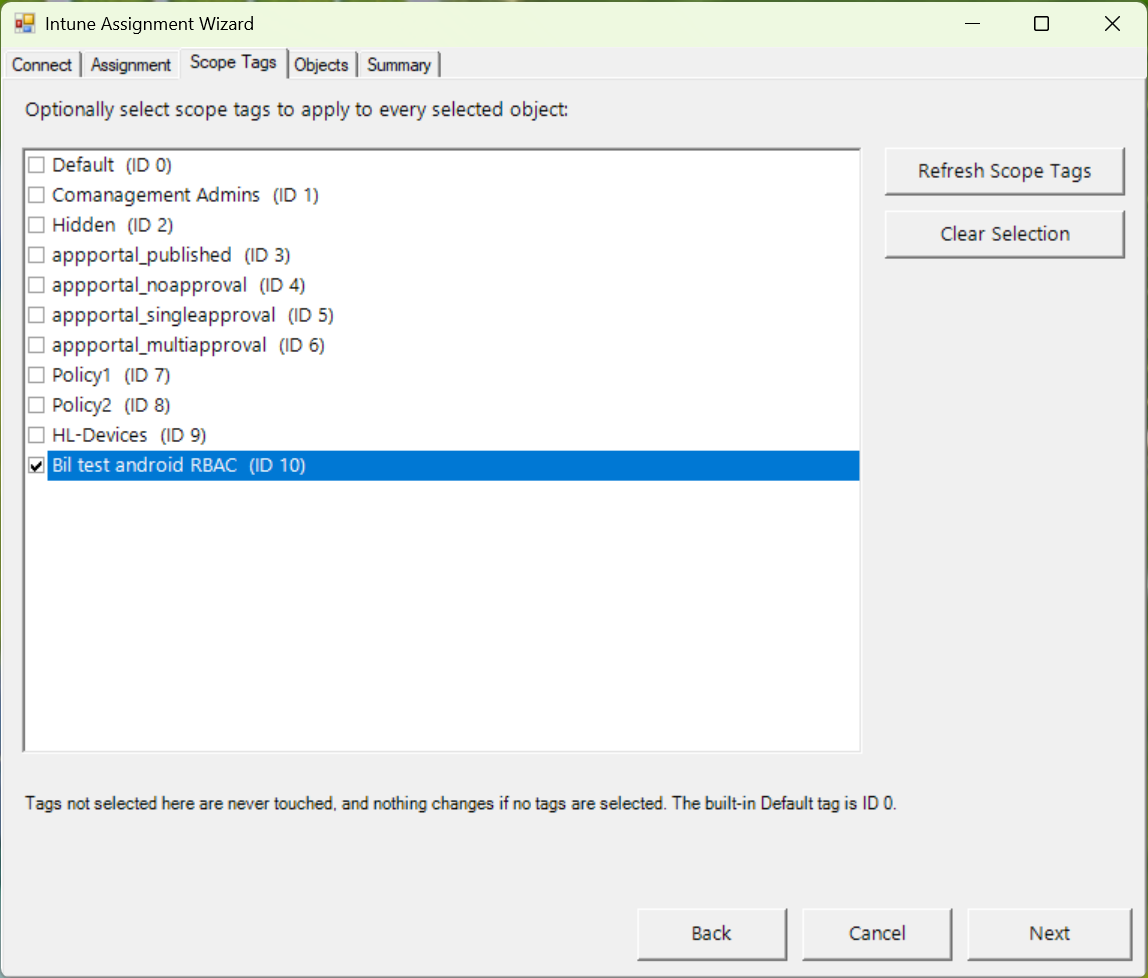
For scope tags, select one or more tags and choose whether to add or remove them. Tags you don’t select are never touched, and the tool won’t remove an object’s last remaining tag.
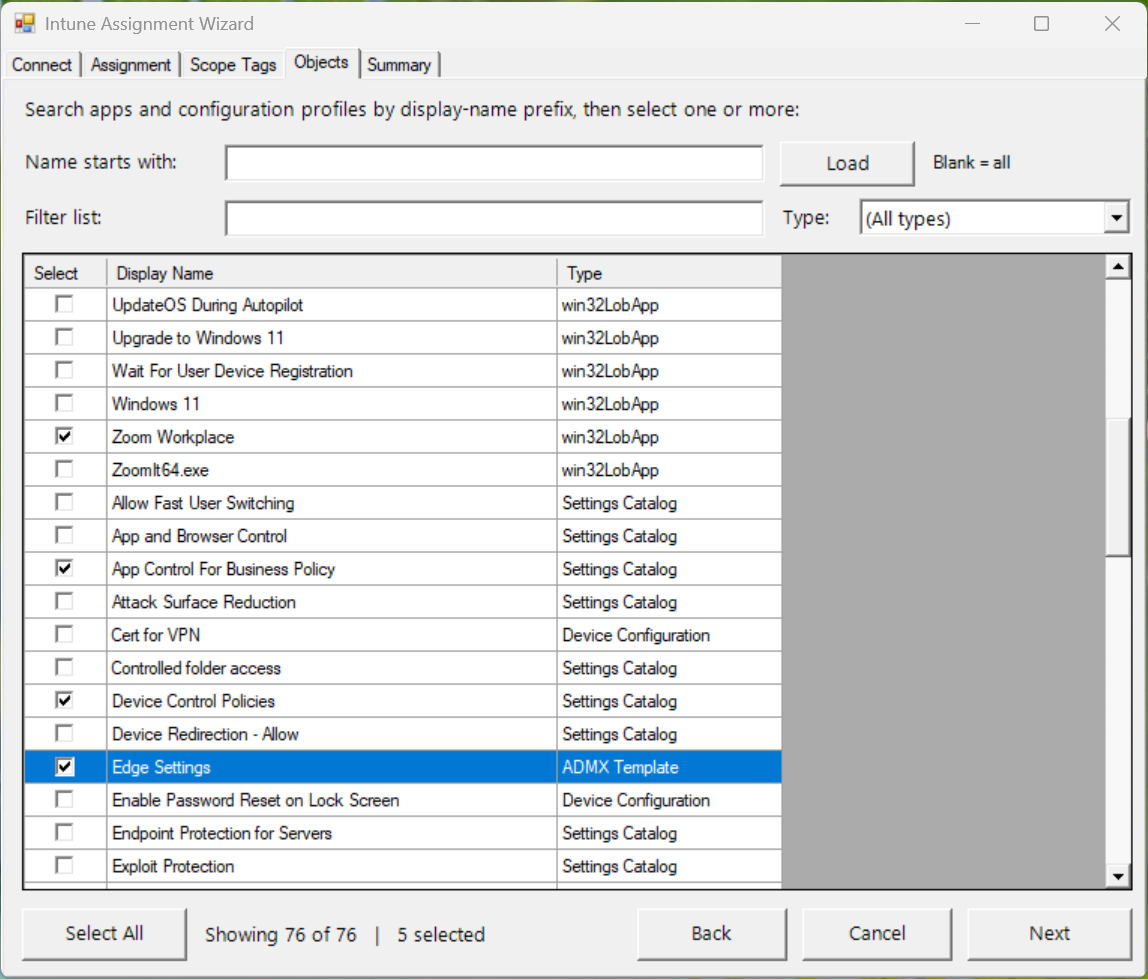
Then select the apps and configuration profiles you want to change and let the script do the repetitive part.
Bulk editing without destroying existing assignments
The goal wasn’t just to make bulk changes. I also wanted to make them safely.
Win32 apps are relatively straightforward because Microsoft Graph exposes an assignments collection. Adding an assignment can be done with an additive POST without rebuilding every assignment already on the app.
Windows configuration profiles are a little more interesting.
For the profile types supported by the script, Graph exposes a bulk /assign action. That action doesn’t mean “add this assignment.” It means, essentially, “these are now the assignments.”
If you send only the new group, you can wipe out everything that was already assigned to the profile.
The script handles that by doing a read-merge-write:
Read the current assignments | vMerge in the requested change | vWrite the complete assignment set backWhen adding a group, all existing targets remain in place. When removing a group, only that group’s matching assignment is removed. That includes preserving assignments the tool itself can’t create, such as All Users, All Devices, and Configuration Manager collection targets.
If the script can’t successfully read the current assignments for a configuration profile, it won’t attempt to write the new assignment set.
Scope tags are handled the same way. The script reads the existing roleScopeTagIds, changes only the tags you selected, and writes the resulting set back.
Removing a group is actually the harder problem
Adding a group to hundreds of objects is pretty straightforward, because you tell the tool which objects you want to modify.
Removing one is different.
When I got the second request two days later, I needed to answer a different question:
Where did I just assign this group?
Microsoft Graph doesn’t provide a convenient query that says, “give me every Intune app and configuration profile assigned to this group.”
So, for a Remove operation, the tool has to survey the supported Intune objects and inspect their assignments to find where the group is currently targeted.
On a large tenant, that can take a little while. The wizard warns you before the survey begins, and the assignment reads are batched to reduce the number of Graph round trips.
When the survey finishes, the matching objects are displayed and pre-selected, so you can review them before making any changes.
The tool also flags a couple of removal scenarios that deserve extra attention:
- The group is currently an exclusion. Removing the exclusion could expand the deployment.
- The group is the object’s only assignment. Removing it will leave the app or policy assigned to nobody.
That second request ended up making the tool considerably more useful than the original one would have been.
Assignment filters are supported
When adding an assignment, you can optionally select an existing Windows assignment filter and specify whether the filter should be included or excluded. Filters already attached to other assignments aren’t changed.
Again, the idea is to modify exactly what you selected without rebuilding or disturbing the rest of the assignment configuration.
Preview before making changes
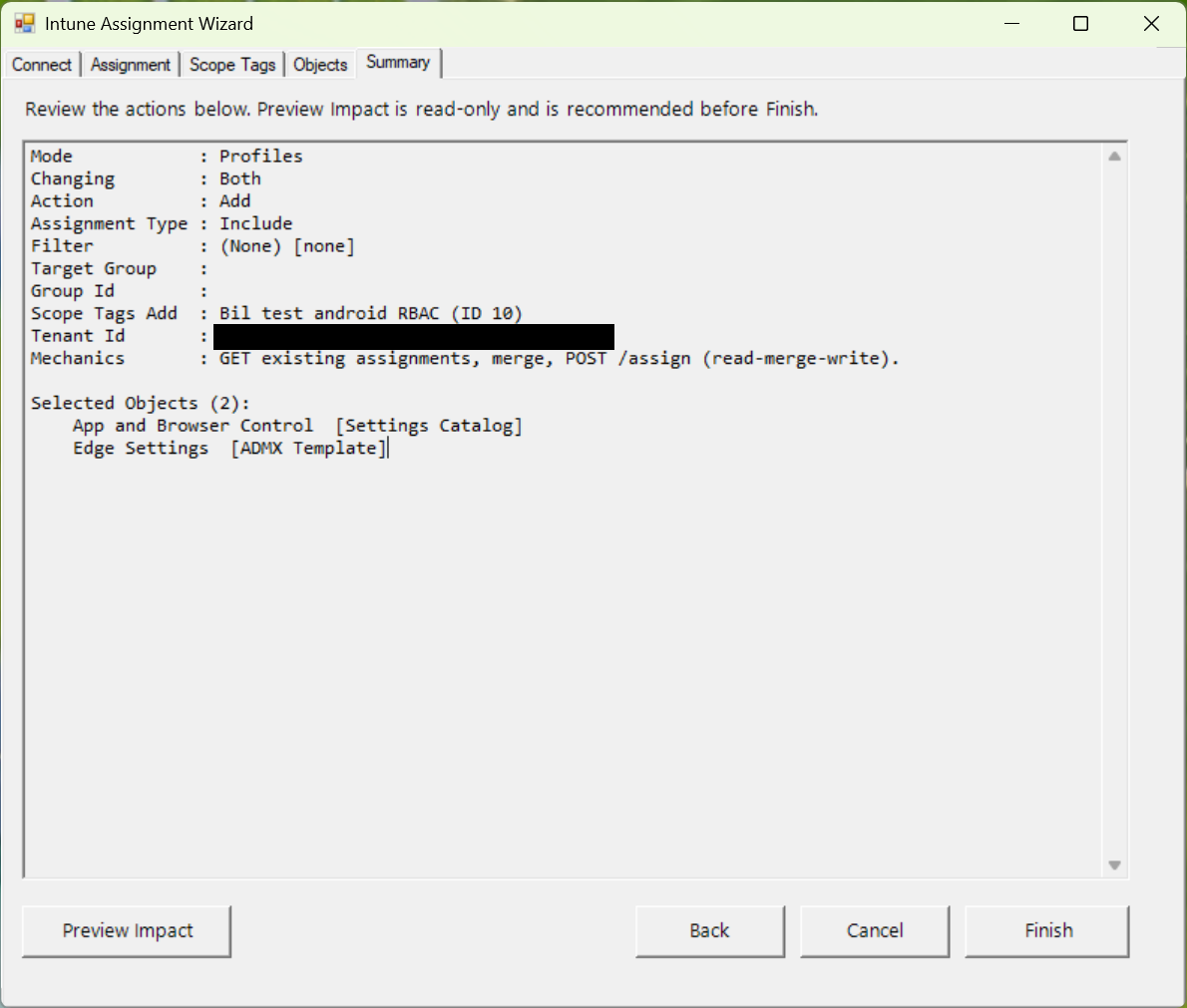
Before anything is written, the Summary tab shows what the run is configured to do. There’s also a Preview Impact option that reads the current state and shows the expected impact without changing anything.
For something you’re about to run against hundreds of Intune objects, that’s probably worth clicking.
It only needs the Graph authentication module
I deliberately kept the Microsoft Graph PowerShell dependency small. The only Graph module required is:
Microsoft.Graph.AuthenticationAll Graph operations run through Invoke-MgGraphRequest using the session established by Connect-MgGraph. If you don’t already have the module:
Install-Module Microsoft.Graph.Authentication -Scope CurrentUserThe wizard uses WinForms, so it runs on Windows with either Windows PowerShell 5.1 or PowerShell 7.
Permissions
The wizard uses delegated Microsoft Graph authentication and requests these scopes:
| Scope | Used for |
|---|---|
DeviceManagementApps.ReadWrite.All | Apps and app assignments |
DeviceManagementConfiguration.ReadWrite.All | Configuration profiles, assignments, and scope tag IDs |
DeviceManagementRBAC.Read.All | Reading the scope tag list |
Group.Read.All | Searching for target groups |
Graph permissions don’t override Intune RBAC. The signed-in administrator still needs an Intune role that permits changes to the selected objects. The tool checks the Graph scopes after authentication and also reads effective Intune permissions, so it can warn when the administrator’s role doesn’t appear to cover the selected object types.
Tenant ID and Client ID are optional. Leave them blank to use the Microsoft Graph PowerShell application against your home tenant, or provide your own public-client application registration.
Logging
Every session is logged to Update-IntuneAssignment.log in the Windows logs folder, with a fallback to the user’s temp directory if necessary.
The log records the selected operation, the group and assignment settings, the scope tags, the selected objects, wizard navigation, Graph request results, and the outcome of the changes. The goal is to have enough information to reconstruct what happened during a run without relying on someone’s memory of what they clicked.
Getting started
Download Update-IntuneAssignment_GUI_Wizard.ps1 and run:
.\Update-IntuneAssignment_GUI_Wizard.ps1Then:
- Choose Win32 apps, Windows configuration profiles, or both.
- Choose assignments, scope tags, or both.
- Authenticate to Microsoft Graph.
- Select the group and assignment options if you’re changing assignments.
- Select the scope tags if you’re changing tags.
- Select the objects you want to modify. For a group removal, let the wizard survey the tenant and find the matching objects.
- Review the Summary and optionally run Preview Impact.
- Click Finish.
That’s it. What started as “please add this group and scope tag to hundreds of objects” became “now please remove them from hundreds of objects” two days later. At least the second request was a lot easier than the first.
Get the script
The script is on GitHub: powerstacks-corp/Update-IntuneAssignments.
It’s provided as-is, and it makes real changes to Intune, so test against a small selection first and use Preview Impact before making a large production change.
If you find a bug or have an idea for something it should do, open an issue on GitHub.