One of the most common questions we receive from BI for Intune customers is:
“Why do I see duplicate rows for the same device?”
At first glance, seeing a device listed multiple times can look like a data issue. In most cases, however, the data is behaving exactly as designed.
The reason is that BI for Intune associates users with devices in multiple ways, allowing you to report on device ownership, enrollment, and usage from different perspectives.
How BI for Intune Associates Users with Devices
For Windows devices, BI for Intune can associate a user with a device using four different methods:
Primary User
The Primary User is the user assigned to the device in Microsoft Intune.
This is typically the user who is considered the owner of the device and is often the best choice for reporting in environments where devices are assigned to individual users.
Enrolled User
The Enrolled User is the account that enrolled the device into Intune.
Depending on your deployment process, this may or may not be the same person who uses the device.
For example, an IT administrator may enroll devices on behalf of end users, resulting in a different enrolled user than the device’s primary user.
Last Logon User
The Last Logon User is the most recent user who signed in to the device.
This value is collected through Microsoft Graph and is not exposed directly in the Intune admin center.
This association is often useful when troubleshooting shared devices or identifying who most recently used a computer.
Sign-In User
BI for Intune can also associate users to devices through Microsoft Entra sign-in activity.
This allows you to identify users who have accessed cloud resources from managed devices, even when they are not the device’s primary or enrolled user.
Why Multiple Rows Appear
Because a device can have multiple user associations, BI for Intune may display multiple rows for the same device.
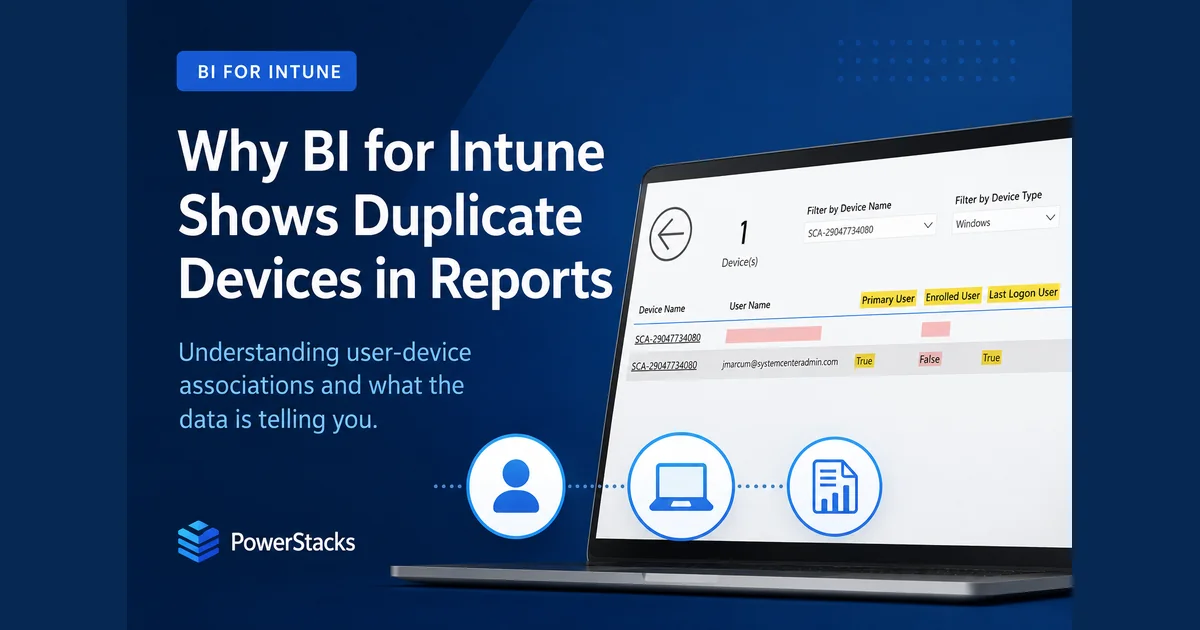
In this screenshot we can see that jmarcum is the primary user and the last logon user of the device, but jmoreau is who enrolled the device into Intune.

Although there are two rows, there is still only one device.
The multiple rows simply reflect different user-device relationships.
Why Some User Fields May Be Blank
In this screenshot we can see that jmarcum is the primary user and the last logon user of the device SCA-29047734080. However, there’s a duplicate row for the device where the username is blank.

This can happen a few different ways, but it’s likely the device was deployed with self-deploying mode, it’s a Cloud PC, or the user who enrolled the device has been deleted from Entra ID.
This is common in several scenarios:
Autopilot Self-Deploying Mode
Devices deployed using Autopilot Self-Deploying Mode do not have a traditional enrolling user, which can result in blank user associations.
Cloud PCs
Cloud PCs frequently have no enrolled user associated with the device record.
Deleted Accounts
If the user who enrolled the device has been removed from Microsoft Entra ID, BI for Intune may still have evidence of the enrollment relationship even though the user account no longer exists.
What About Device Counts?
A common concern is that duplicate rows might inflate device counts.
They do not.
Notice that in both screenshots above, the count of devices is 1. BI for Intune counts the unique number of devices, not the number of rows in the table.
As a result:
- One device remains one device.
- Multiple user associations do not increase device counts.
- Device-based metrics remain accurate.
Why We Keep All Associations
Every organization manages devices differently.
Some organizations consider the Primary User to be the authoritative owner of a device. Others prefer the Enrolled User or the Last Logon User.
Shared device environments often have no primary user at all.
Because there is no universal answer, BI for Intune preserves all available user-device relationships and allows you to decide which association is most meaningful for your reporting requirements.
Common Scenarios We See
Shared Devices
Shared devices often have no Primary User and may be associated with many users over time.
Cloud PCs
Cloud PCs frequently lack an Enrolled User but still have Primary User and usage information.
Autopilot Self-Deploying Mode
Devices deployed using Self-Deploying Mode often have no Enrolled User because no user account is involved in the enrollment process.
Co-Managed Devices
In some environments, co-management data can result in multiple Primary User relationships being reported. While this is uncommon in Intune-only environments, it is something we occasionally encounter with Configuration Manager integrations.
Which User Association Should You Use?
There is no simple answer, because the right association depends on the environment.
Take hospitals. Clinical staff move from floor to floor all day, signing in and out of shared workstations, so the Primary User rarely means much. The person who most recently used a device, the Last Logon User, is usually the more meaningful signal. The same goes for 24x7 call centers, where shift workers sign into a different machine each day, or where three or four people rotate through the same desk.
A typical office worker is the opposite. Someone in accounting, or an engineer, usually has one assigned device that only they use, day in and day out, so the Primary User is a dependable owner.
Then there are organizations that, against Microsoft best practices, have IT enroll every device instead of the end user. In that case the Enrolled User tells you who set the device up, which is not the same as who relies on it every day.
No single association is correct for everyone. Match it to how devices are actually used in your environment, and the duplicate rows stop being confusing and start being useful.
Need Help?
If you’re unsure which user-device relationship is most appropriate for your environment, we’re happy to help.
Contact support@powerstacks.com to schedule a support session, and we’ll help you identify the best approach for your reporting requirements.
Happy reporting!
John Marcum
PowerStacks