
If you’ve ever wanted an Intune Remediation to run only during specific hours, you’ve probably noticed that Remediations don’t have any native concept of a maintenance window. You pick a schedule (every 1 hour, every 1 day, etc.), assign it to a group, and the remediation runs whenever Intune feels like it. There’s no “Saturdays only” toggle, no “after business hours” option, no equivalent of a Configuration Manager maintenance window.
Win32 apps have the same gap. We can argue for native maintenance windows in the Intune feedback portal until the heat death of the universe. In the meantime, here’s a way to fake it with what’s already there.
The trick
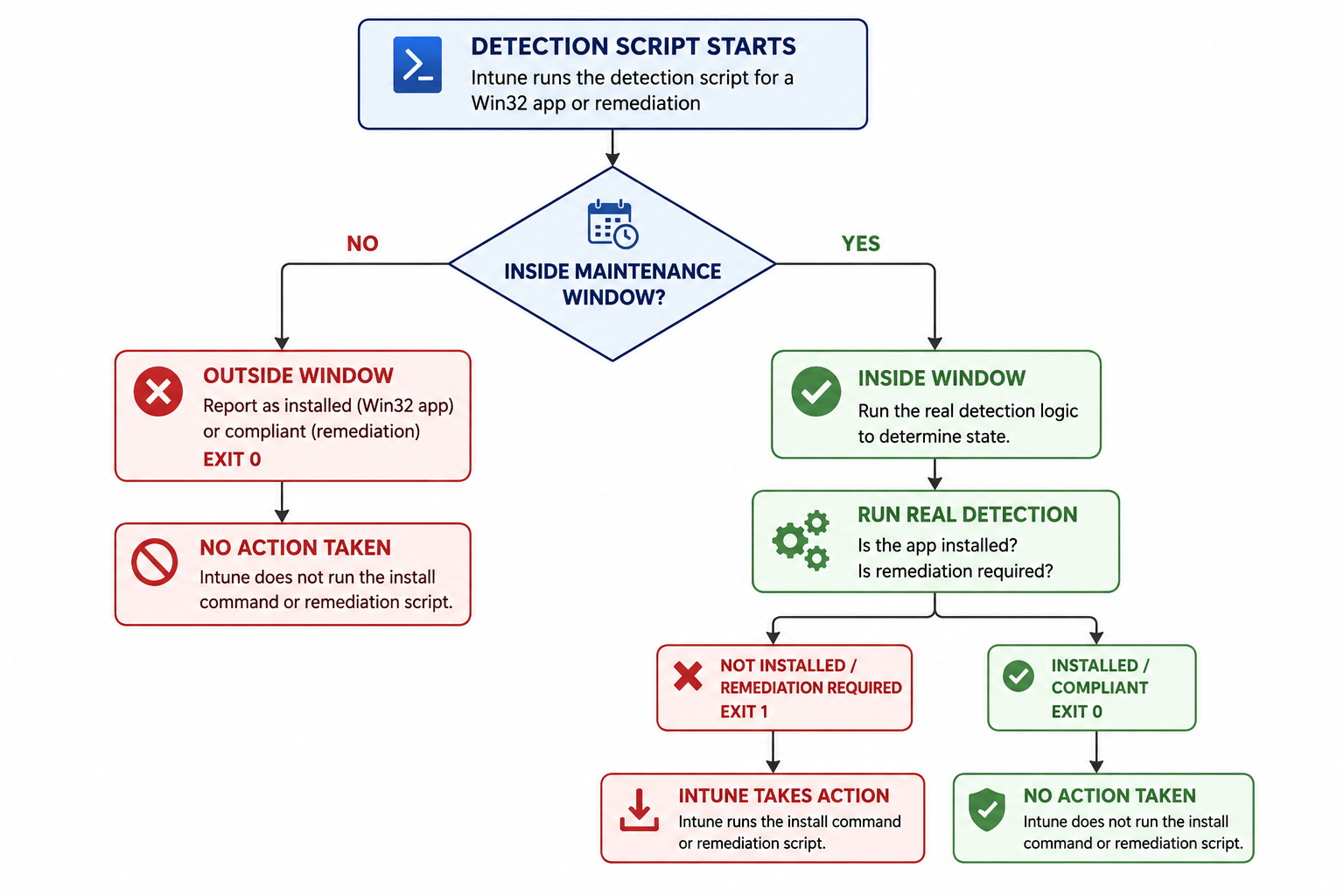
Both Remediations and Win32 apps use detection scripts. Detection scripts return “needs work” or “doesn’t need work” via exit code. Intune only takes action when detection says “needs work.”
So if I make the detection script lie during the wrong hours, Intune does nothing. If it tells the truth during the right hours, Intune behaves normally.
That’s the whole pattern. Put a maintenance-window check at the very top of your detection script. If the current device time is outside the window, exit 0 immediately. Skip the real detection logic. Intune sees “no action needed” and moves on.
Inside the window, the detection script runs normally and Intune does whatever it would have done.
Download the script
The reference script is on GitHub:

The window is configurable via a hashtable at the top:
$MaintenanceWindow = @{ StartDay = 'Saturday' StartTime = '00:00' EndDay = 'Monday' EndTime = '00:00'}Set those to whatever window suits you, drop in your real detection logic where the placeholder is, package and ship.
Why this works for Remediations specifically
For Win32 apps, detection script exit 0 with stdout means “installed, don’t run install command.” For Remediations, detection script exit 0 with stdout means “compliant, don’t run remediation.” Different vocabulary, same mechanism.
So when the maintenance-window check returns “outside the window” and I exit 0, Intune treats the device as compliant and never invokes the remediation script. The remediation still runs on its normal Intune schedule (whatever you configured), but it only does anything during the maintenance window.
This is the only practical way I’ve found to add a maintenance window to a Remediation. There’s no requirement script for Remediations like there is for Win32 apps. There’s no schedule override. The detection script is your only handle on “should this thing actually take action right now.”
An example
Say your org allows maintenance only on weekends. Configure:
$MaintenanceWindow = @{ StartDay = 'Saturday' StartTime = '00:00' EndDay = 'Monday' EndTime = '00:00'}A device evaluates the detection script on Wednesday afternoon. Outside the window. Exits 0. Intune does nothing.
The same device evaluates on Saturday morning. Inside the window. Runs the real detection logic. If the device needs remediation, the remediation script fires.
Whatever you’d normally check for (a missing registry value, a stale certificate, a service that should be running) happens during the window and nowhere else.
Bigger windows are more reliable
The fine print: this only works when Intune actually evaluates the script during the window. Intune evaluates detection roughly every 8 hours for Win32 apps, and Remediations run on whatever interval you configured (commonly daily). A weekend window will almost certainly catch at least one evaluation. A two-hour window might not.
Configure for the smallest practical window and stop. A weekly weekend window covers virtually any maintenance scenario without making evaluation chance the limiting factor.
Use local device time
The script uses the device’s local time by default. A device in Sydney sees Saturday at 00:00 Sydney time. A device in Berlin sees Saturday at 00:00 Berlin time. Each user gets their local weekend off, which is usually what you want.
If you want a single global window (everyone gets maintained at the same wall-clock instant regardless of time zone), swap Get-Date for [DateTime]::UtcNow in the script and configure the window in UTC. I haven’t found a use case for this in practice but the option is there.
Combining with scheduled re-execution
If you’ve also got Scheduled Re-Execution for Intune Win32 Apps Using a Registry Timestamp in your toolkit, the two compose well. Stack the maintenance window check on top of the timestamp interval check:
if (-not (Test-IsInsideMaintenanceWindow $MaintenanceWindow)) { exit 0 }if (-not (Test-ScheduledIntervalElapsed)) { exit 0 }# Real detection logicThat gives you “every other Saturday” or “first Saturday of the month” or “monthly between maintenance hours” without ever leaving Intune.
Forcing evaluation during the window
The technique above is passive. It does nothing to make sure Intune actually evaluates your device during the window. If you want to be more aggressive about it, the older Win32 maintenance window post takes a different angle: a Win32 requirement script that creates a scheduled task to trigger an IME sync at a chosen time, increasing the odds the device evaluates during the window. You could lift that scheduled-task trigger into the worker side of a remediation and get the best of both worlds: active sync attempt plus the detection-script gate.
I usually don’t bother. A weekly weekend window will be caught by something. But if you’re trying to land a tight nightly window, the active sync is a useful add-on.
What to put in the script
For remediations, the maintenance-window check sits ahead of whatever the detection script normally does. If your detection script checks for a missing file, it now reads:
if (-not (Test-IsInsideMaintenanceWindow $MaintenanceWindow)) {    Write-Output "Outside MW. Reporting compliant."    exit 0}
# Real detection: is the file missing?if (Test-Path 'C:\Path\To\Some\File.ext') {    exit 0     # File exists, compliant}exit 1         # File missing, run remediation
Same for Win32 apps. Replace the file check with whatever your real detection logic is.
Things to watch out for
The window math respects week boundaries. The script accounts for windows that wrap across the weekend correctly. Saturday 00:00 to Monday 00:00 is treated as a single 48-hour block, not as two separate intervals.
Get-Date runs in the SYSTEM context’s local time, which on Windows is the device’s configured time zone. If your endpoint policy doesn’t enforce a consistent time zone, users can shift their own window by changing their time zone settings.
Don’t write to STDERR in this script. Anything to STDERR forces “not installed / not compliant” regardless of exit code. The placeholder uses Write-Output throughout for that reason. Same rule applies if you swap in your own logic.
That’s it
A nine-line hashtable, a helper function, and a placeholder for your real check. The whole thing works because Intune already gave you a callback that runs every few hours and decides whether to do work. We’re just teaching it a new “no” condition.
Not glamorous. But it works.
The companion repo is intune-maintenance-window-detection. Both of the related posts above have their own companion repos too if you want to mix and match: win32app-scheduled-reexecution for the interval check, and intune-win32-app-tooling for the older requirement-script approach.
John Marcum (PJM), @PJ_Marcum