
Several customers have asked if it is possible to apply a dark mode theme to our reports. Since it is not possible to apply themes in the Power BI service it was not possible to create a set of dark mode reports without manually re-creating the entire set of reports in Power BI desktop and uploading those to the service. Personally, I prefer to view everything in dark mode, it is much less eye strain. Once you get accustomed to working in dark mode it is really hard to view bright pages. So, used the excuse of customers asking for dark mode reports to do a complete redesign of all 29 pages in our BI for Intune reports and do those using a dark mode theme. I’ve been thinking for a while that the pages in the current default reports needed to be freshened up a little. They are somewhat purposely messy by default because we don’t necesarily think that our customers will use them as is. Instead, we try to show many different things on the pages so that customers can have a better idea of what is possible when customizing the default reports. The new dark mode reports that I created have a cleaner, neater look to them. I’ve removed a lot of the visuals that I personally found distracting, added titles to all visualizations to give customers a better understanding of what data is being presented to them, and I gave the reports, what I think, is an easier to understand flow of information on each page I hope you like them. Another advantage to the new dark mode reports is that you can very easily apply your own theme to them. So, even if you don’t want dark mode reports this can be very useful for you. Maybe you have a really cool theme that you found online somewhere, and you’d like to use that. This set of reports makes that very easy to accomplish. Maybe you have a custom theme that your company uses for all Power BI reports, you can easily apply that theme to the dark mode reports. If you don’t already have a corporate branded Power BI theme you might find this site useful, themegenerator.point-gmbh.com I discovered this while working on the dark mode reports and it really can make creating or editing themes much easier. If you would like to add dark mode to your BI for Intune reports head over to the BI for Intune user guides, download the reports and follow the guide to upload them to your BI for Intune workspace.
Examples of the Dark Mode Reports
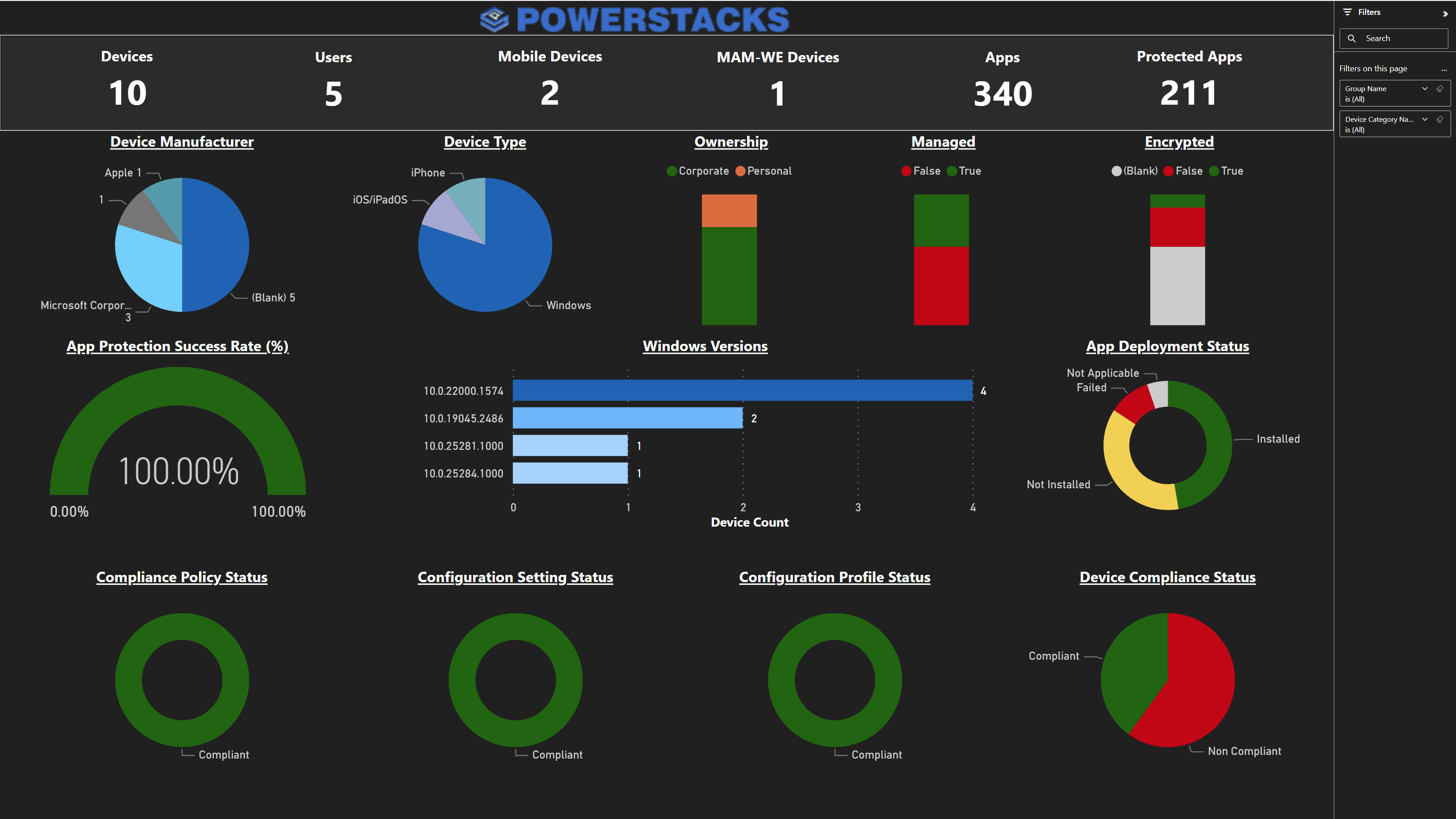
Summary
The summary page is where you will find an overall summary of devices, apps, configurations, and compliance. The dark mode summary page was changed slightly compared to the default reports just to give it a bit of a neater, cleaner, and more efficient look.
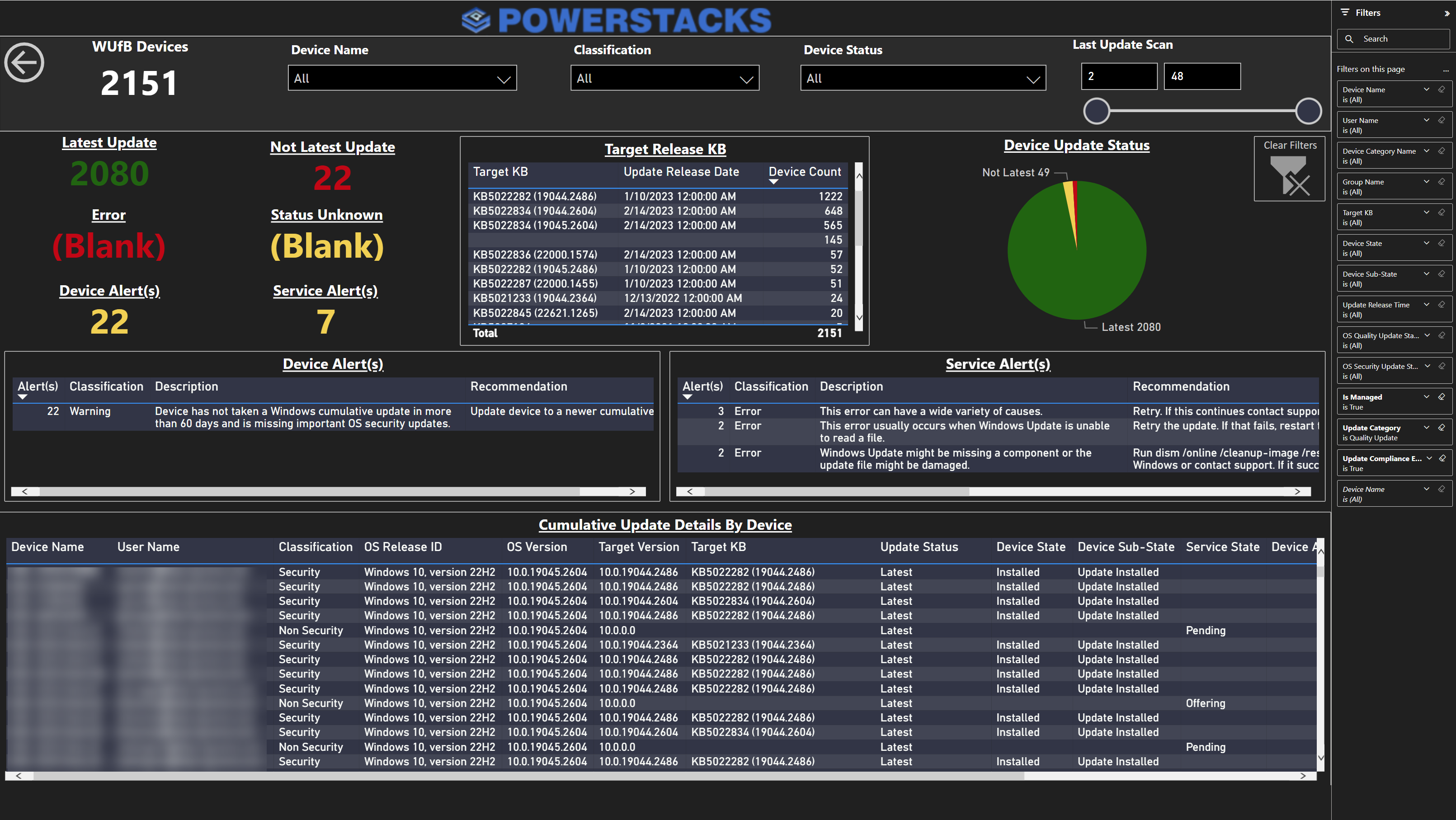
WUfB Cumulative Updates
The visuals on Windows Update for Business cumulative updates page in the dark mode report were rearranged and titles were added to each visual in order to make the data easier to understand.
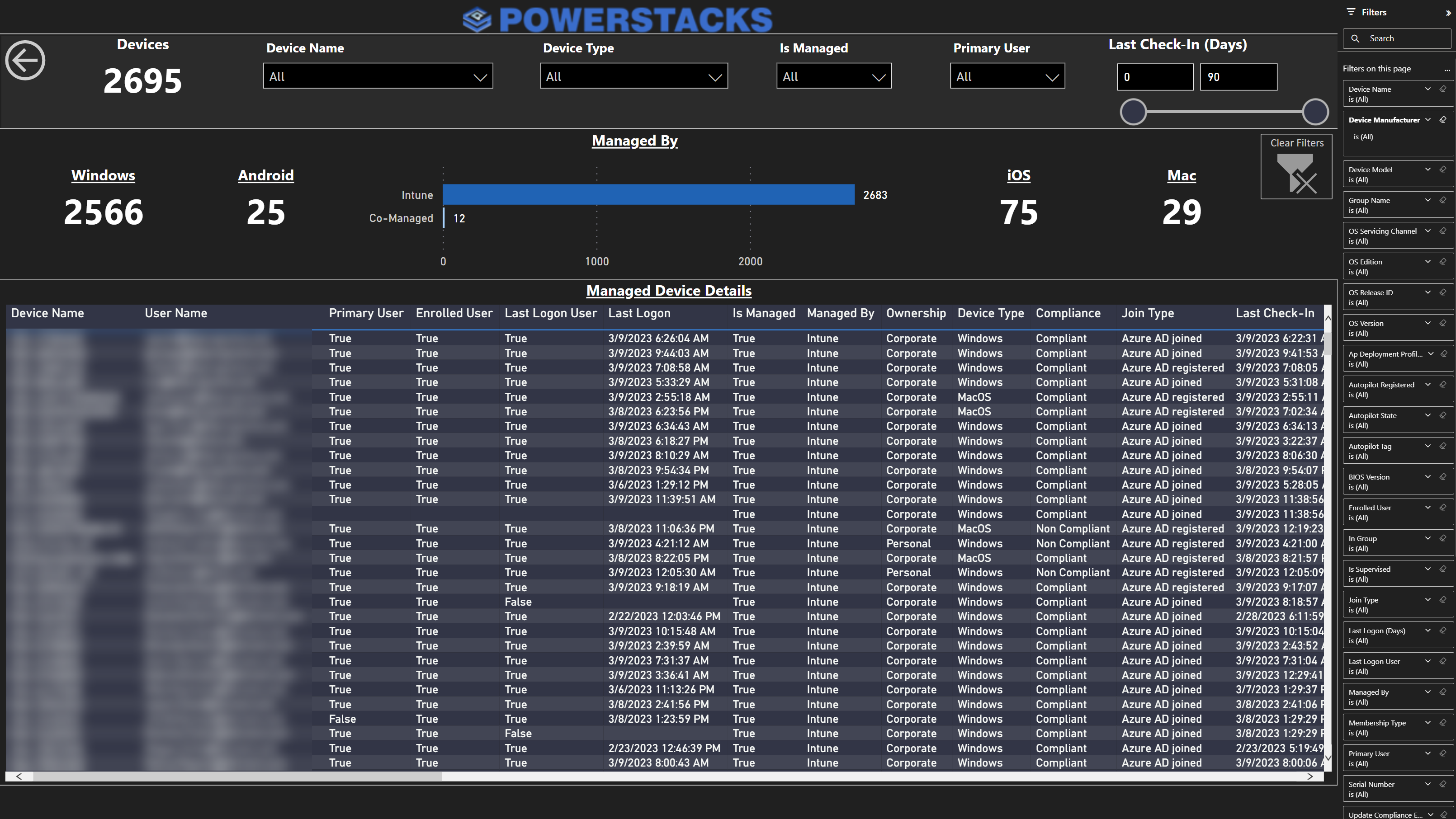
Device Info
The visuals on Device Info page in the dark mode report were rearranged and titles were added to each visual in order to give the page a sleek appearance and to make the data easier to consume.
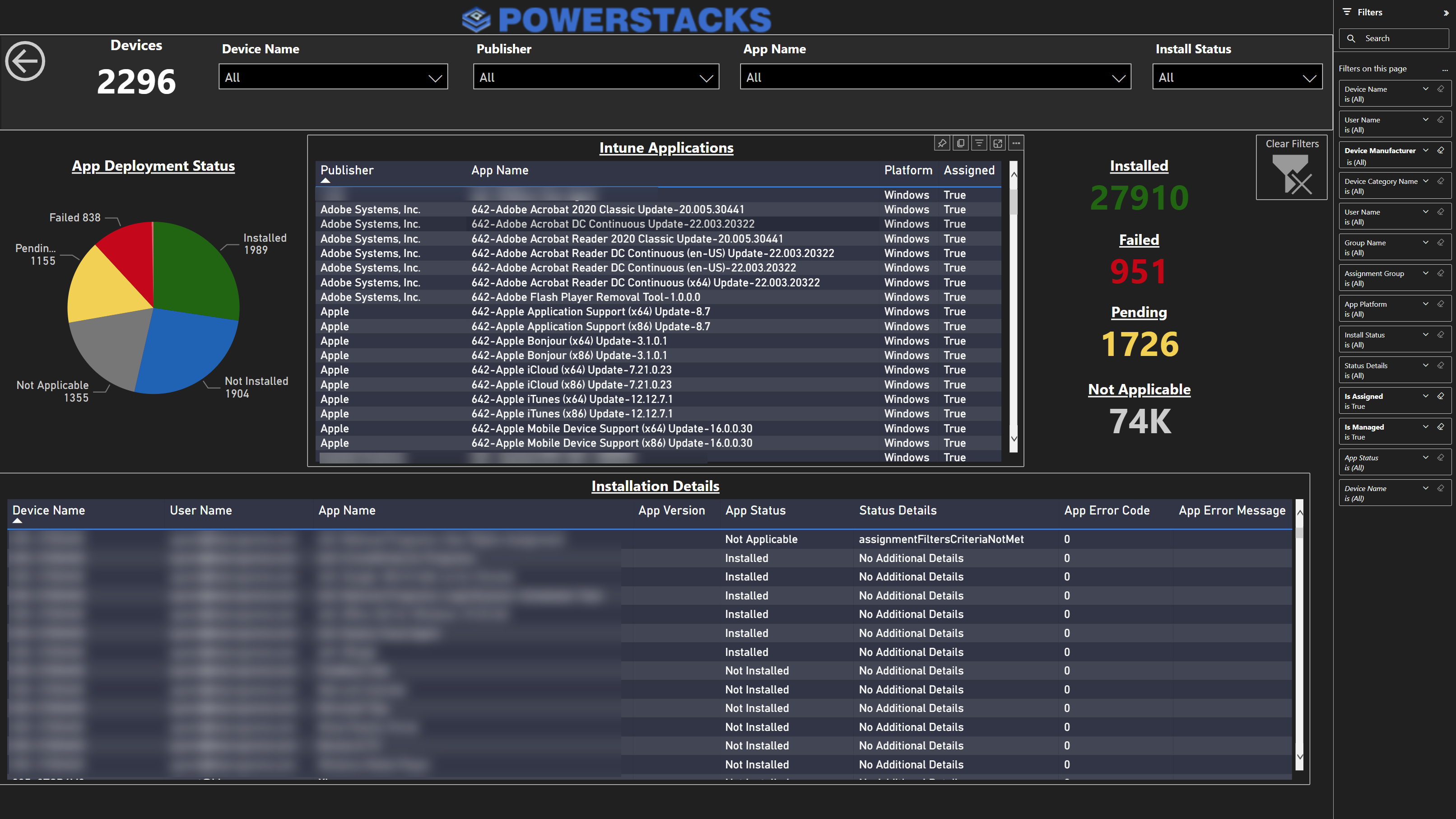
Application Deployments
The App Deployment page in the dark mode report is an updated version of the page that is currently in the default reports. You will find all of your application deployment details on this page.
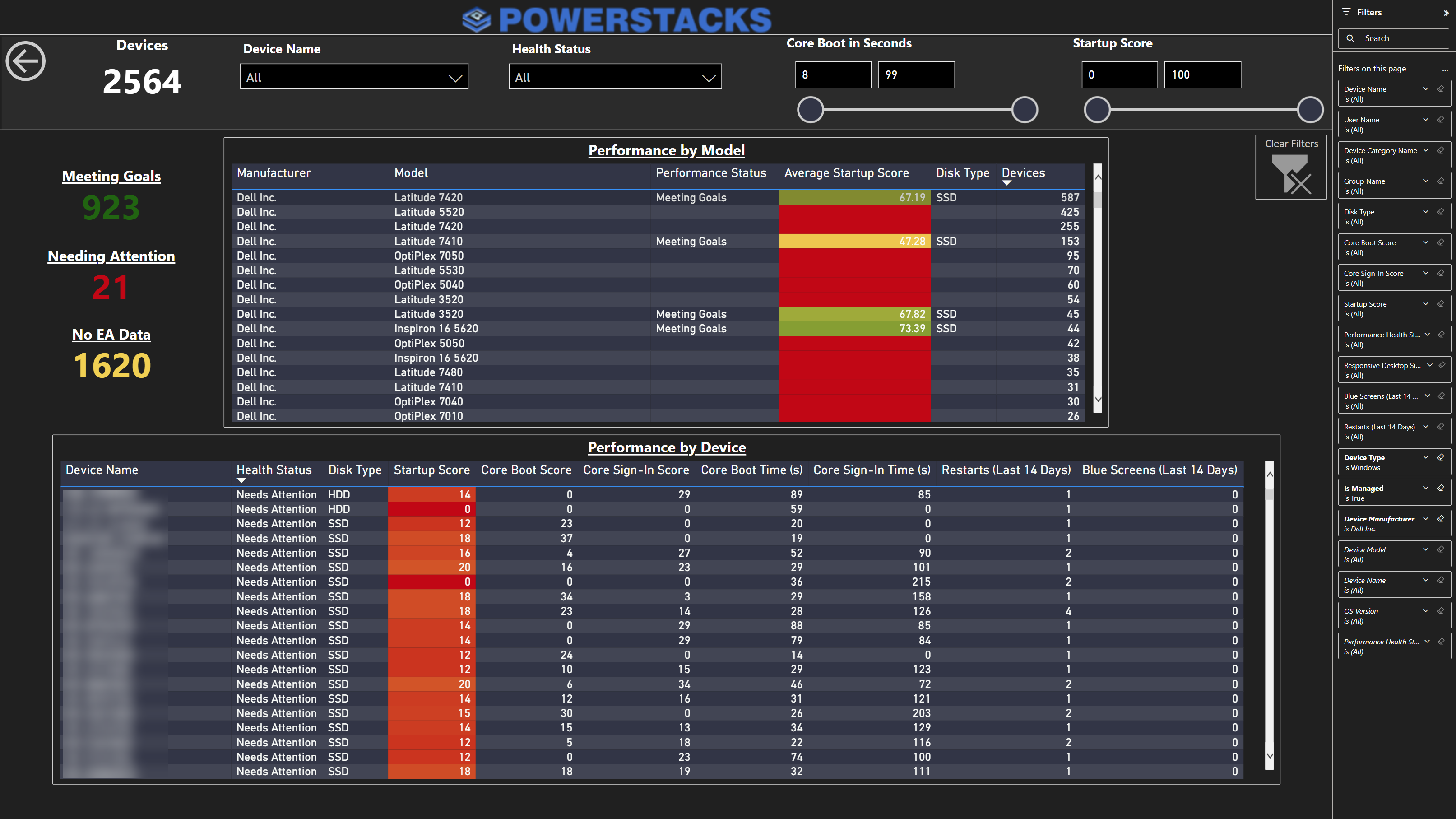
Startup Performance
The Startup Performance page in the dark mode reports was redesigned to give it a cleaner look that is easier to consume.
Ready to try these dark mode dashboards? BI for Intune includes dark mode reports alongside 29+ pre-built Power BI pages covering compliance, device health, app deployments, Windows Updates, and more. Start a free trial →