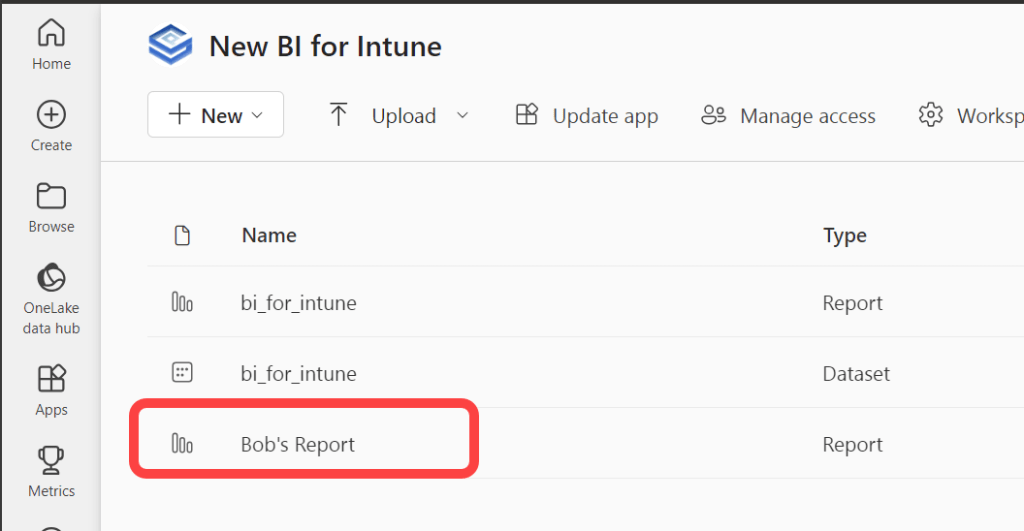
Occasionally we are asked how to download the .pbix for our reports for editing in Power BI Desktop, or how to move custom reports from one to another Power BI tenant. This blog will show you how to do both. However, the downloaded .pbix will not include the dataset. By design, it is not possible to download the dataset of a Power BI template app. To edit the .pbix in Power BI Desktop you must connect to a PowerStacks dataset in the Power BI service.
The script referenced below is available on GitHub:

Get the script on GitHub: powerstacks-corp/PowerStacks_Report_Backup
1. Create a Power BI Workspace
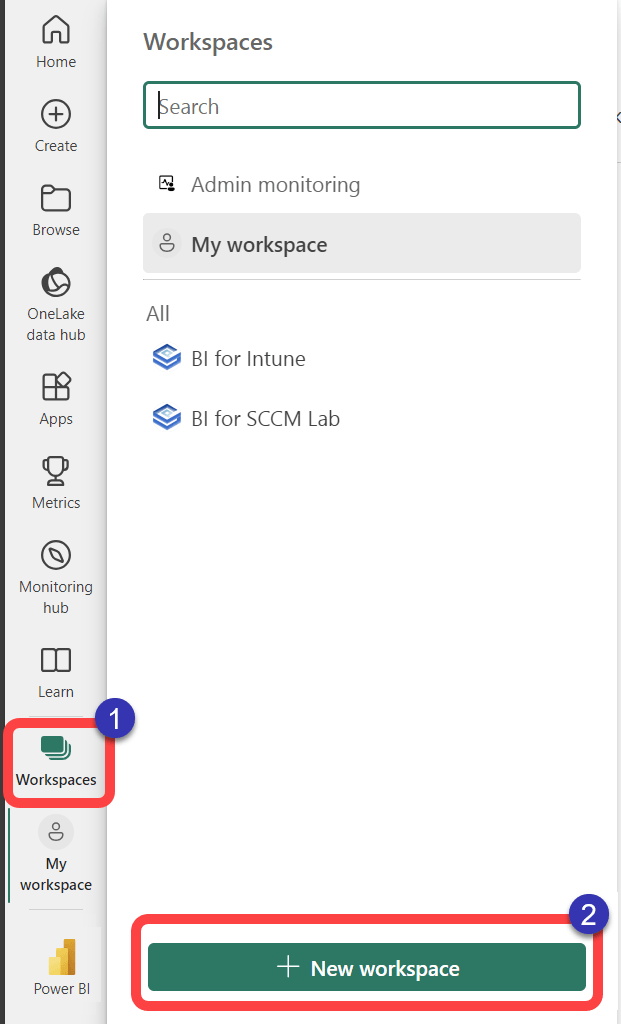
- In the Power BI service select Workspaces.
- Select New workspace.
This workspace will be used as a temporary location to store the reports that you want to download. It can be removed once you have downloaded the .pbix.
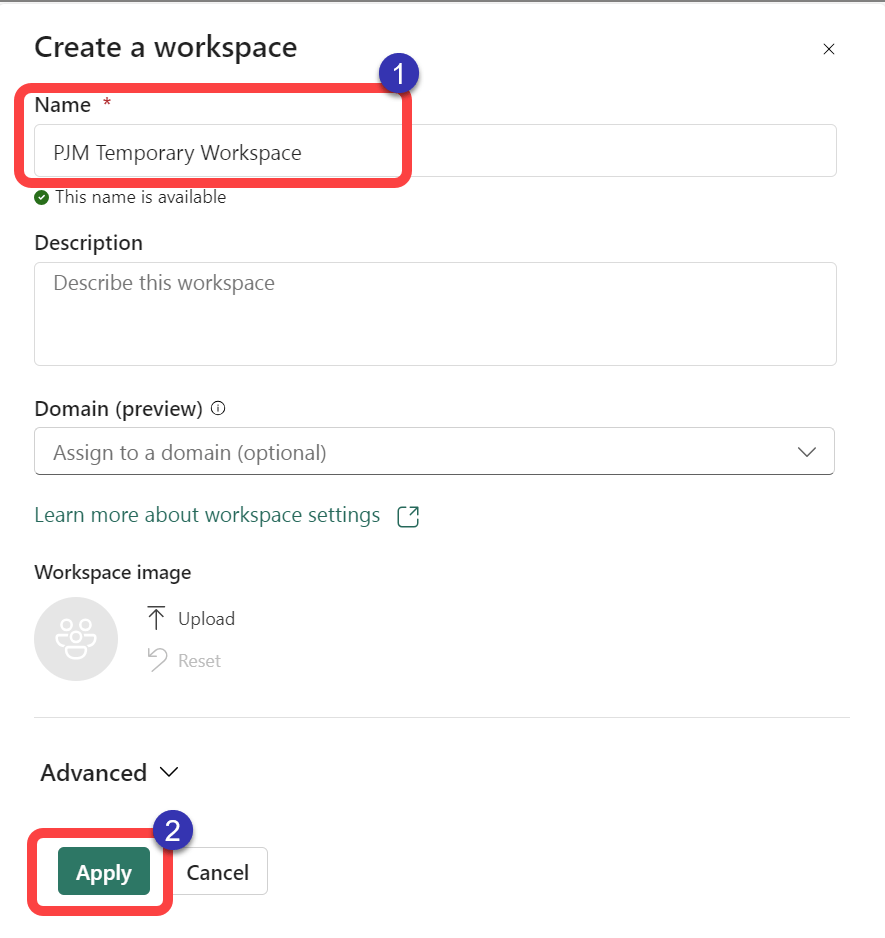
2. Name the Workspace
- Enter a Name for the workspace.
- Select Apply.
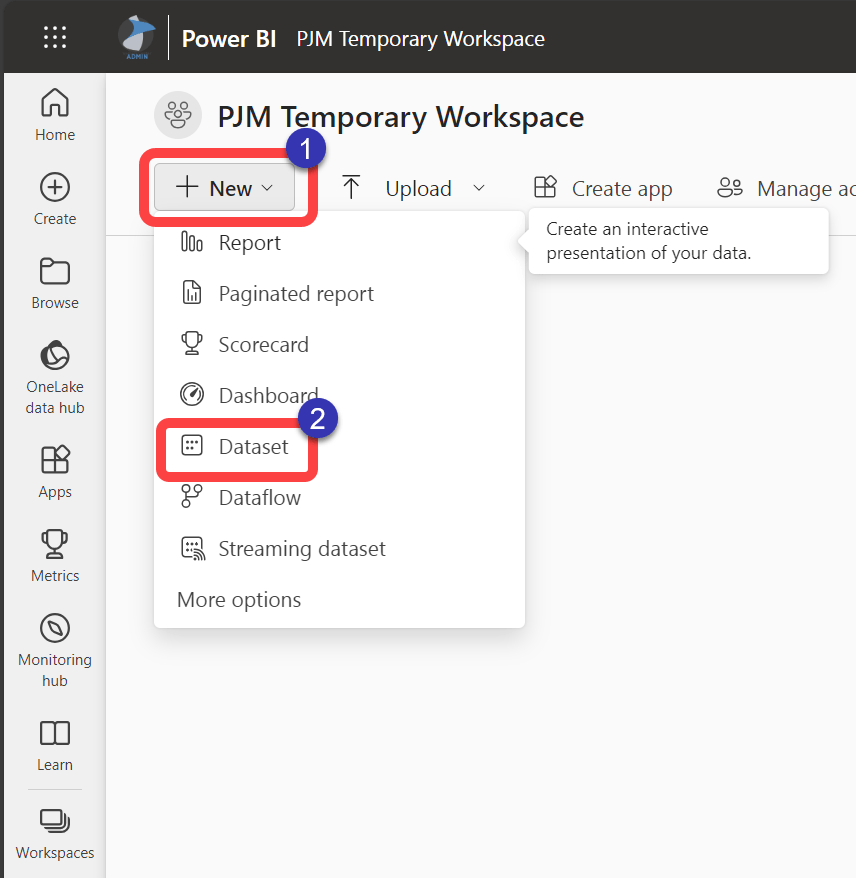
3. Create a New Dataset
- In your new workspace select New.
- Select Dataset.
4. Define the Dataset
- Select Paste or manually enter data.
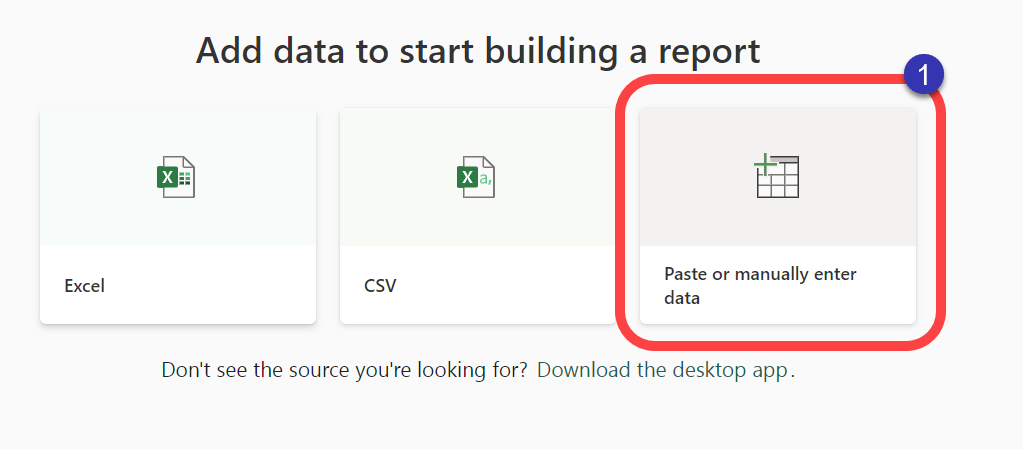
5. Create the Dataset
- On the Get data pane provide a Name for the dataset. I recommend using the same name as the dataset name in the workspace of the template app.
- Select Create a dataset only.
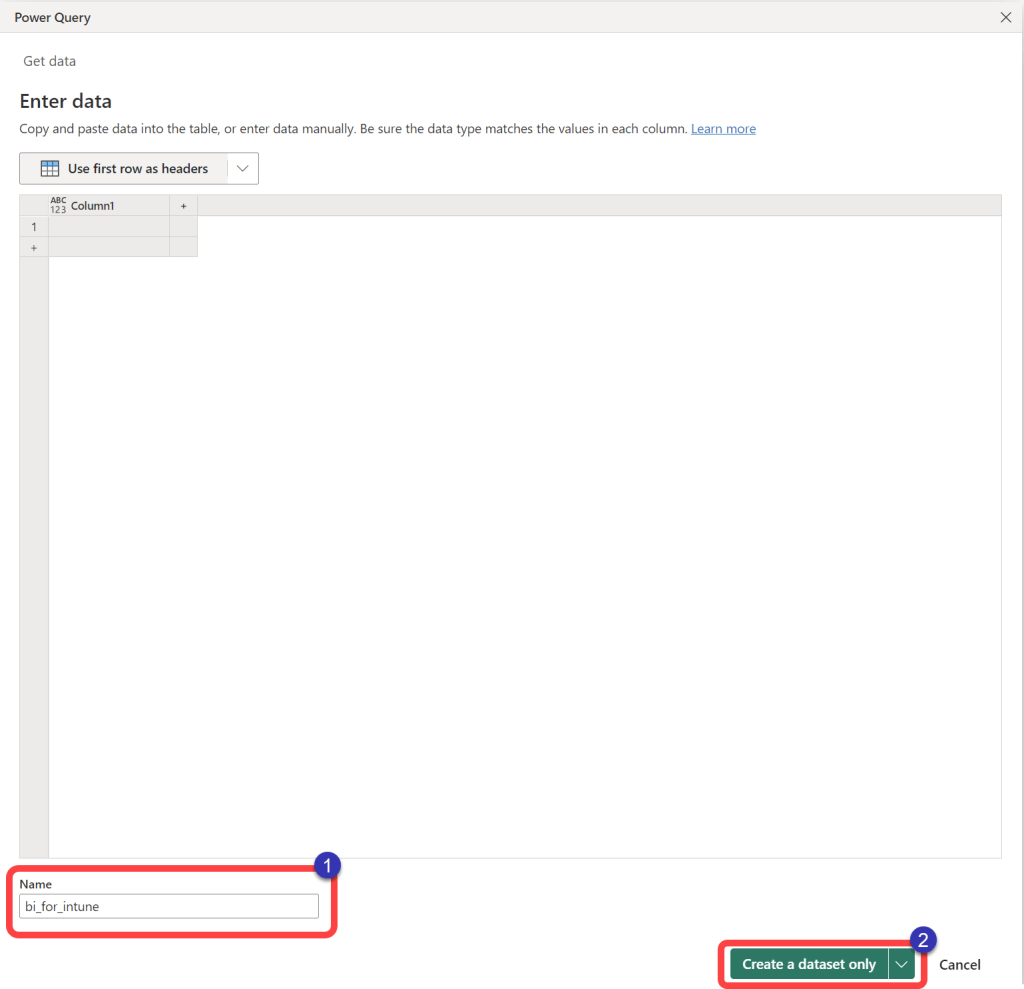
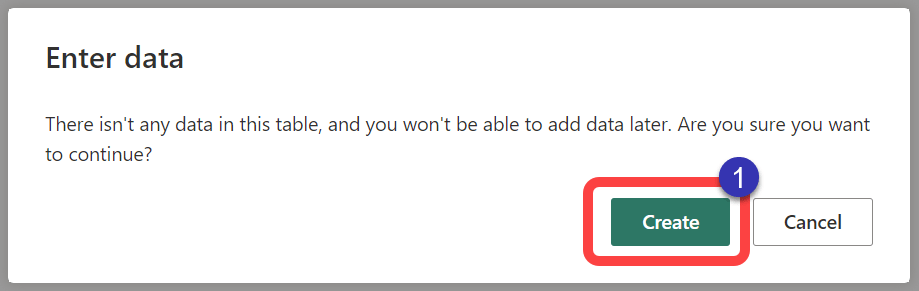
6. Ignore the Warning
- On the Enter data prompt select Create.
7. Copy the Script
- Open PowerShell ISE or your favorite code editor as Administrator.
- Copy the PowerShell script from the GitHub link above and paste it into the code editor.
- Run the script.
- When prompted to sign in use the same credentials that you use for Power BI.
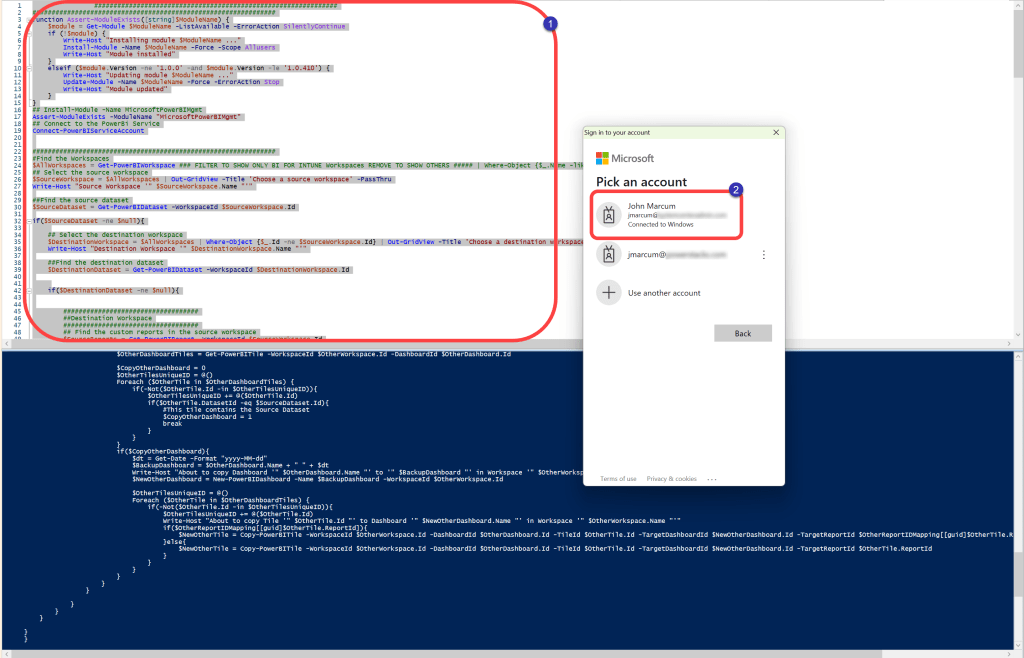
8. Select Source Workspace
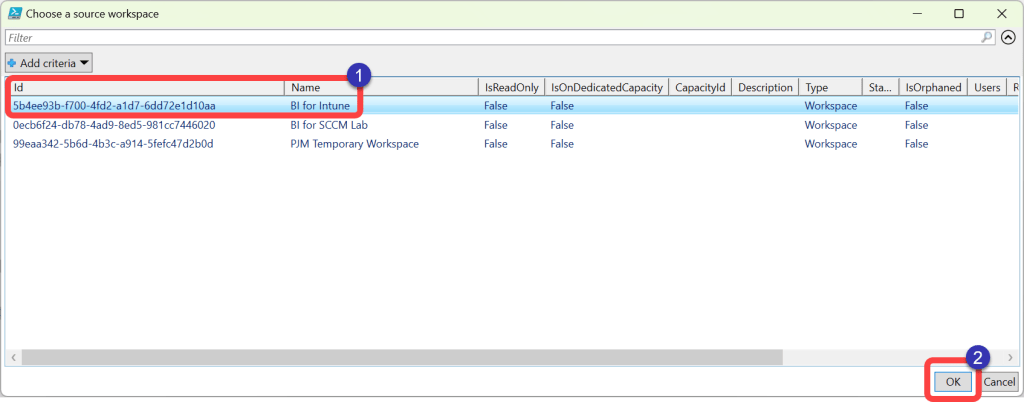
- At the Choose a source workspace prompt select the workspace containing the Power BI template app.
- Select OK.
9. Select Destination Workspace
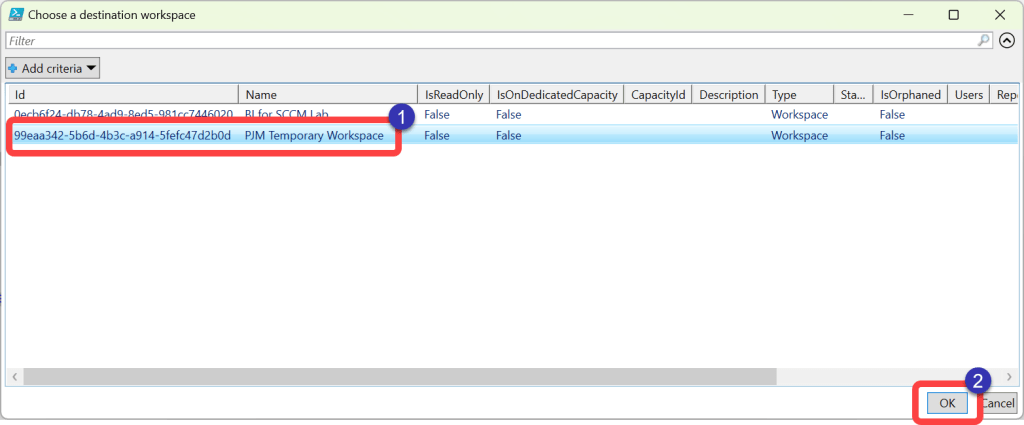
- At the Choose a destination workspace select the workspace that you created following the steps above.
- Select OK.
10. Check for Errors
- Confirm no errors are in the script output.

11. Go to The Workspace
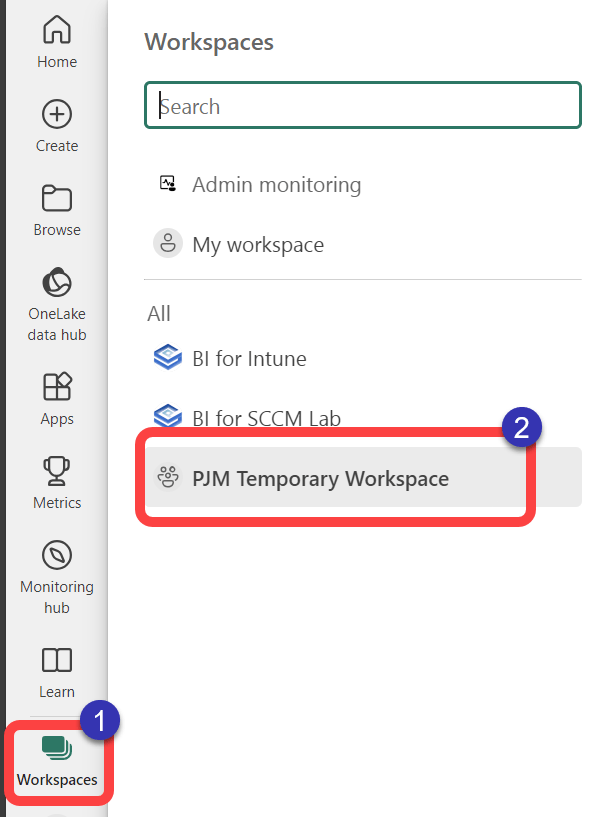
- In the Power BI service select Workspaces.
- Select the workspace that you created following the steps above.
12. Confirm Reports are Present
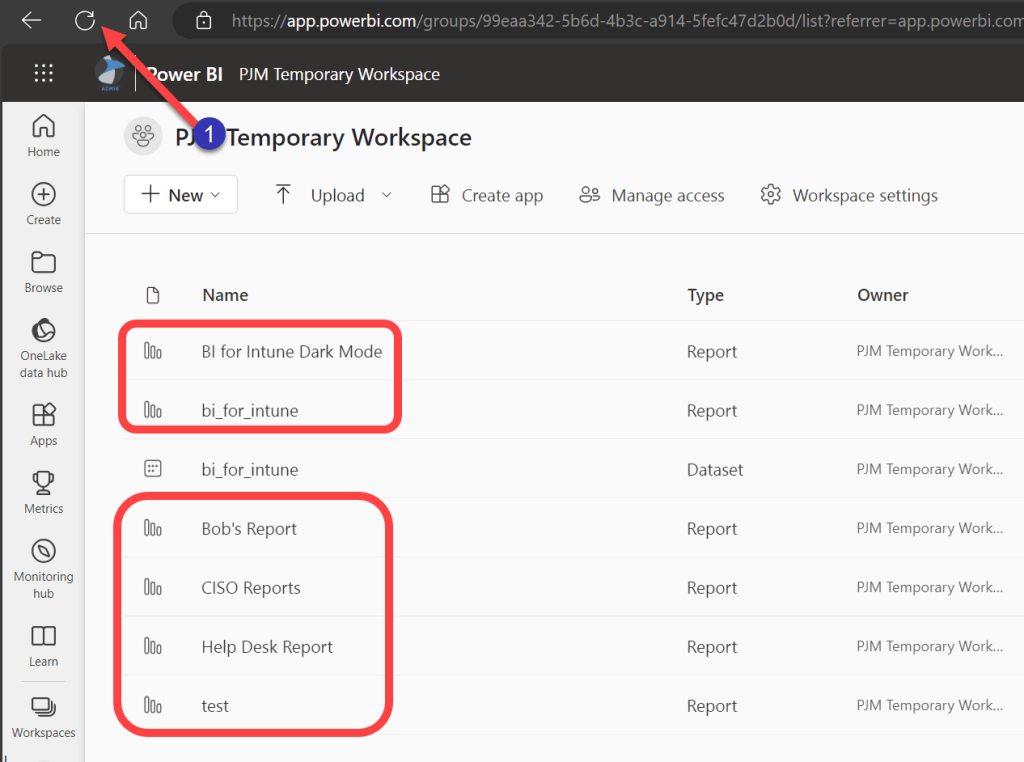
- In your workspace you should have a copy of each report from the workspace of the template app. If you do not see them refresh the browser page.
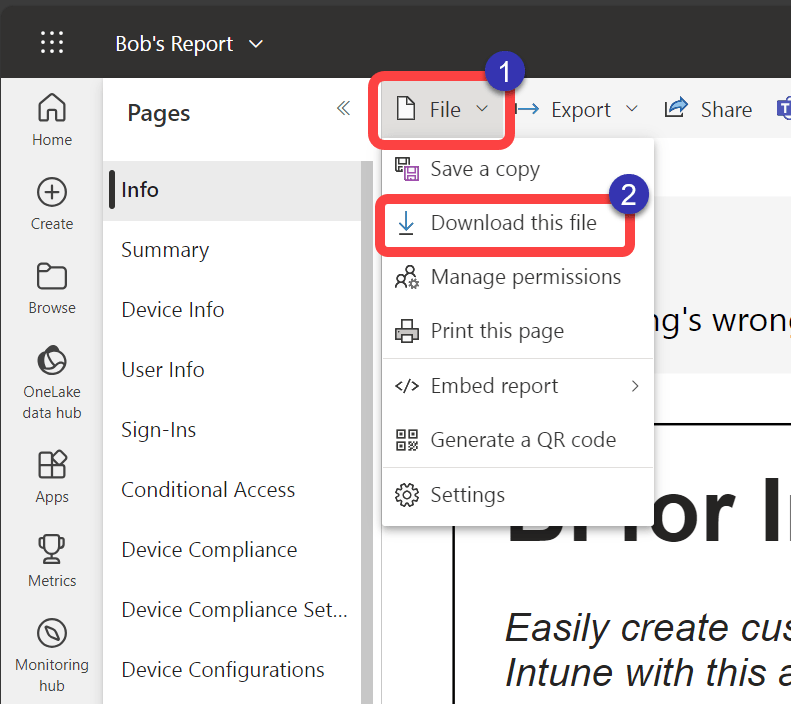
13. Download a .pbix
- Open a set of reports for the workspace.
- Select File.
- Select Download this file.
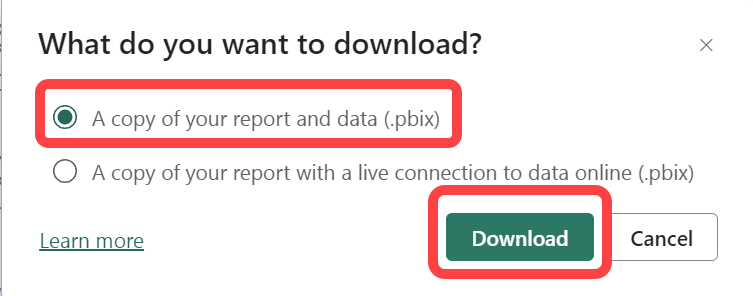
14. Download Report and Data
- At the What do you want to download prompt select A copy of your report and data (.pbix).
- Select Download.
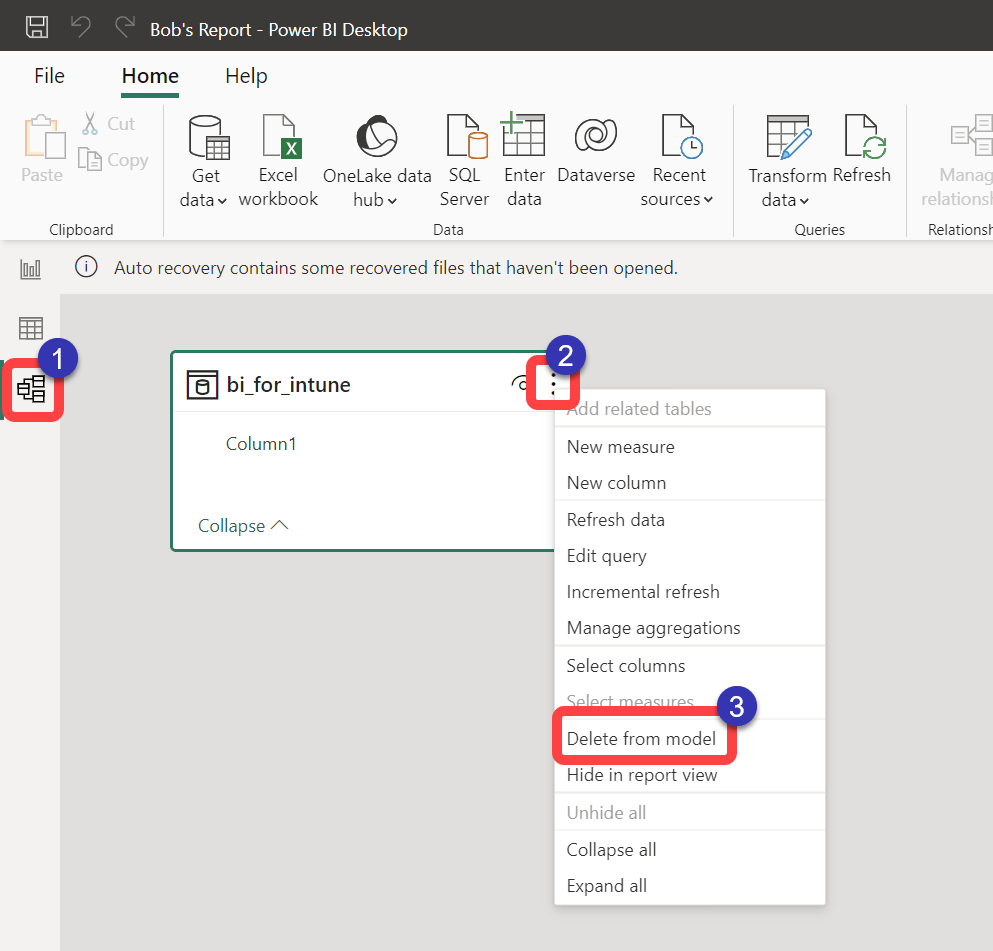
15. Open the .pbix
- Open the downloaded .pbix in Power BI Desktop.
- Switch to Model view.
- Select the Vertical Ellipsis on the dataset.
- Select Delete from this model.
16. Install the Template App in New Tenant
Before proceeding ensure that you have installed the Power BI template app in the new tenant.
If you simply wanted to modify the reports in Power BI desktop and upload them back to the template app in the tenant from which you downloaded them, you may do that also.
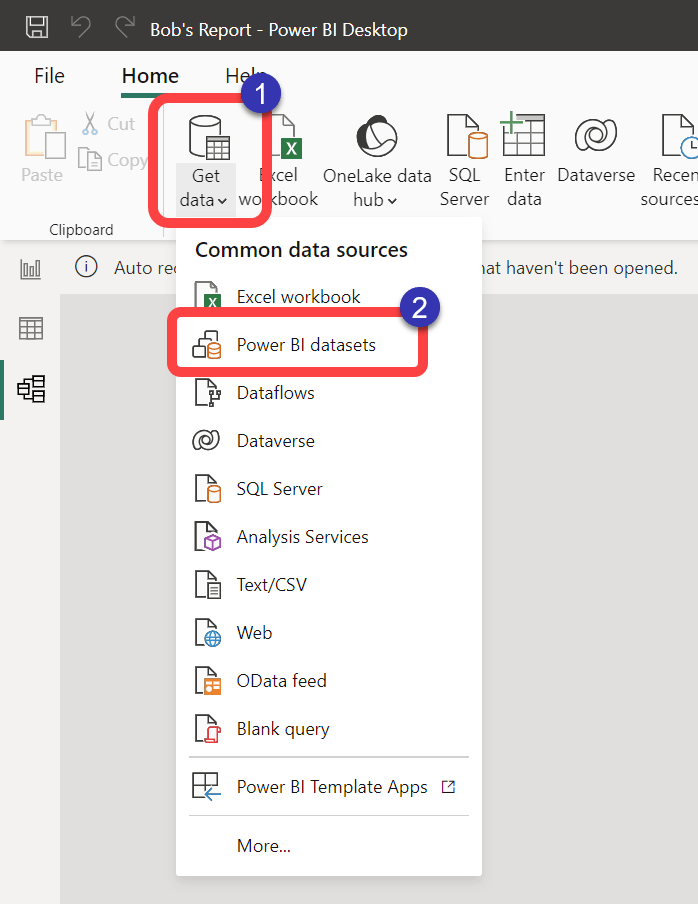
17. Add Template App Dataset
- This step can get tricky. If you are moving the reports to a new tenant, you might need to sign out of Power BI desktop and sign in to Power BI desktop with credentials from the new tenant.
- In Power BI Desktop select Get data.
- Select Power BI datasets.
18. Connect to Online Dataset
- Select the dataset in the workspace that you’d like to upload the reports. This could be the same as the original source or in a new tenant.
- Select Connect.
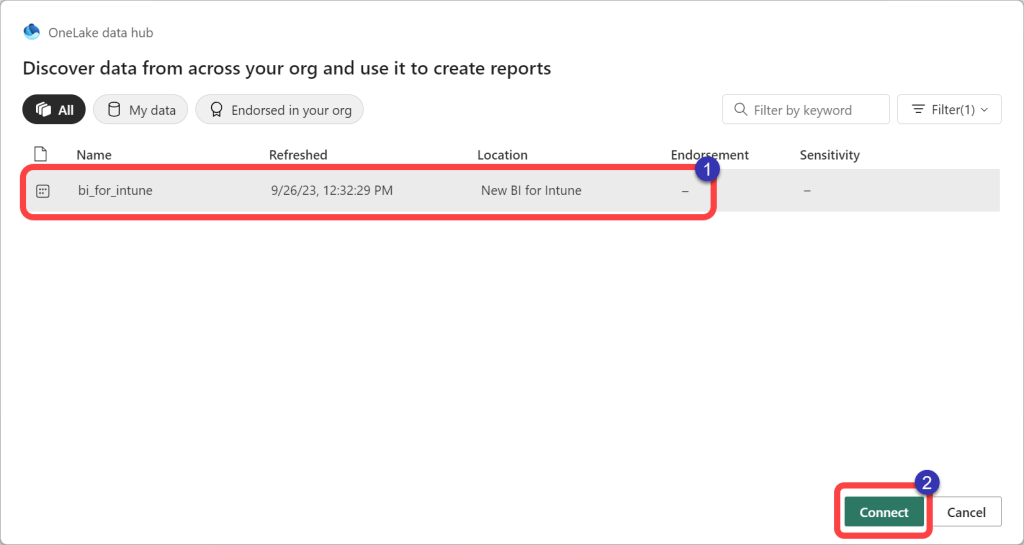
19. Optionally Edit Reports
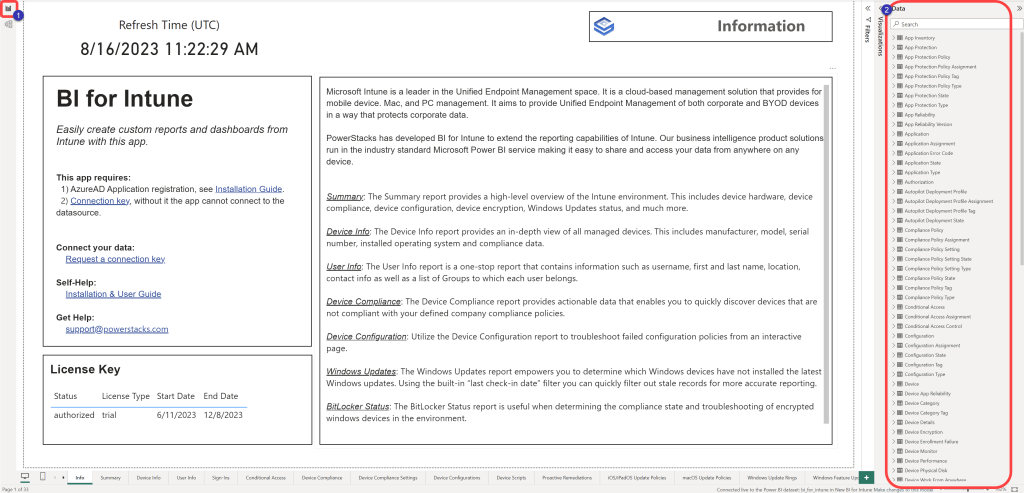
- In Power BI Desktop switch to Report view.
- You will notice that you have access to the online dataset and the report pages in the report. If you’d like to modify or creates pages do so now.
20. Publish Report
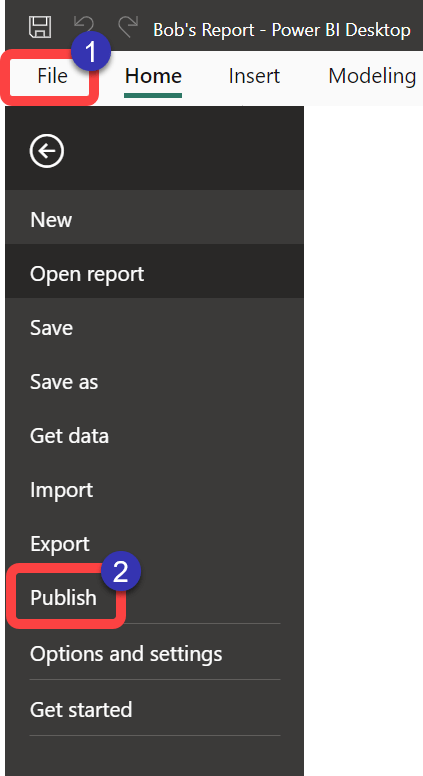
- In Power BI Desktop select File.
- Select Publish.
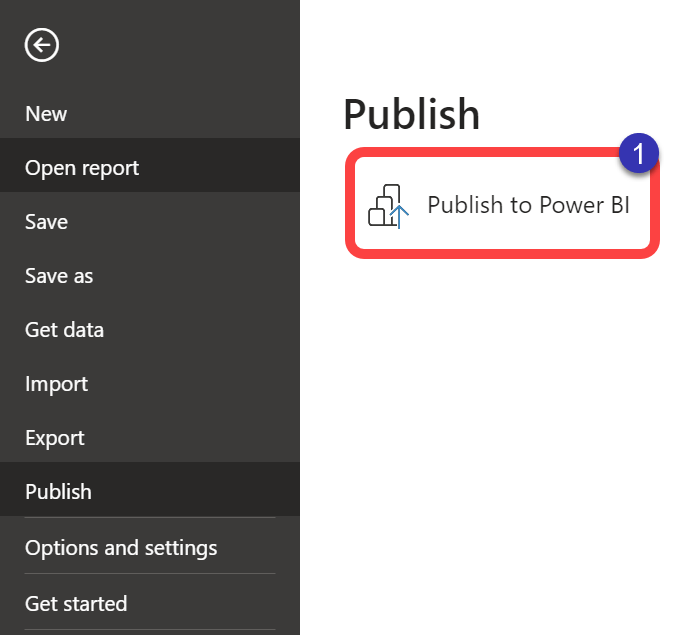
21. Publish to Power BI
- Select Publish to Power BI.
22. Save Report
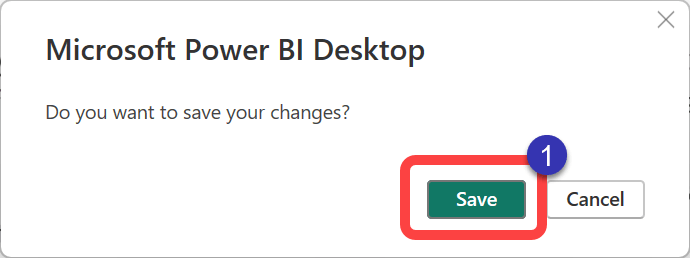
- If prompted, select Save.
23. Select Destination
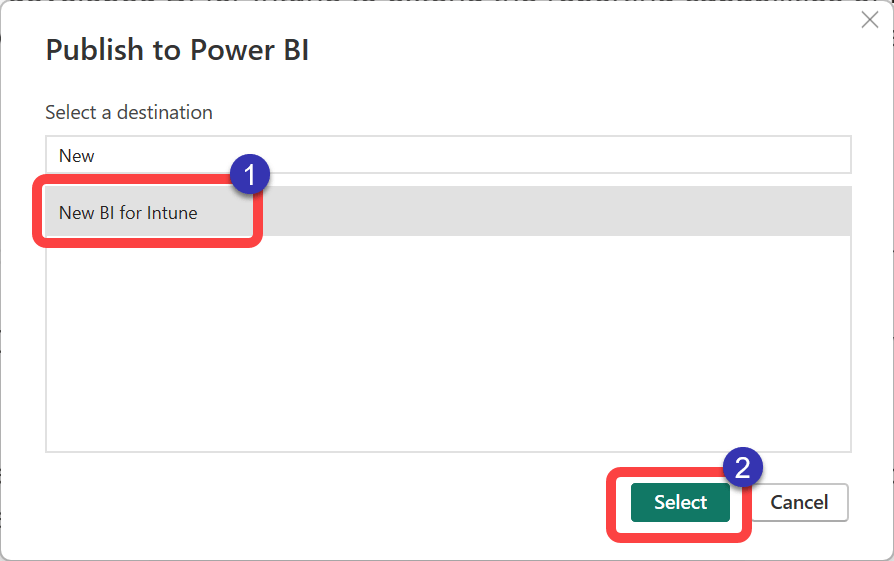
- Select the Power BI template app workspace where you would like to publish the report. This should be the same workspace that you connected to in the “Connect to Online Dataset” step above.
- Select “Select”.
24. Success!
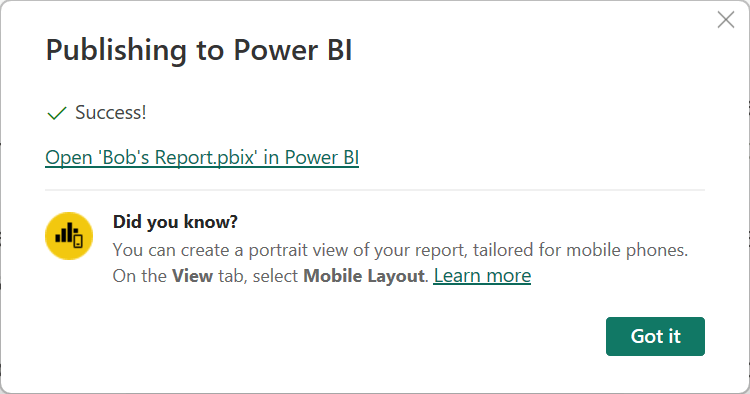
You should see a Success dialog box.
25. Confirm Publish
In the Power BI service, you should now see your published report. If not, refresh the page in your browser.