Set up Enhanced Inventory
Enhanced Inventory is a PowerShell-based (Windows) and shell-based (macOS) collection pipeline that gathers device facts Intune doesn’t track natively — hardware specs, monitor model and serial, disk health, battery health, Microsoft 365 channel, driver inventory, and warranty data — and sends them to your Azure Log Analytics workspace via the Log Ingestion API. BI for Intune reads from that workspace to populate the Firewall Status, App Inventory, Driver Inventory, Microsoft 365, Monitor, Disk, Battery, and Warranty dashboards.
Prerequisites
Section titled “Prerequisites”- BI for Intune installed and configured (the Setup Guide is complete).
- A Log Analytics workspace set up per Set up the Log Analytics workspace, including the BI for Intune app registration’s Log Analytics API Data.Read permission and its Log Analytics Reader role on the workspace. If you also use Windows Update for Business reports, both add-ons share that same workspace.
- Microsoft Entra: Application Administrator or Global Administrator.
- Azure: Contributor or Owner on the target subscription or resource group, plus User Access Administrator or Owner to assign roles (only required for automatic RBAC assignment in Step 2).
Step 1: Create the app registration
Section titled “Step 1: Create the app registration”The Enhanced Inventory scripts use a dedicated Microsoft Entra application to authenticate to Azure and send data via the Log Ingestion API. This is separate from the main BI for Intune app registration.
You create it as an app registration, the same way Microsoft’s own Logs Ingestion API tutorial does. Registering the app automatically creates a matching service principal, which is what appears under Enterprise applications. The ARM deployment template in Step 2 needs that service principal’s Object ID for its role assignment; the scripts use the app registration’s tenant ID, client ID, and secret. You create one thing, an app registration, and read two IDs from it.
Create the app registration
Section titled “Create the app registration”-
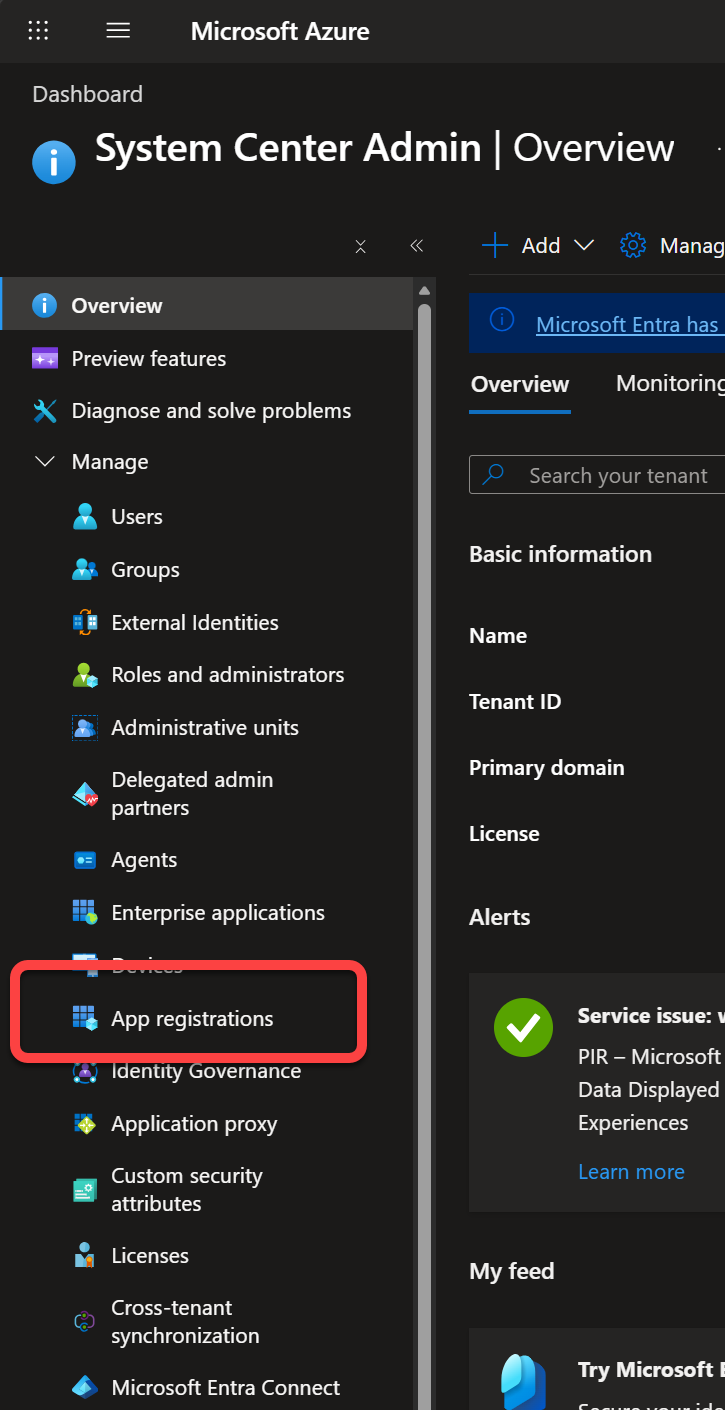
In the Azure portal, go to Microsoft Entra ID > App registrations > New registration.
-
Enter a name (for example,
PowerStacks-CustomInventory), leave Supported account types set to Accounts in this organizational directory only (single tenant), and select Register.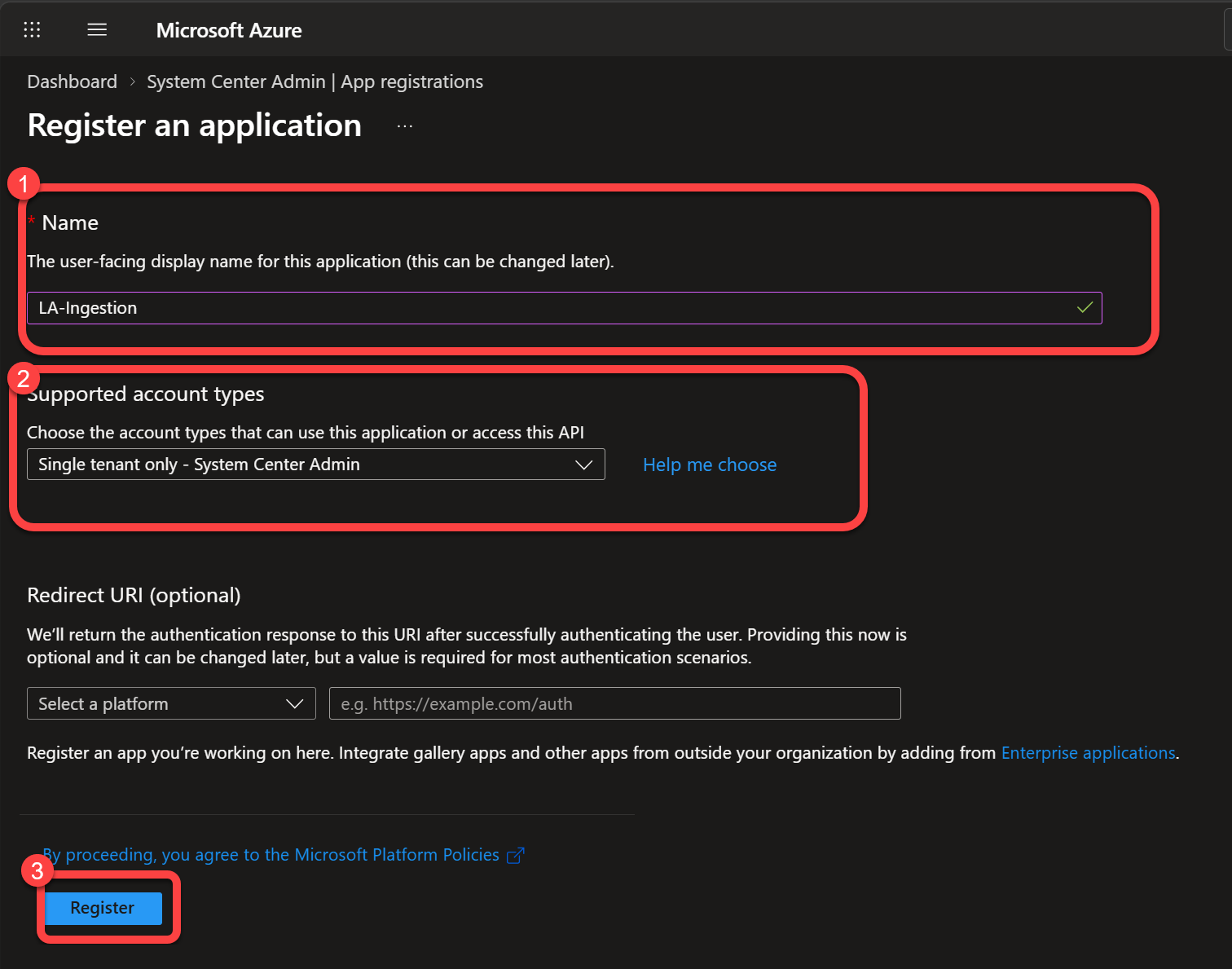
-
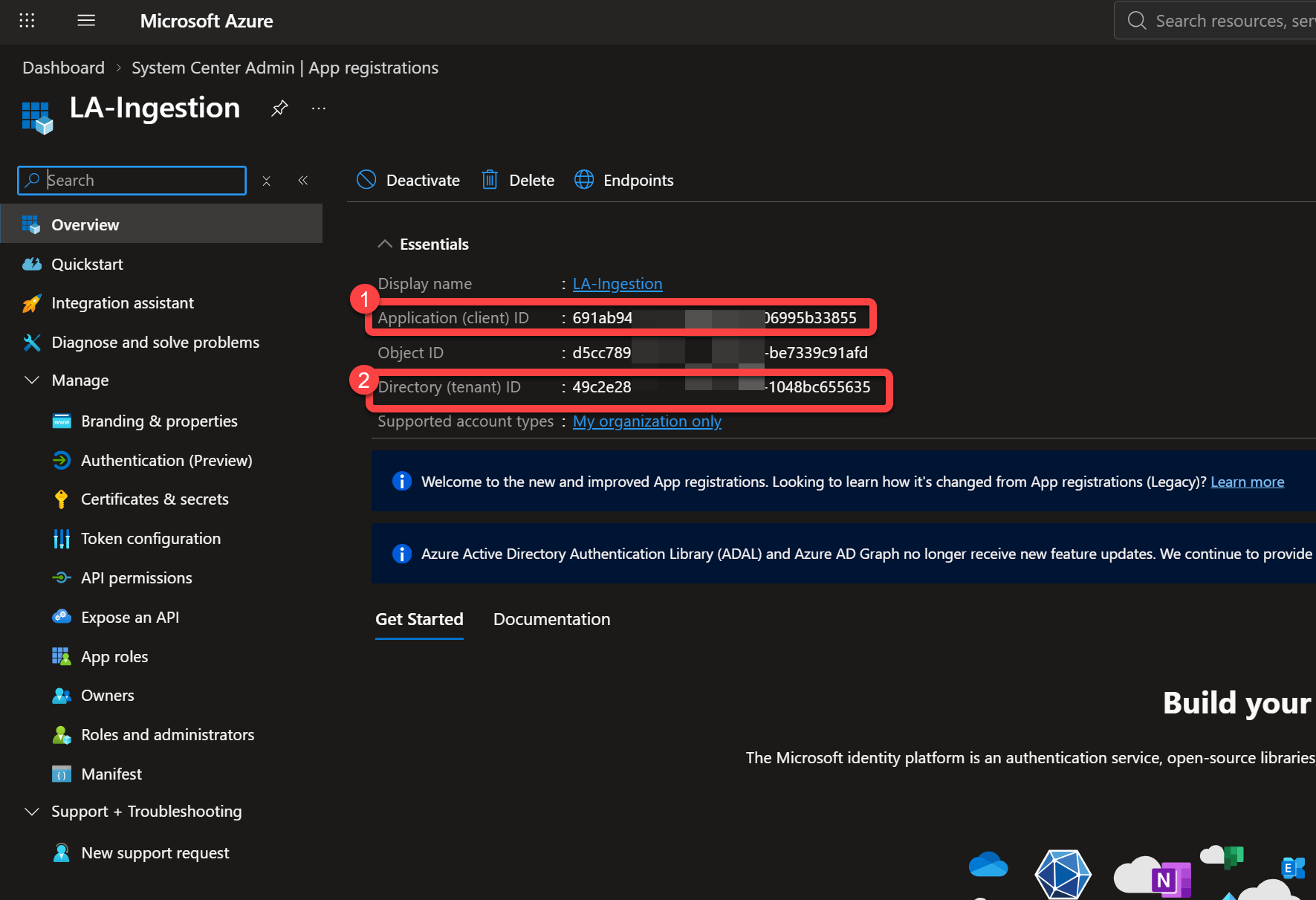
From the Overview page, record the Directory (Tenant) ID and the Application (Client) ID.
Add a client secret
Section titled “Add a client secret”-
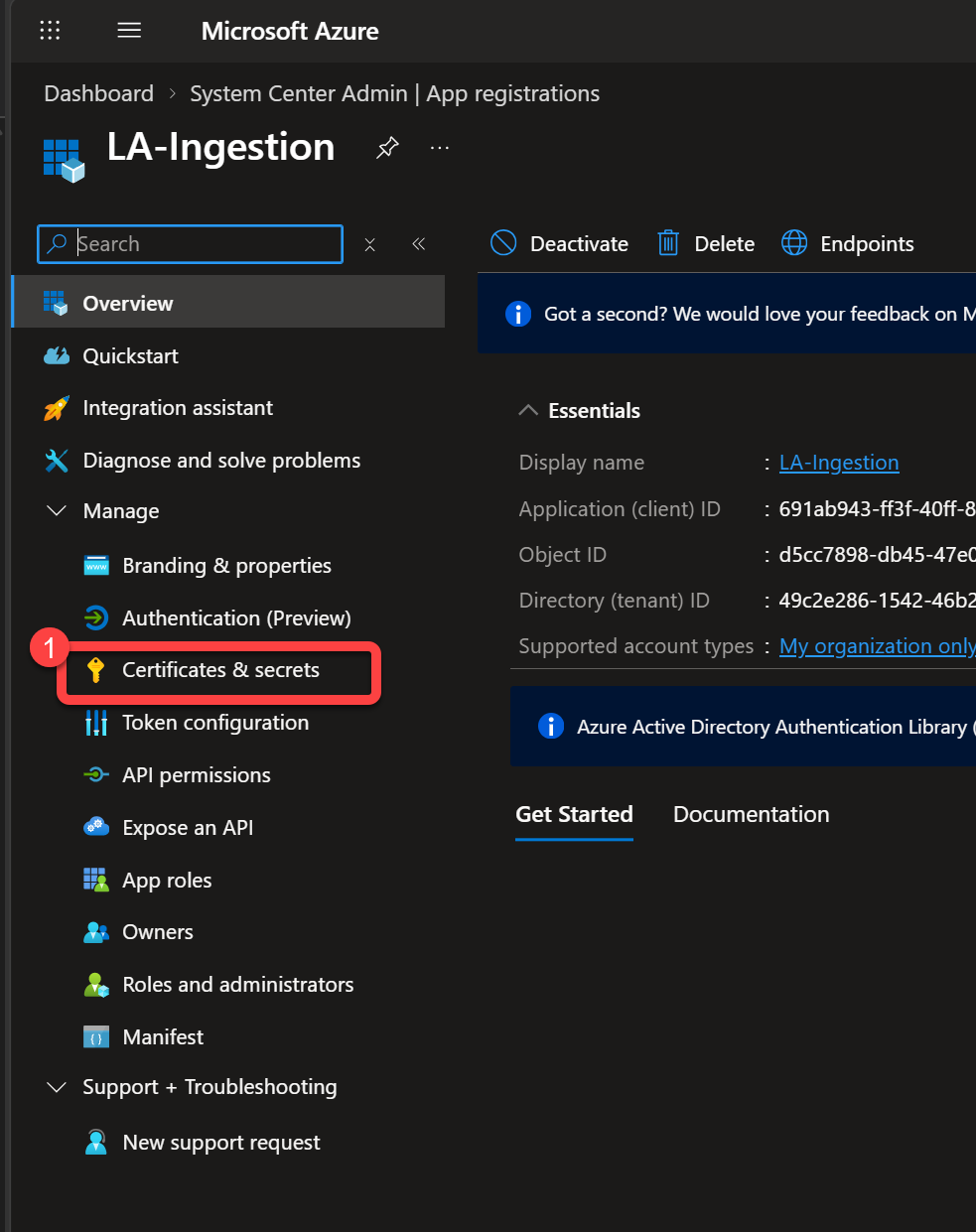
In the app’s left menu, select Certificates & secrets.
-
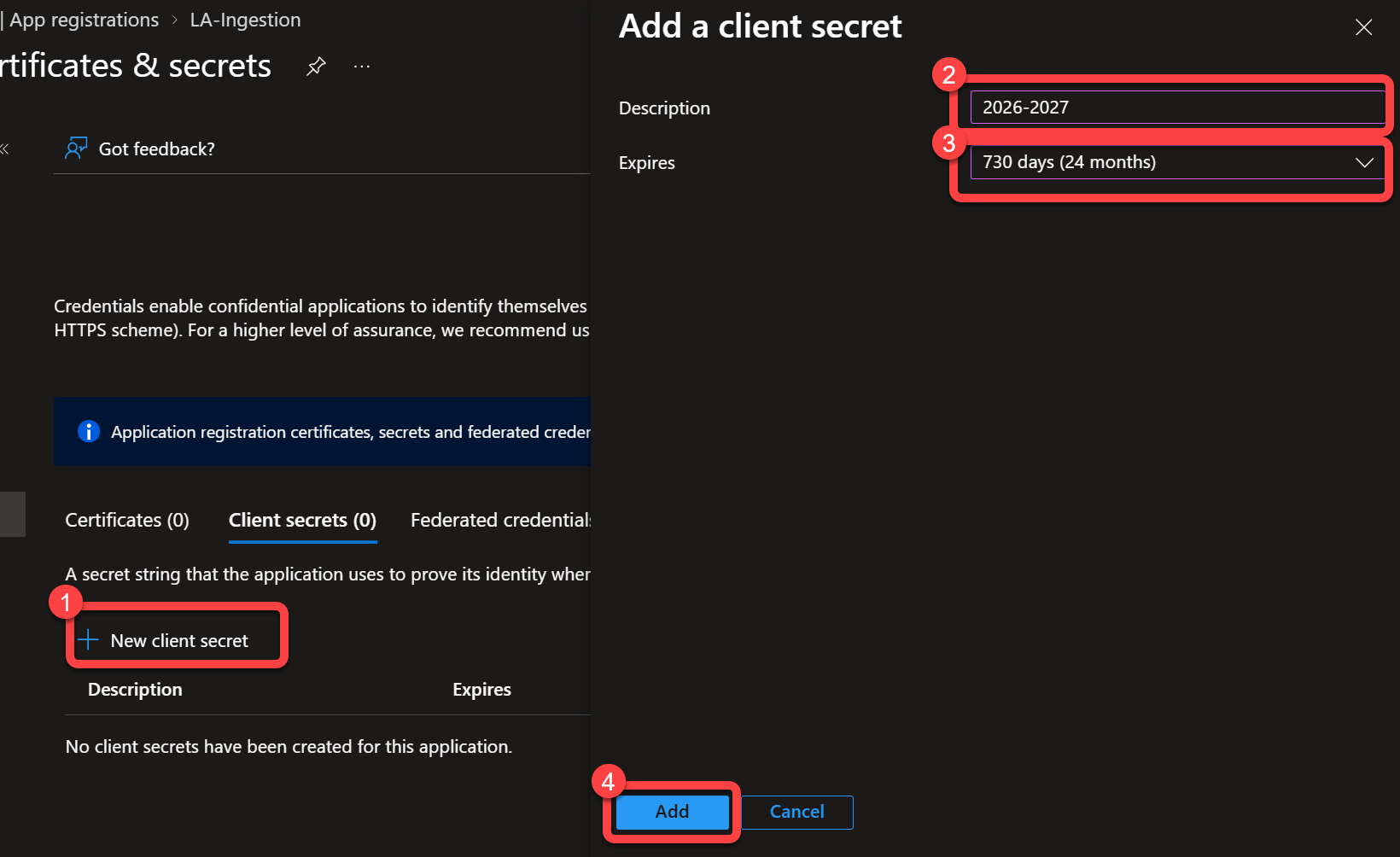
Select New client secret, enter a description, choose an expiration period, and select Add.
-
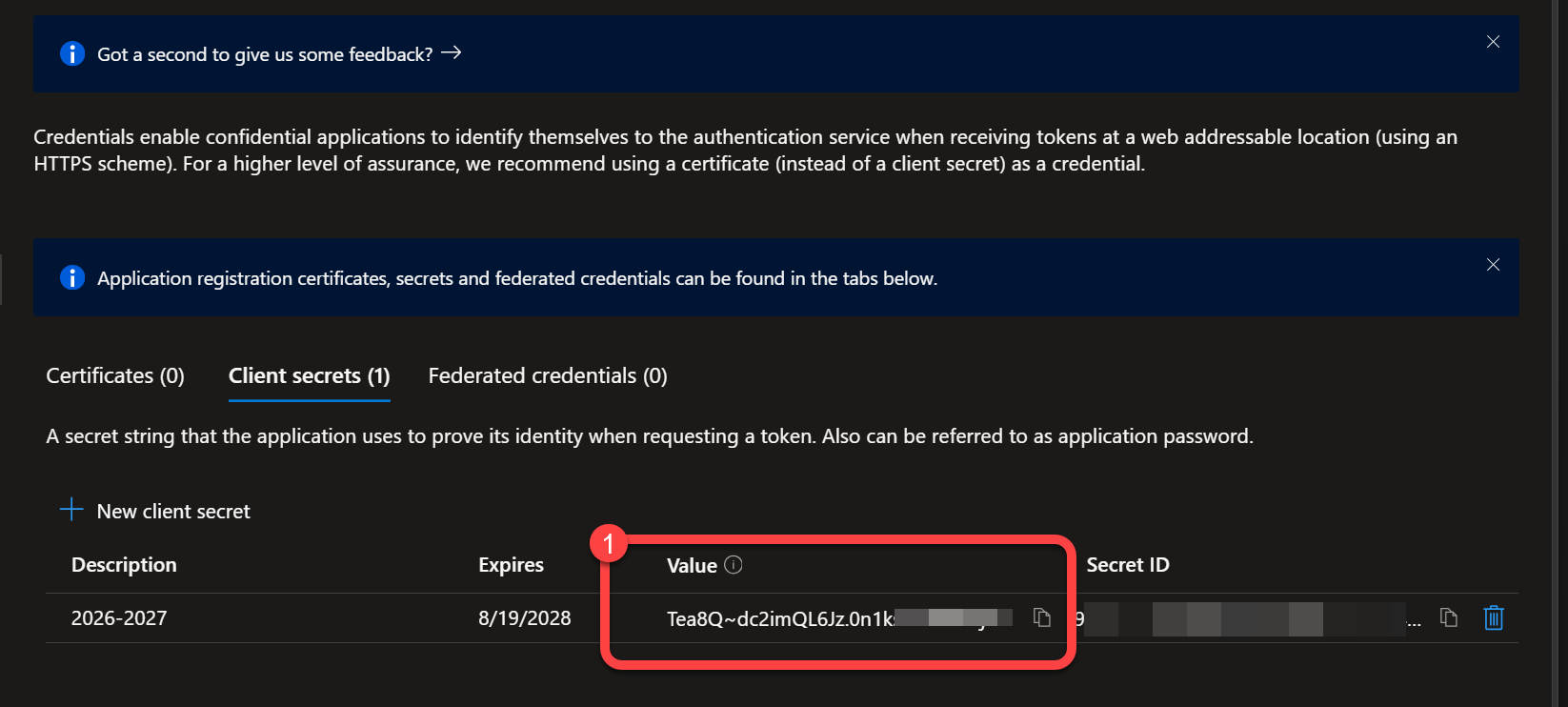
Immediately copy the secret Value (not the Secret ID). The value is shown only once.
Get the service principal Object ID
Section titled “Get the service principal Object ID”The ARM template in Step 2 assigns the Monitoring Metrics Publisher role to the app’s service principal, so it needs that principal’s Object ID. Registering the app already created it for you.
-
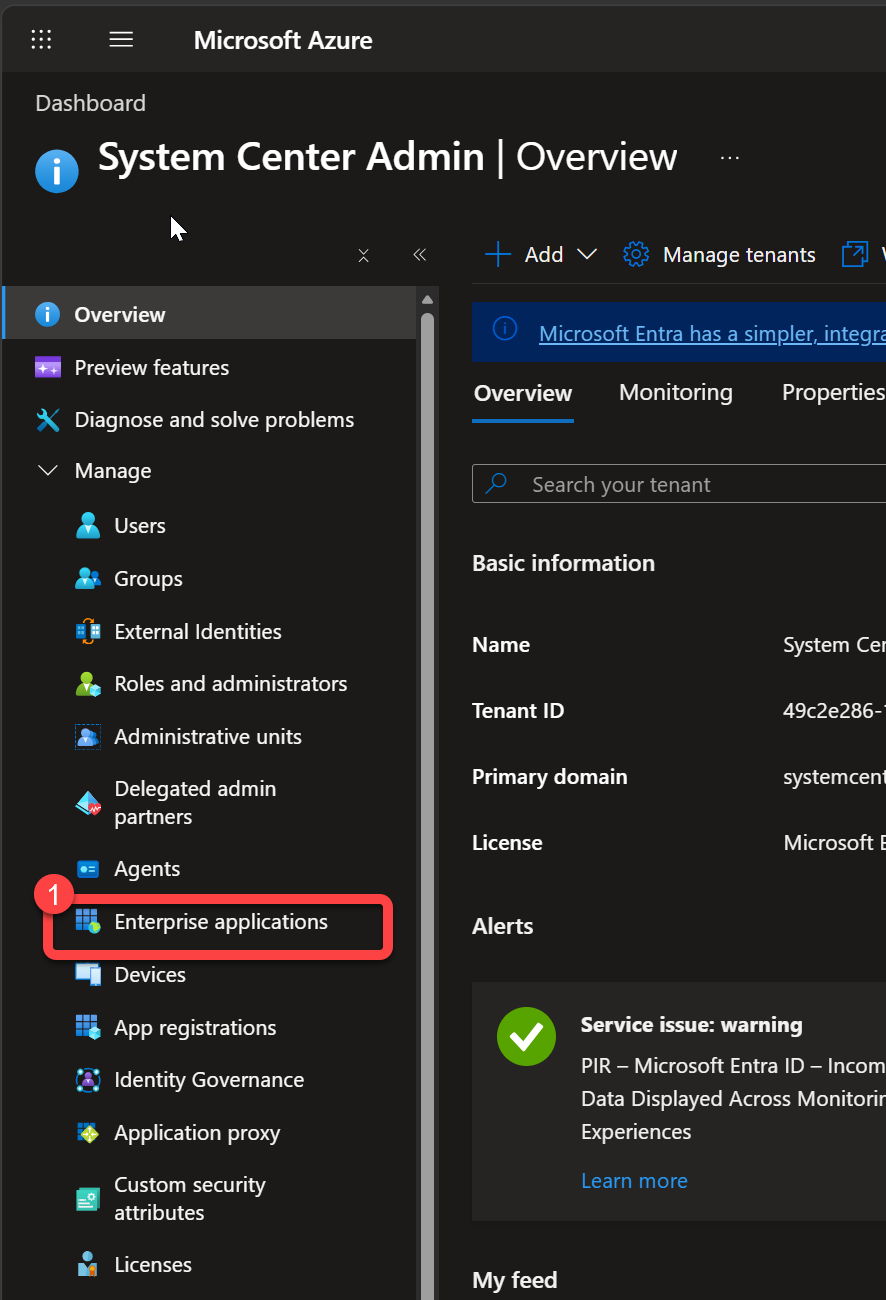
Go to Microsoft Entra ID > Enterprise applications.
-
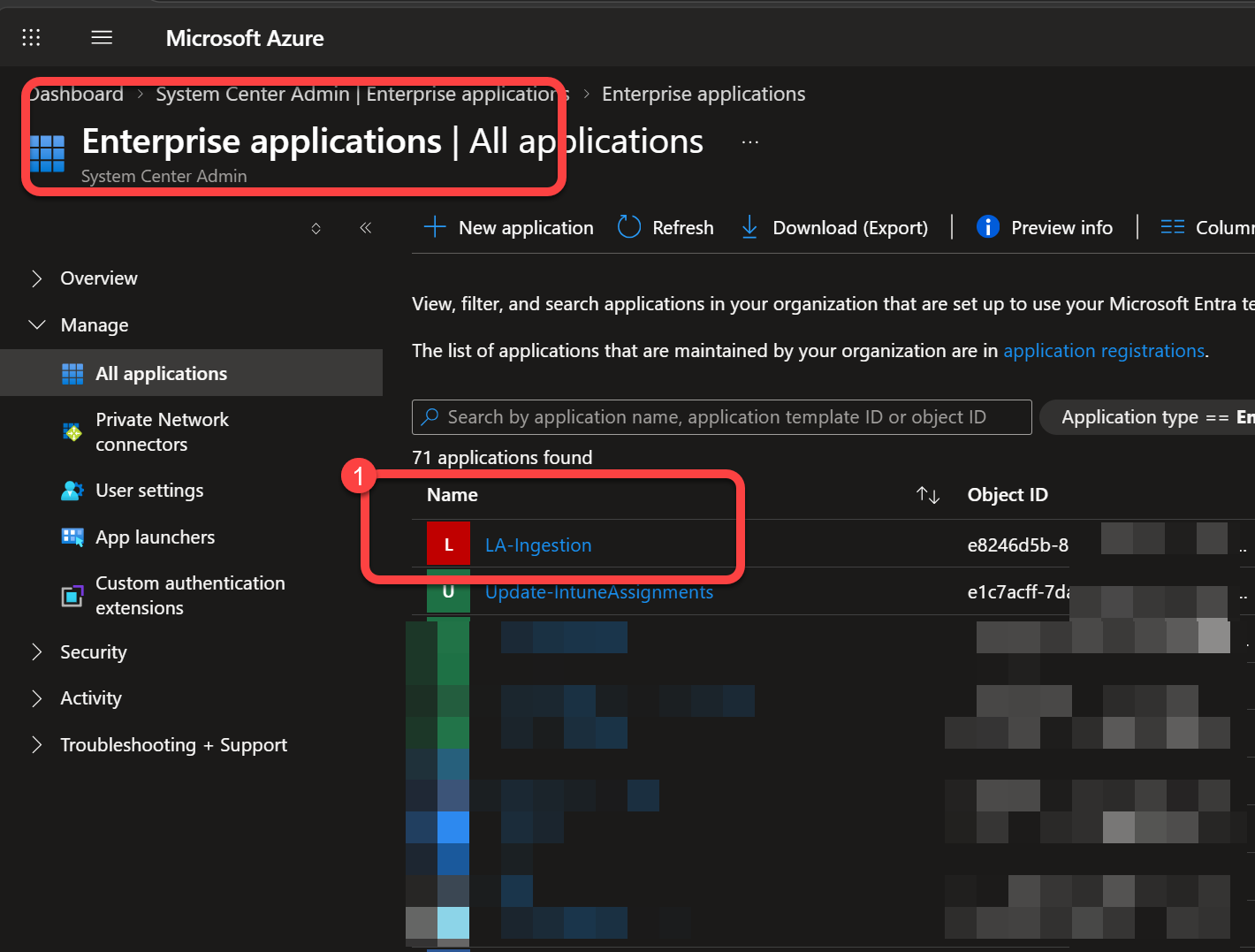
Find the application you just registered (search by name) and open it.
-
From the Overview page, record the Object ID. This is the service principal (Enterprise Application) Object ID the ARM template asks for.
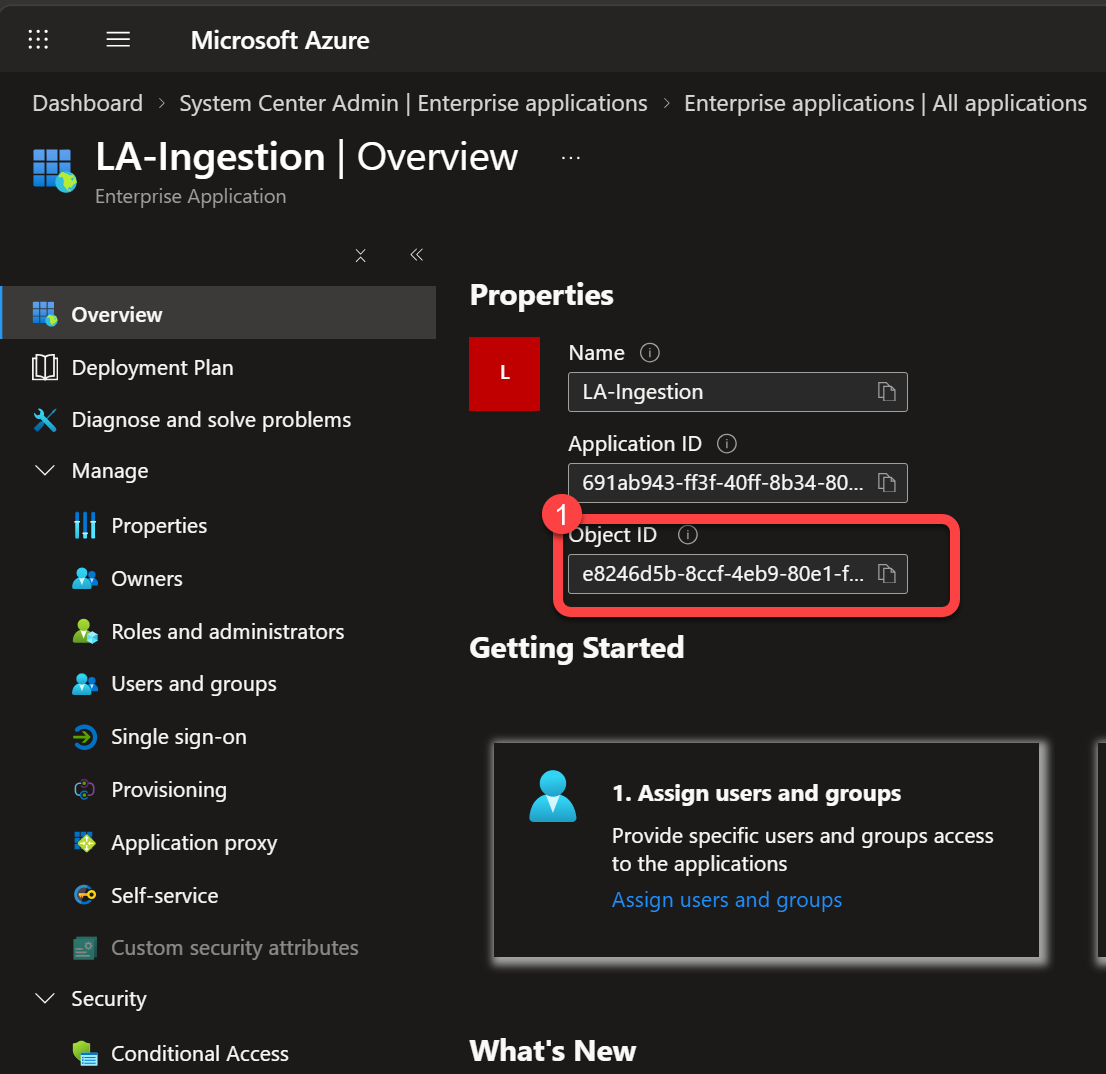
By the end of this step you should have:
| Value | Where to find it | Used by |
|---|---|---|
| Enterprise Application (service principal) Object ID | Enterprise applications > Overview | ARM deployment template |
| Directory (Tenant) ID | App registrations > Overview | Inventory scripts |
| Application (Client) ID | App registrations > Overview | Inventory scripts |
| Client Secret Value | App registrations > Certificates & secrets | Inventory scripts |
Step 2: Deploy the Azure resources
Section titled “Step 2: Deploy the Azure resources”This step uses a one-click ARM template to configure the custom tables, Data Collection Endpoint (DCE), and Data Collection Rule (DCR) in your existing Log Analytics workspace.
The deployment creates:- Custom Log Analytics tables:
PowerStacksDeviceInventory_CL,PowerStacksAppInventory_CL,PowerStacksDriverInventory_CL - A Data Collection Endpoint (DCE)
- A Data Collection Rule (DCR)
- Automatic RBAC assignment (if the Enterprise App Object ID is provided)
Select the button below to deploy
Section titled “Select the button below to deploy”During deployment you will be prompted for:
- Workspace selection — select Use an existing workspace to reuse the workspace from your WUfB Reports setup.
- Workspace details — provide the subscription ID, resource group name, and workspace name.
- Enterprise App Object ID — paste the Object ID from Step 1.
After deployment completes, capture the outputs:
-
In the Azure portal, go to Resource group > Deployments.
-
Select the deployment name.
-
Select the Outputs tab and record:
Output Used by DceURI Inventory scripts DcrImmutableId Inventory scripts
Step 3: Grant BI for Intune read access to the workspace
Section titled “Step 3: Grant BI for Intune read access to the workspace”The main BI for Intune app registration reads inventory data from this Log Analytics workspace using the Log Analytics Reader role. This is configured in Set up the Log Analytics workspace. If you completed that page, this is already done; confirm the role is assigned and continue. Without it, data flows into the workspace but the Enhanced Inventory dashboards stay blank.
Step 4: Deploy the Windows inventory script
Section titled “Step 4: Deploy the Windows inventory script”The script gathers data from each Windows endpoint and sends it to the Log Analytics workspace via the Log Ingestion API.
Download Intune_Windows_Inventory.ps1 from the PowerStacks Windows-Enhanced-Inventory repository:

Update the following settings near the top of the script:
| Parameter | Value |
|---|---|
LogAPIMode | LogIngestionAPI |
TenantId | Directory (Tenant) ID from Step 1 |
ClientId | Application (Client) ID from Step 1 |
ClientSecret | Client Secret value from Step 1 |
DceURI | From Step 2 outputs |
DcrImmutableId | From Step 2 outputs |
Collection toggles
Section titled “Collection toggles”Each major inventory category can be turned on or off independently. The defaults work for most BI for Intune deployments.
| Variable | Description | Default |
|---|---|---|
CollectDeviceInventory | Hardware inventory (CPU, memory, disks, monitors, chassis, OS install date, battery) | $true |
CollectAppInventory | Installed Win32 applications | $true |
CollectDriverInventory | Installed and optional drivers | $true |
CollectMicrosoft365 | Microsoft 365 update channel and compliance (sub-toggle of device inventory) | $true |
CollectWarranty | Warranty lookups via vendor APIs (sub-toggle of device inventory) | $false |
CollectUWPInventory | UWP (modern app) inventory in addition to Win32 (sub-toggle of app inventory) | $false |
MatchDrivers | Match installed driver packages to PnP devices for richer driver records | $true |
RemoveBuiltInMonitors | Exclude internal laptop monitors from monitor inventory | $false |
WarrantyMaxCacheAgeDays | Days before cached warranty data is refreshed from the vendor API | 180 |
WarrantyForceRefresh | Ignore the local cache and force a fresh warranty API lookup | $false |
Warranty API credentials
Section titled “Warranty API credentials”If CollectWarranty is enabled, you need API credentials from each vendor whose devices you want to look up. The Warranty dashboard remains blank for vendors you don’t supply credentials for; the script skips them silently.
- Dell — apply at Dell TechDirect for a Client ID and Client Secret.
- Lenovo — contact your Lenovo account representative to request a Client ID. There is no self-service portal.
- HP — sign up at the HP Developer Portal or work with your HP rep for a Client ID and Client Secret. HP secrets expire frequently and must be refreshed.
- Getac — contact your Getac account representative for API credentials.
Fill in the credentials you have:
$WarrantyDellClientID = "<your Dell client ID>"$WarrantyDellClientSecret = "<your Dell client secret>"$WarrantyLenovoClientID = "<your Lenovo client ID>"$WarrantyHPClientID = "<your HP client ID>"$WarrantyHPClientSecret = "<your HP client secret>"Deploy via Intune
Section titled “Deploy via Intune”Deploy the script as a detection script in an Intune remediation:
- In the Intune admin center, go to Devices > Remediations.
- Create a new remediation package.
- Upload
Intune_Windows_Inventory.ps1as the detection script. - Set Run this script using the logged-on credentials to No. The script runs as SYSTEM.
- Set Run script in 64-bit PowerShell to Yes.
- Assign the remediation to your target device groups.
- Set the schedule to run once per day.
Step 5: (Optional) Deploy the macOS inventory script
Section titled “Step 5: (Optional) Deploy the macOS inventory script”If you also manage macOS devices, deploy the macOS script to extend the same custom-inventory pattern to Mac endpoints.
Download Mac_Custom_Inventory.sh from the PowerStacks Mac-Enhanced-Inventory repository:
Update the following settings near the top of Mac_Custom_Inventory.sh:
| Parameter | Value |
|---|---|
LogAPIMode | LogIngestionAPI |
TenantId | Directory (Tenant) ID from Step 1 |
ClientId | Application (Client) ID from Step 1 |
ClientSecret | Client Secret value from Step 1 |
DceURI | From Step 2 outputs |
DcrImmutableId | From Step 2 outputs |
| Variable | Description | Default |
|---|---|---|
CollectDeviceInventory | Hardware inventory (CPU, memory, disks, battery, model) | true |
CollectAppInventory | Installed-application list | true |
InventoryDateFormat | date format string for the final status timestamp | "%m-%d %H:%M" |
Deploy the script via Intune Shell scripts:
- In the Intune admin center, go to Devices > macOS > Shell scripts.
- Upload
Mac_Custom_Inventory.sh. - Set Run script as signed-in user to No. The script runs as
root. - Set Script frequency to Every 1 day.
- Assign the script to your target device groups.
Step 6: Connect BI for Intune to the Log Analytics workspace
Section titled “Step 6: Connect BI for Intune to the Log Analytics workspace”- In the Power BI service, open the BI for Intune workspace.
- Open the BI for Intune semantic model settings.
- Expand Parameters and update:
- AzureAD LogAnalytics Enable =
TRUE - AzureAD LogAnalytics WorkspaceID = the Workspace ID of the Log Analytics workspace from Step 2. Find it at Azure portal > Log Analytics workspaces > your workspace > Overview > Workspace ID.
- AzureAD LogAnalytics Enable =
- Select Apply.
Verify data ingestion
Section titled “Verify data ingestion”After the script has run on at least one device, verify data is flowing:
-
In the Azure portal, go to your Log Analytics workspace.
-
Go to Logs and run:
PowerStacksDeviceInventory_CL| take 10
If data appears, the pipeline is working. For deeper troubleshooting, run the LogIngestionAPI_CheckDCR PowerShell script from the EnhancedInventoryDeploy repository.
What you’ll see in BI for Intune
Section titled “What you’ll see in BI for Intune”After data starts flowing, the following BI for Intune dashboards populate:
- Firewall Status
- App Inventory
- Driver Inventory
- Microsoft 365
- Monitor
- Disk
- Battery
- Warranty (per-vendor data depends on warranty API credentials supplied in Step 3)
What gets collected
Section titled “What gets collected”The scripts write three custom tables to your Log Analytics workspace:
- PowerStacksDeviceInventory_CL — hardware (CPU, memory, disks, monitors, battery, chassis), Microsoft 365 channel, warranty
- PowerStacksAppInventory_CL — installed applications
- PowerStacksDriverInventory_CL — installed and optional drivers (Windows only)
For the full field-by-field schemas, see the scripts in the Windows-Enhanced-Inventory and Mac-Enhanced-Inventory repositories.