Set up the Log Analytics Workspace
Two BI for Intune data sources read from an Azure Log Analytics workspace: Windows Update for Business reports and Enhanced Inventory. Both read from the same workspace, so you only ever need one.
For BI for Intune to read that data, three things have to be in place:
- A Log Analytics workspace.
- The Log Analytics API Data.Read permission on the BI for Intune app registration.
- The Log Analytics Reader role granted to that app registration on the workspace.
This page is the single place those are configured. The Windows Update for Business reports and Enhanced Inventory pages both point back here.
Step 1: Create a Log Analytics workspace
Section titled “Step 1: Create a Log Analytics workspace”Skip this step if you already have a workspace, including one created by Windows Update for Business reports. Both add-ons share a single workspace.
- Sign in to the Azure portal.
- Search for and select Log Analytics workspaces.
- Select Create.
- Choose a Subscription and Resource group, enter a Name, and choose a region. If you plan to use Windows Update for Business reports, pick a region that service supports.
- Select Review + create, then Create.
For the full Microsoft procedure, see Create a Log Analytics workspace.
Step 2: Add the Log Analytics permission to the app registration
Section titled “Step 2: Add the Log Analytics permission to the app registration”The BI for Intune app registration needs the Log Analytics API Data.Read application permission so it can call the Log Analytics API.
- In the Azure portal, go to Microsoft Entra ID > App registrations and open your BI for Intune app registration.
- Select API permissions > Add a permission > APIs my organization uses.
- Search for and select Log Analytics API.
- Select Application permissions, select Data.Read, and select Add permissions.
- Select Grant admin consent and confirm.
When complete, the Log Analytics API shows Data.Read with admin consent granted, alongside the Microsoft Graph permissions.
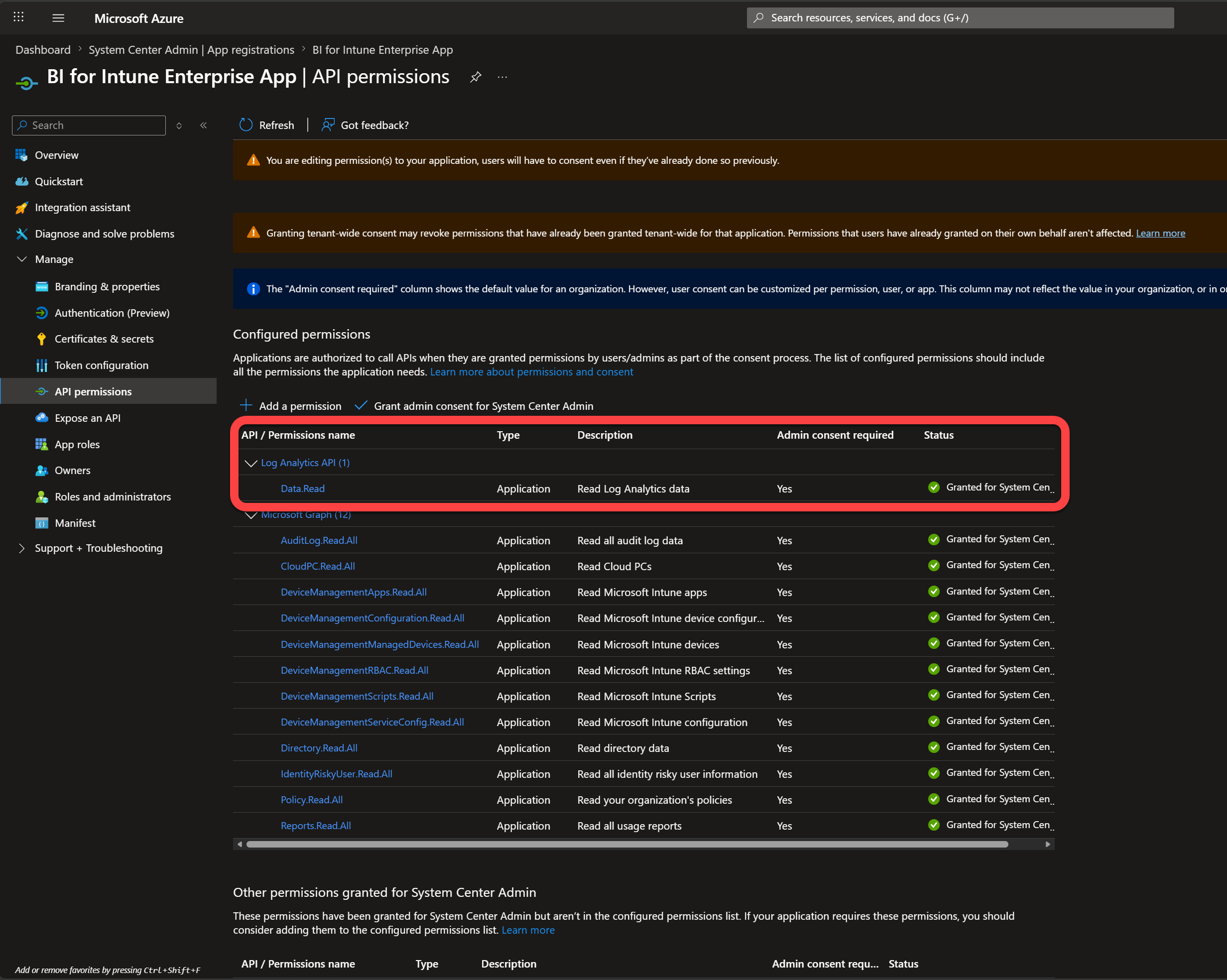
Step 3: Grant the app registration read access to the workspace
Section titled “Step 3: Grant the app registration read access to the workspace”The Data.Read permission lets the app call the Log Analytics API, but it does not grant access to any specific workspace. Assign the Log Analytics Reader role to the BI for Intune app registration on the workspace. Without it, data flows into the workspace but the BI for Intune dashboards stay blank.
-
In the Azure portal, go to Log Analytics workspaces and select your workspace. Select Access control (IAM), then Add > Add role assignment.
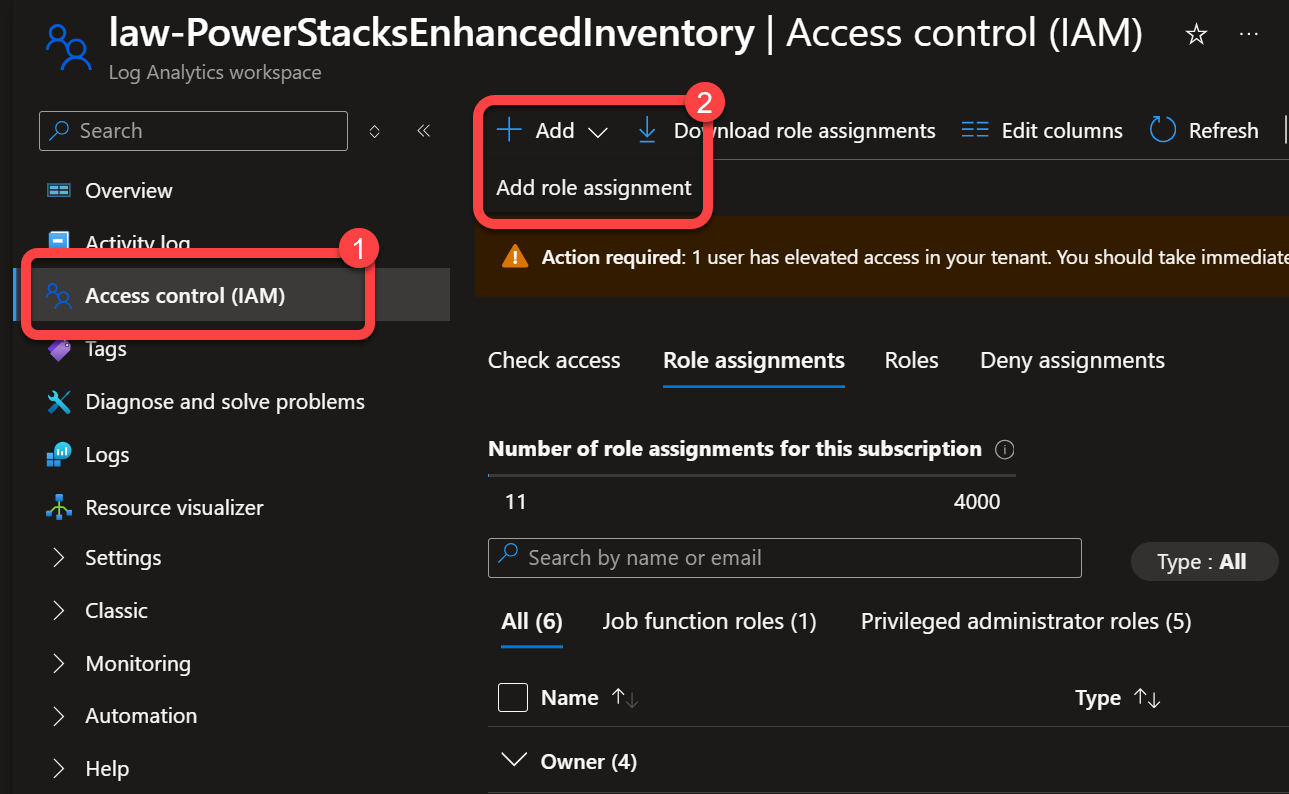
-
On the Role tab, search for Log Analytics Reader, select it, and select Next.
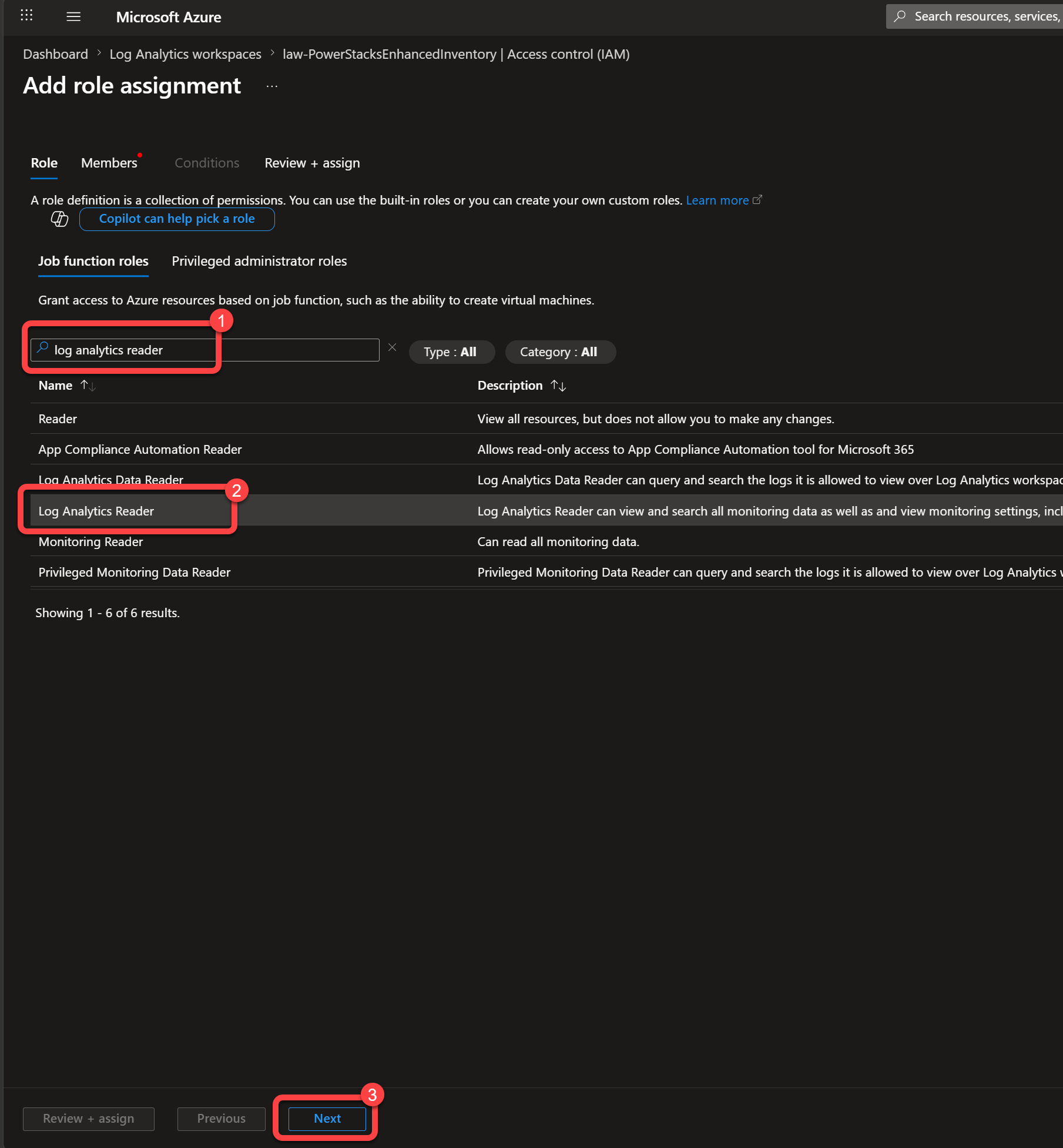
-
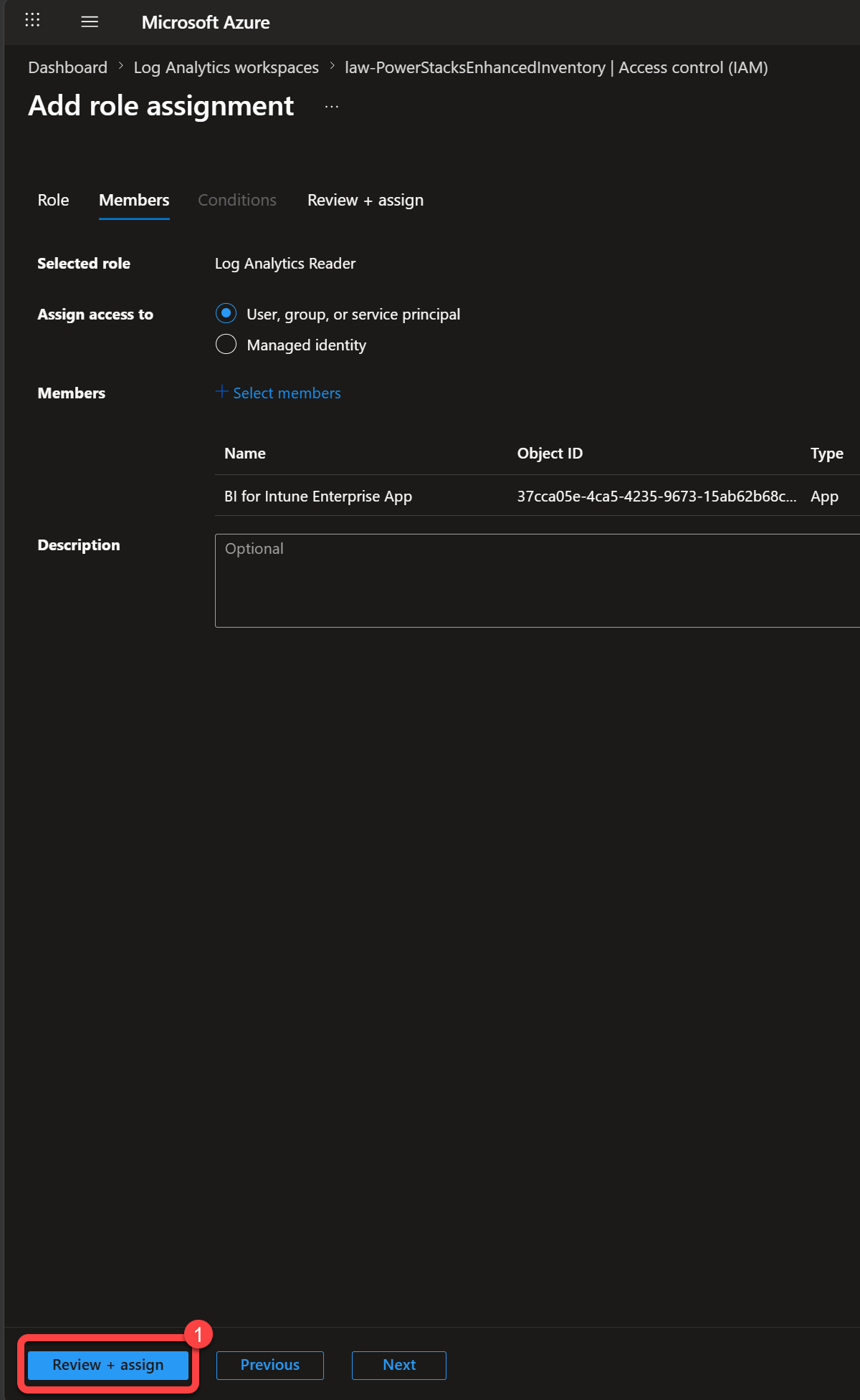
On the Members tab, leave Assign access to set to User, group, or service principal, then select Select members.
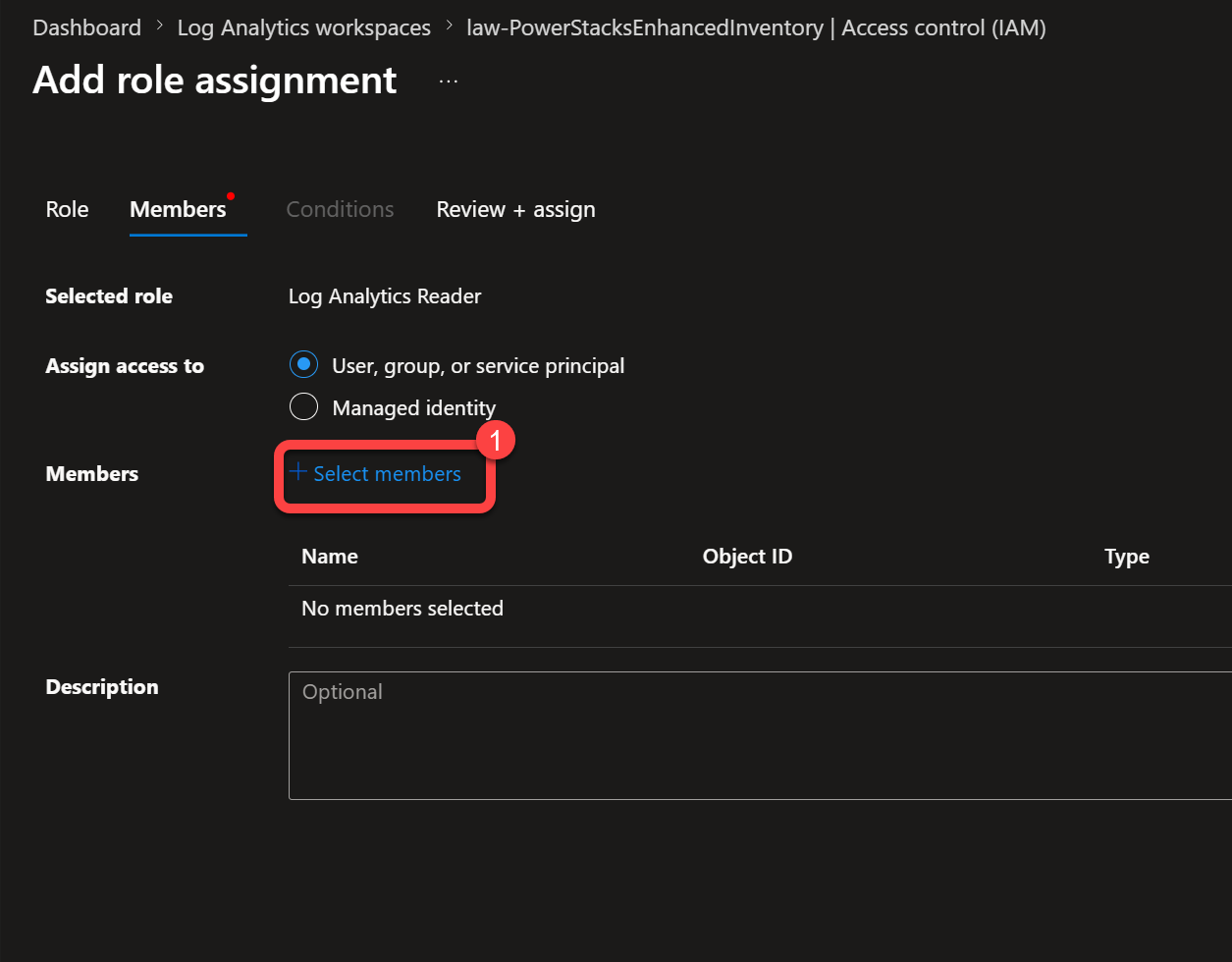
-
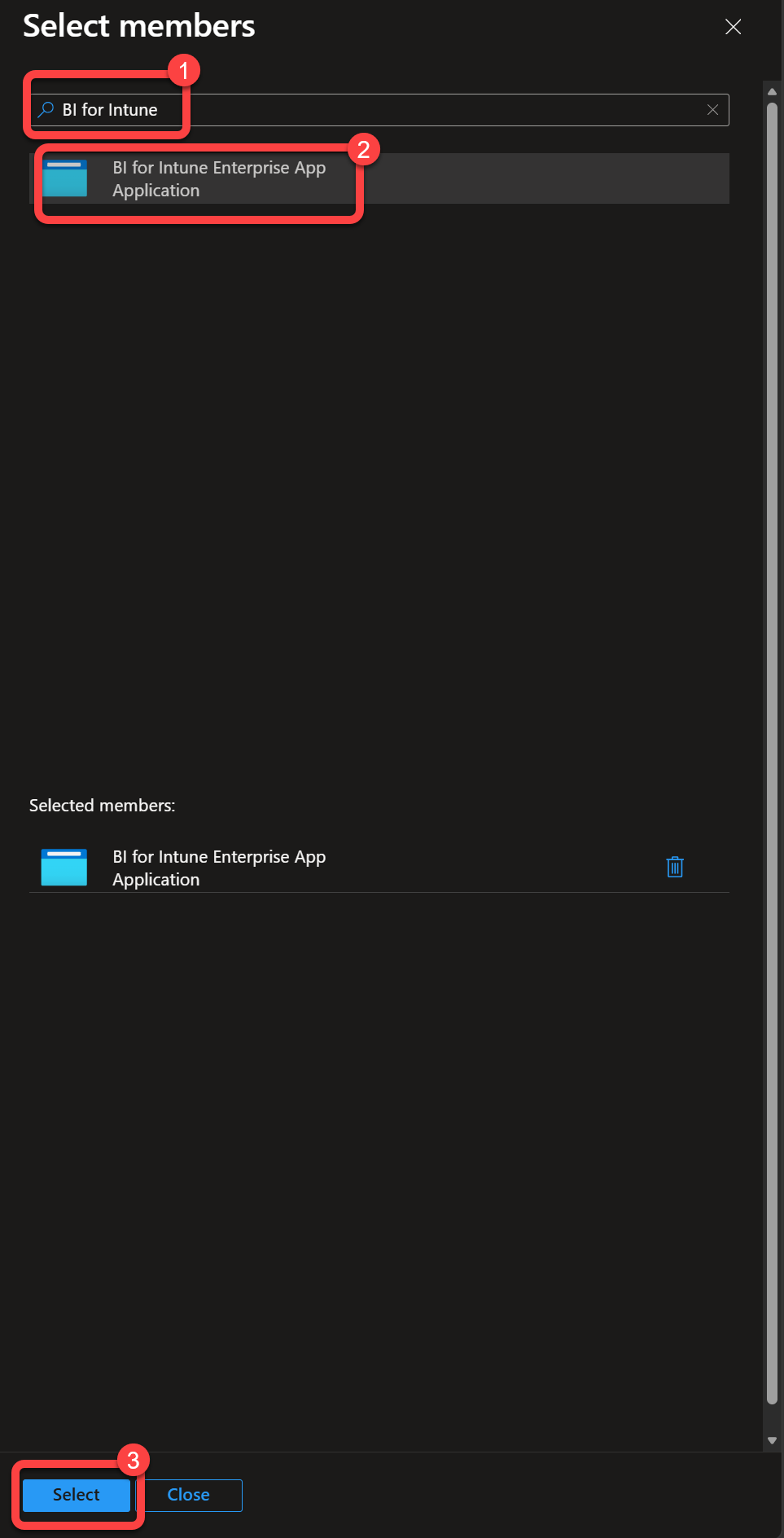
Search for your BI for Intune app registration by name, select it, and select Select.
-
Select Review + assign.
-
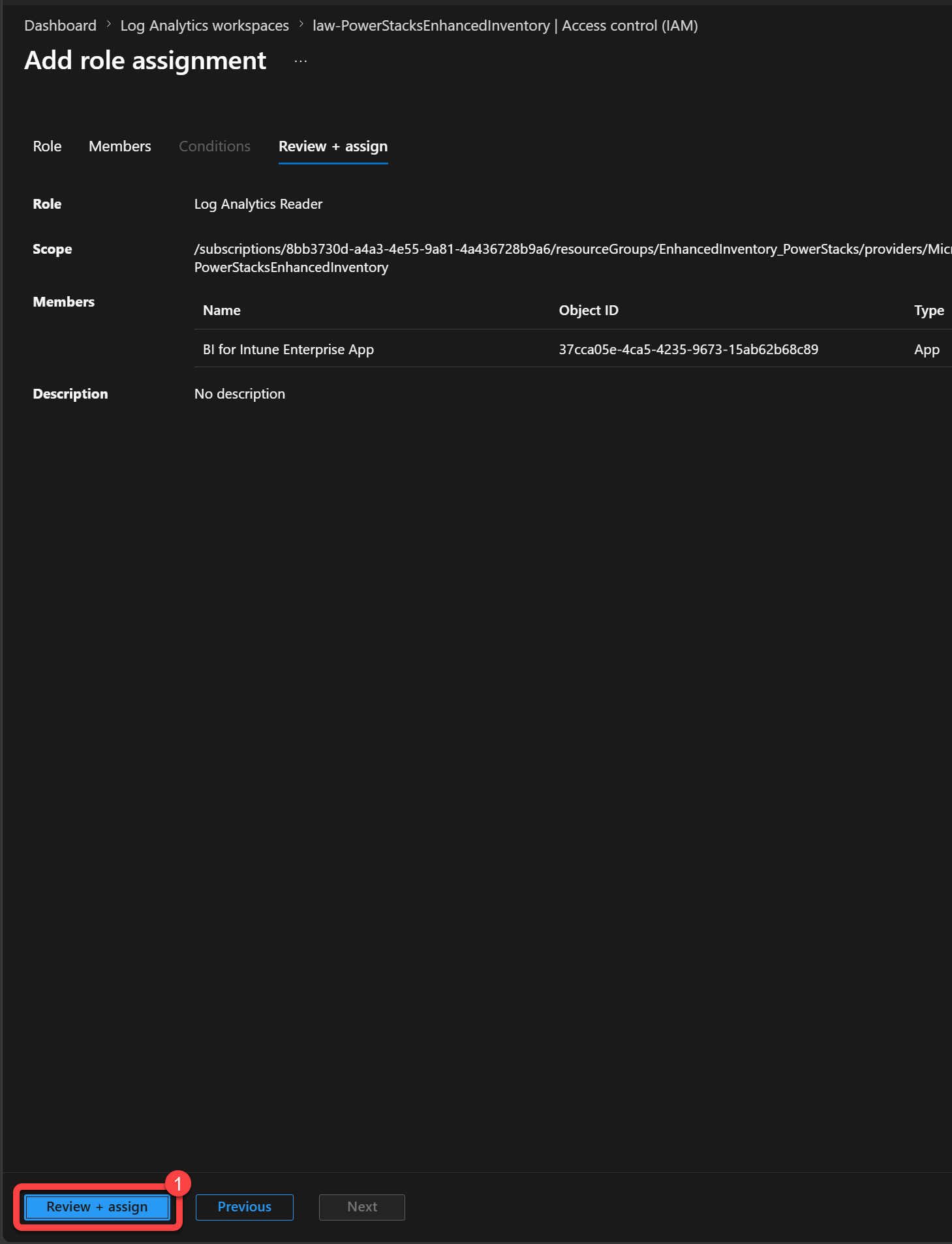
Select Review + assign again to confirm the assignment.
Step 4: Record the workspace ID
Section titled “Step 4: Record the workspace ID”You need the Workspace ID when you connect BI for Intune to the workspace in the semantic model parameters.
- In the Azure portal, open your Log Analytics workspace and select Overview.
- Record the Workspace ID. Note the Subscription and Workspace Name for reference.
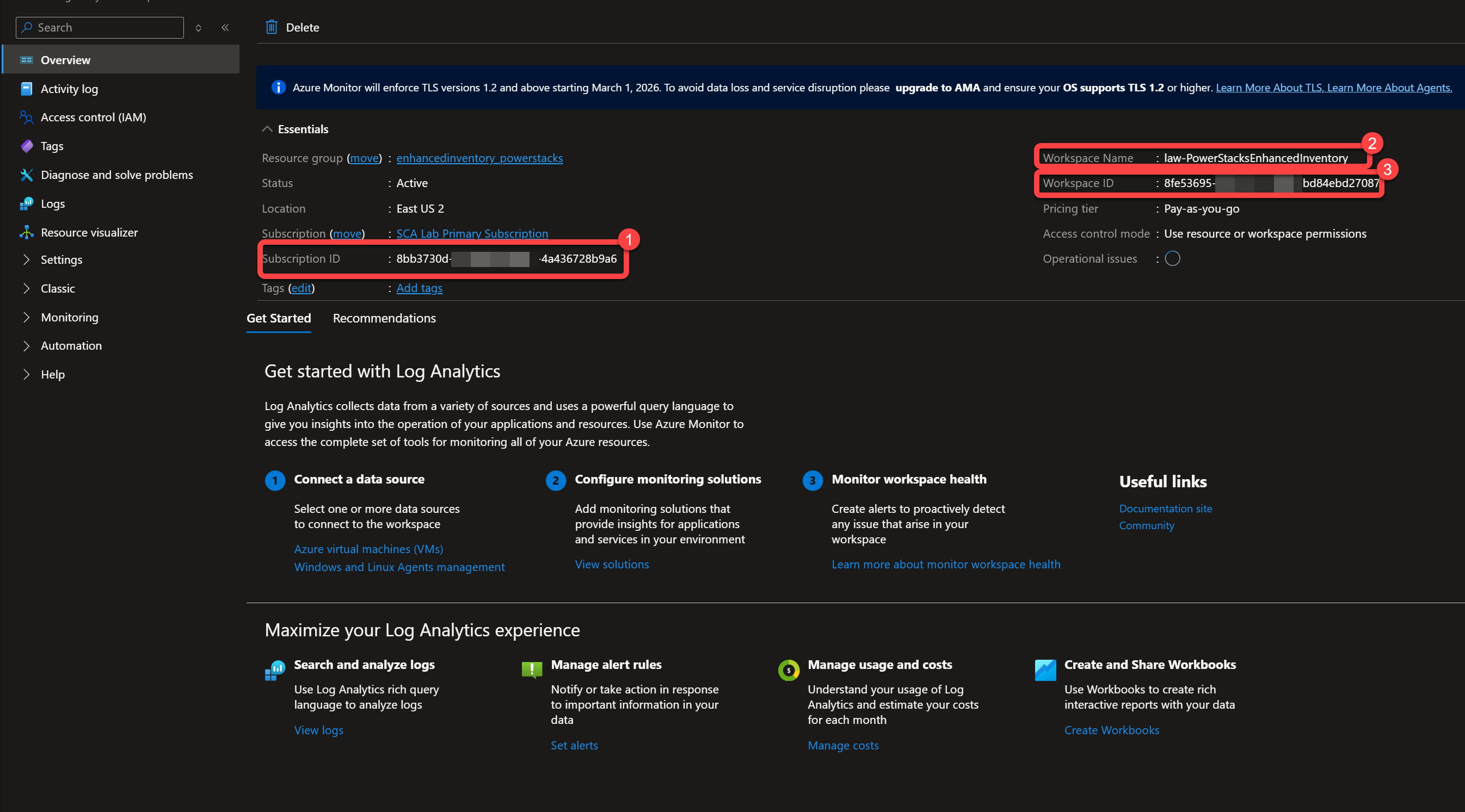
Use this Workspace ID for the AzureAD LogAnalytics WorkspaceID parameter when you set up Windows Update for Business reports or Enhanced Inventory.