Cloud PC Export API Parameter
This is only required for customers who want to use the Cloud PC report pages.
Step 1: Open Cloud PC utilization report
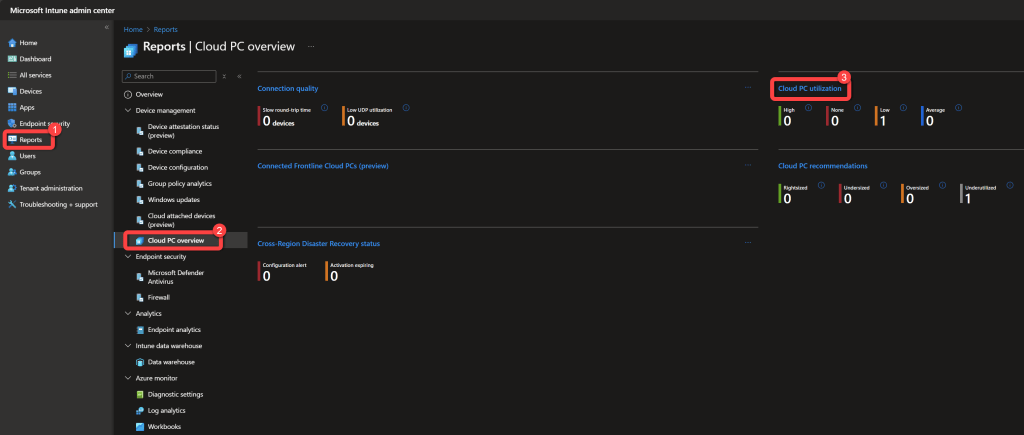
Section titled “Step 1: Open Cloud PC utilization report”- In the Intune admin center select the Reports pane.
- Select Cloud PC overview.
- Select Cloud PC utilization.
Step 2: Open developer tools and export
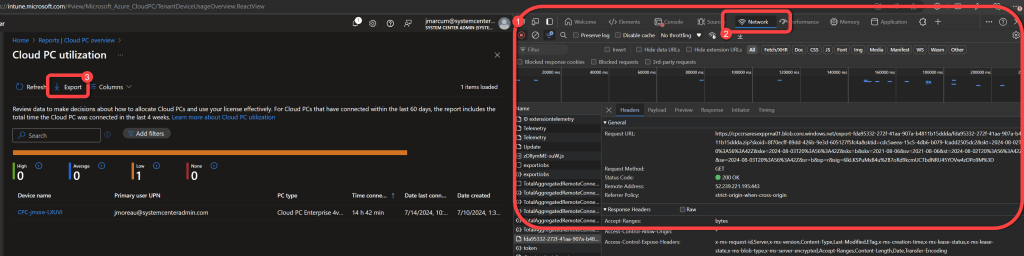
Section titled “Step 2: Open developer tools and export”- Press F12 to open the developer tools in your browser.
- Select the Network tab in the developer tools.
- Select Export.
Step 3: Download the export file
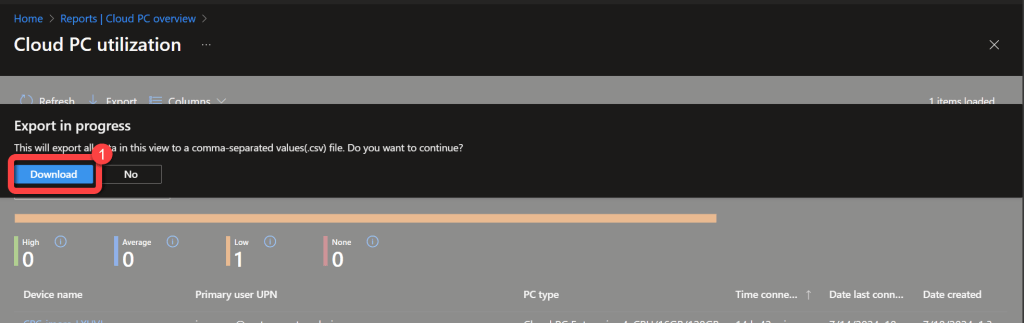
Section titled “Step 3: Download the export file”- Select Download.
Step 4: Copy the export request URL
Section titled “Step 4: Copy the export request URL”- On the Network tab of the Developer pane in the browser you will see several lines that start with TotalAggregatedRemoteConnectionReports_ followed by a line that has a seemingly random GUID as the name.
- Select the first line after the last instance of lines starting with TotalAggregatedRemoteConnectionReports_, this should be the line starting with a GUID.
- The header of this line will contain the Request URL.
- Copy the Request URL from
httpsto.net(you don’t need anything after .net) and save it for use later. It should look something like this:https://cpccrsaresexpprna01.blob.core.windows.net.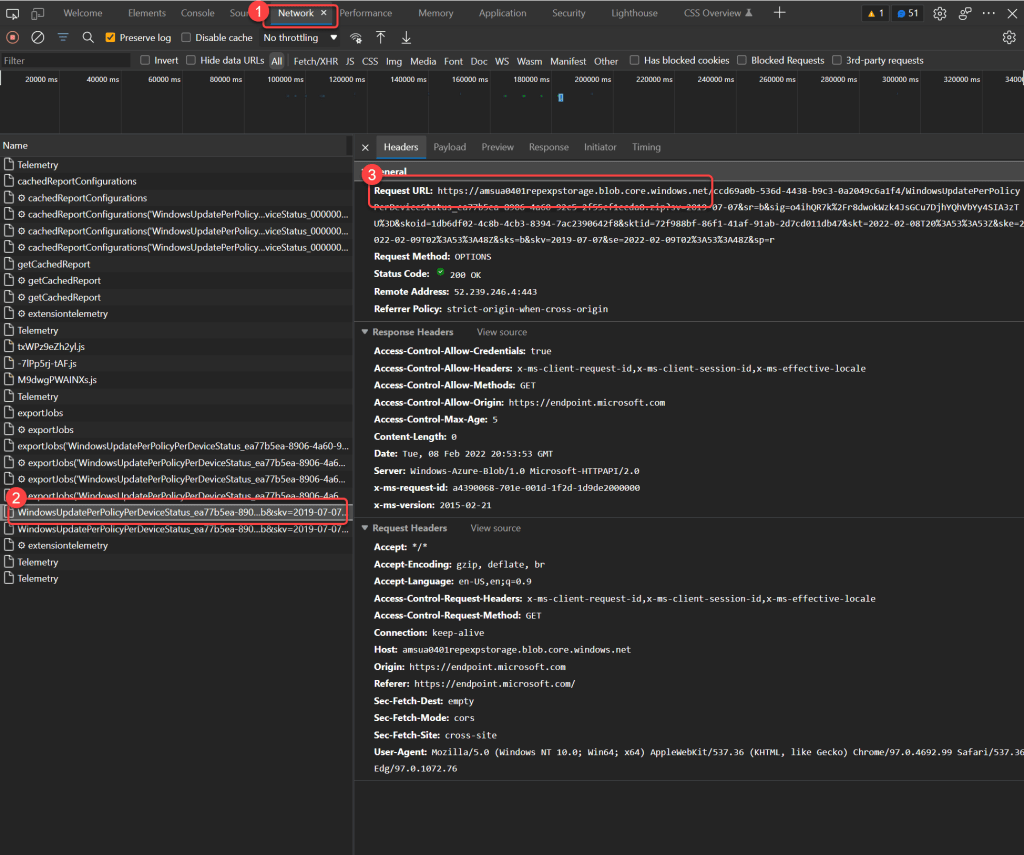
Step 5: Open semantic model settings
Section titled “Step 5: Open semantic model settings”- In Power BI go to the BI for Intune workspace.
- Select the Semantic model settings.
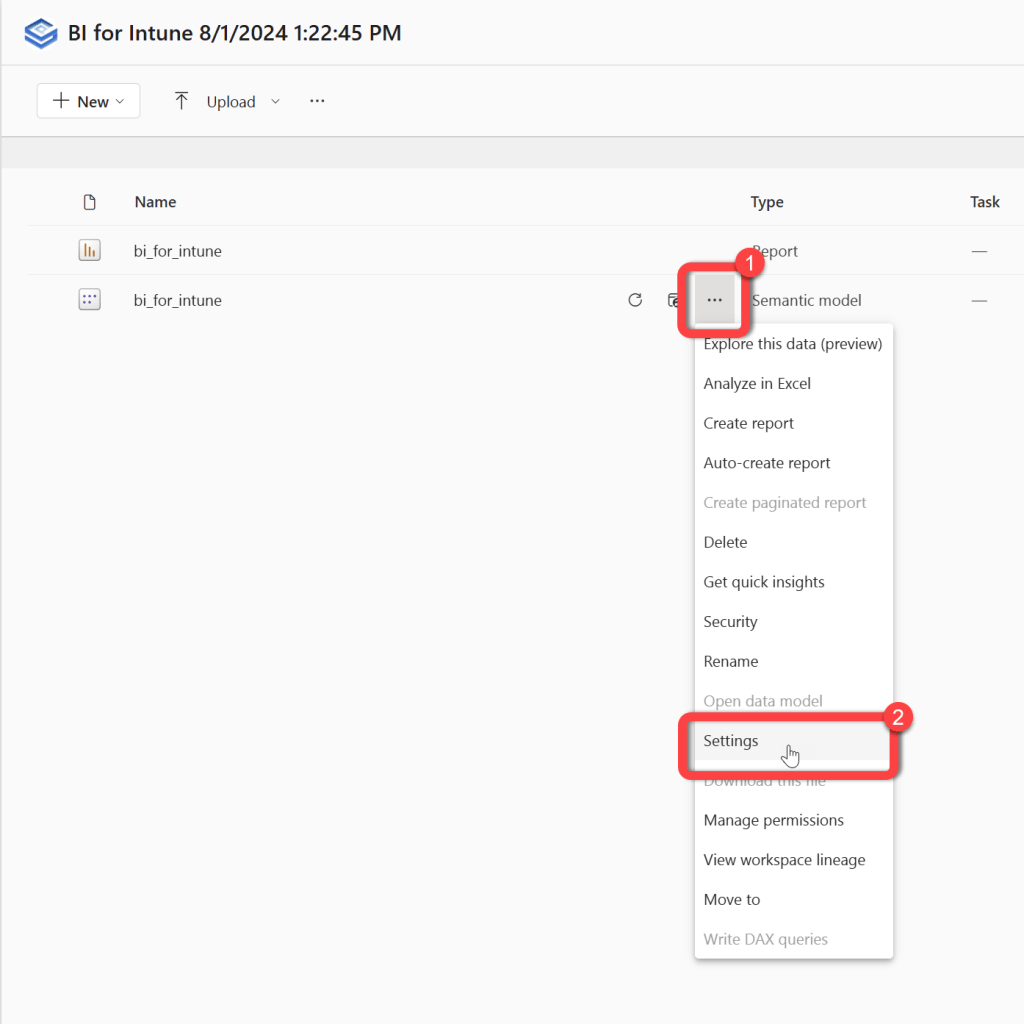
Step 6: Enter the Cloud PC export URL
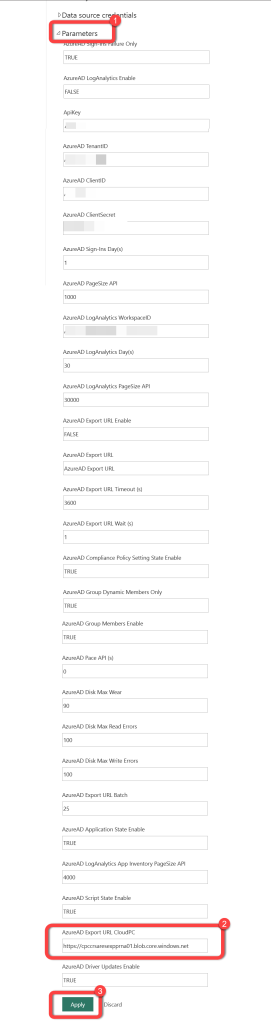
Section titled “Step 6: Enter the Cloud PC export URL”- Expand Parameters.
- Enter the Export URL that you previously saved in the AzureAD Export URL CloudPC parameter.
- Select Apply.