App Management
The App Management tab is your central hub for managing which Intune apps are available in the portal and how they behave.
Syncing apps from Intune
Section titled “Syncing apps from Intune”- Select the Sync Apps from Intune button
- The portal fetches all mobile apps from your Intune tenant
- Apps are imported with their name, publisher, description, icon, and category
- New apps are hidden by default - you must make them visible for users to see them
Incremental Sync: After the first full sync, subsequent syncs are incremental, only new and modified apps are fetched from Intune. The portal tracks the last sync date and uses lastModifiedDateTime filtering to minimize Graph API calls. Icons are fetched in parallel (5 concurrent requests) for faster sync times.
Scheduled Background Sync: A background service automatically syncs apps on a schedule:
- Nightly full sync at 2:00 AM UTC, ensures consistency
- Hourly incremental sync, picks up new and changed apps quickly, and checks for apps deleted in Intune
- The manual Sync Apps from Intune button is still available for on-demand syncs, and also checks for deleted apps
Apps deleted in Intune
Section titled “Apps deleted in Intune”When an app is deleted directly in Intune, including through another App Store instance, App Store notices within an hour:
- An app App Store holds nothing for, such as one another tool or App Store instance published, is removed from App Management once it has been missing for 30 minutes on two checks.
- An app App Store holds groups, update applications, version history or requests for is kept, so they can be cleaned up. App Management labels it Deleted in Intune, and Reports > Store Health lists it under Apps deleted in Intune. It can’t be made available, App Store doesn’t check it for updates, and requests for it are not reported as installed. Publish it again from the App Catalog, or remove it with Delete from Intune. No group is deleted.
Pagination: The portal follows @odata.nextLink pagination from the Graph API, so tenants with more than 999 apps are fully supported.
Filtering the app list
Section titled “Filtering the app list”The filter bar above the app table has six axes (v1.26.0+). All filters compose with the search box and persist while you navigate the tab:
| Filter | Values | Default |
|---|---|---|
| Platform | All / Windows / iOS / Android / macOS / Web (only platforms present in your tenant) | All |
| Visibility | All / Visible / Hidden | All |
| Category | All / (per-tenant categories) | All |
| Source | All / Store / Intune | All |
| Purpose | Install / Update / All | Install |
| Search | Free-text match against app name and publisher | empty |
Source distinguishes apps published through the App Store catalog flow (where the portal owns the lifecycle) from apps that already existed in Intune and were synced into the portal. Source = Store shows only apps with sourceWingetPackageId set, these are the apps where Version and Rollback, ring-based update deployments, and the Publish wizard apply.
Purpose distinguishes the user-facing Install Win32 app from the paired Update Win32 app that drives the two-app update model. The default is Install so the table shows the user-facing apps you’d expect; flip to Update when you need to inspect Update apps directly (for example to verify an Update app’s group assignments or ring activation state). The flag is set automatically during Intune sync by joining against UpdateDeployment.UpdateIntuneAppId, there is no manual classification step.
App table columns
Section titled “App table columns”The app list table is read-only and informational. Select any row to open the app’s detail view where you can edit settings.
| Column | Description |
|---|---|
| App | App name, icon, and publisher |
| Platform | App platform badge (Windows, iOS, Android, macOS, Web) |
| Type | App type from Intune (e.g., Win32, Microsoft Store, iOS Store) |
| Assigned | Status badge showing whether a target group is configured (Yes/No/N-A) |
| Visible | Status badge showing whether users can see this app in the portal (Yes/No/N-A) |
| Approval | Status badge showing whether approval is required (Yes/No/N-A) |
| Date Added | When the app was first synced or published |
Supported app types
Section titled “Supported app types”The portal supports self-service deployment for specific app types. When syncing apps from Intune, each app is classified by platform and support status:
| Platform | Supported Types | Unsupported Types |
|---|---|---|
| Windows | Win32, Microsoft Store (New) | Windows Universal (LoB), MSI (LoB), AppX (LoB) |
| iOS | iOS Store, iOS VPP | iOS (LoB) |
| Android | Android Store, Managed Google Play, Android for Work | Android (LoB) |
| Web | Web Apps | - |
| macOS | - | All macOS app types |
Why some types are unsupported:
- Line of Business (LoB) apps require special handling during deployment that the portal cannot automate
- macOS apps have different deployment mechanisms that are not yet implemented
Unsupported apps appear in the admin UI with their type displayed and an “N/A” status badge. Admins can see these apps exist but cannot make them available for self-service.
Configuring individual apps
Section titled “Configuring individual apps”Select any app row in the table to open its detail view. The detail view has two sections accessible from the left navigation:
- Overview, quick summary cards showing platform, visibility, approval status, assignment type, date added, and version
- Properties, grouped property sections (described below), each with an Edit link
Editing app settings
Section titled “Editing app settings”There are two editing surfaces in the detail view, each chosen to match how the underlying fields are actually used:
- App settings wizard. Select “Edit” on the Visibility & Store, Assignment, or Deployment Options section. Each opens the same wizard, starting on the section you clicked. Making an app available to users in the App Store requires all three (you can’t be visible without an assignment, and Win32 assignments need deployment options), so the wizard lets you set them together and commit them with a single Review + Save.
- Approval side panel. Select “Edit” on the Approval Settings section to open a focused side panel for the Requires Approval and Acknowledgment fields. Approval governance is a separate concern from store availability and is the field admins most often edit by itself, so it stays a one-screen edit.
The App settings wizard has 4 steps:
| Step | Title | Fields |
|---|---|---|
| 1 | Visibility and Store | Visible, Featured, Categories, Tags, App icon, Cost |
| 2 | Assignment | Assignment type, Target group, Assignment filter |
| 3 | Deployment Options | Install behavior, Restart behavior, Notifications, Grace period (Win32 only) |
| 4 | Review + Save | Summary of all changes with diff highlighting |
For non-Win32 apps the Deployment Options step is skipped automatically, the wizard jumps from Assignment directly to Review + Save.
Visibility settings
Section titled “Visibility settings”- Yes: App appears in the user-facing app catalog
- No: App is hidden from users but still tracked in the system
- N/A: App type is not supported for self-service deployment
Use this to control which Intune apps are available for self-service requests. Apps that shouldn’t be requested (system apps, dependencies, etc.) should remain hidden.
Hiding apps with active deployments:
When you set an app’s visibility to No and it has an active Intune deployment and Microsoft Entra ID group, a confirmation dialog appears asking whether you also want to delete the deployment group and assignment:
- OK: Hides the app AND removes the Intune assignment and deletes the Microsoft Entra ID deployment group
- Cancel: Only hides the app but preserves the deployment infrastructure (useful if you plan to make it visible again later)
Automatic deployment setup:
When you set an app’s visibility to Yes for the first time, the portal automatically:
-
Creates an Entra ID Security Group named
{GroupNamePrefix}{Vendor} {AppName}-{arch}-{locale}-Required- Example:
AppStore-Microsoft Microsoft Teams-x64-en-US-Required - The prefix is configurable under Store Administration > Deployment (default:
AppStore-) - There is no version in the name: later versions of the app reuse the same group
- Example:
-
Creates an Intune App Assignment
- The app is assigned as Required to the new security group
- Assignment type (User or Device) is based on the app’s Assignment setting
This automation ensures that when a user’s request is approved, they simply need to be added to the group and Intune handles the deployment.
Changing the deployment group: when you change an app’s target group, App Store creates the assignment to the new group and removes the old one, for a visible or a hidden app alike. If Intune refuses to remove the old assignment, the portal says so and keeps a record of it, instead of reporting success.
Categories
Section titled “Categories”An app can belong to more than one category. Categories group the catalog into sections on the store home page and drive the Category filter, so an app listed under two categories appears in both.
Edit categories in the App settings wizard’s Visibility and Store step. They work the same way tags do: start typing to reuse an existing category or add a new one, and each category shows as a removable chip.
Categories stay in sync with Microsoft Intune in both directions:
- Categories you set in App Management reach Intune on the next sync.
- Categories set directly in Intune appear in the portal after a sync.
- Each sync reconciles both sides against the last synced state, so a category added on one side is not overwritten by the other.
Approval settings
Section titled “Approval settings”- Yes: Requests go through the configured approval workflow before completion
- No: Requests are auto-approved and the user/device is immediately added to the target group
- N/A: App type is not supported
Approval can only be enabled for visible apps. If you try to enable approval for a hidden app, you’ll see a warning: “App must be visible in the store to enable approval.”
Delete from Intune
Section titled “Delete from Intune”From the app detail view, the Delete from Intune button removes an app from both Intune and the portal entirely. It appears only for apps backed by a real Intune app. For a catalog entry that was never deployed (a placeholder with a winget- prefix), there is nothing to remove, so the button is hidden.
Confirmation flow:
- Step 1, “Are you sure you want to delete [app name] from Intune?”
- Select Delete to proceed, or Cancel to abort
- Step 2 (only when App Store has deployment groups recorded for the app), Delete configuration groups? lists each group with its origin, and none is selected.
- Select the groups you also want deleted from Microsoft Entra ID, then select Delete selected groups. Or select Keep all groups.
- If App Store can’t read the app’s groups, it stops without deleting anything and asks you to try again.
What gets deleted:
| Action | Always | Only for groups you select |
|---|---|---|
| Install application removed from Intune | Yes | - |
| Update applications removed from Intune | Yes | - |
| Intune assignment removed | Yes | - |
| All associated requests removed | Yes | - |
| App record removed from portal | Yes | - |
| Microsoft Entra ID security group deleted | - | Yes |
A published app owns more than one application in Intune. There is the install application, and there is an update application for each rollout still inside your Number of update apps to retain setting. App Store deletes all of them, because it created all of them, and an update application left behind would keep distributing software for an app you just deleted.
App Store only deletes applications it created. It works from its own record of what it published, never from a name or a naming convention, so an application you created yourself is never touched even if it has a similar name.
If Intune refuses to delete one of the update applications, the app is still deleted and the confirmation names the application that was left behind so you can remove it in Intune. That message is worth reading rather than dismissing: once the app record is gone, App Store has no record of that application either.
After deletion, the app is completely removed from the portal. To restore it, republish from the WinGet catalog.
When to use Delete from Intune:
- You need to republish an app with updated settings (e.g., different silent switches, updated installer)
- An app deployment is in a bad state and needs to be recreated
- You want to permanently remove an app from both Intune and the portal
App property reference
Section titled “App property reference”The App settings wizard is where you edit every configurable app property. This section describes each field, grouped by the property section it appears on. Open the wizard by selecting Edit on the Visibility & Store, Assignment, or Deployment Options section of an app’s detail view.
App details section
Section titled “App details section”| Field | Description |
|---|---|
| Cost | Optional cost to display on app cards (informational only, no billing). Enter a decimal value or leave empty for “Free”. |
| Categories | One or more categories shown on app cards and used by the Category filter. Edit them as chips: start typing to reuse an existing category or add a new one. Categories stay in sync with Intune in both directions. See Categories. |
| Tags | Up to 10 free-form labels for organizing and filtering the catalog. Start typing to reuse an existing tag, or enter a new one. Give tags colors under Store Admin so they show as colored chips. See App Tags. |
Assignment settings section
Section titled “Assignment settings section”| Field | Description |
|---|---|
| Assignment Type | User (add requester to group) or Device (add requester’s device to group) |
| Which device | For Device assignment only: which of the requester’s devices the app installs on. See Assignment type. |
| Target Group | Microsoft Entra ID security group for app assignment. Select “Search Groups” to browse, or use “Clear” to remove. |
| Assignment Filter | Optional Intune assignment filter. Select filter type (Include/Exclude) and choose a filter. |
Win32 deployment options section
Section titled “Win32 deployment options section”These options appear only for Win32 apps and control Intune deployment behavior:
| Field | Description |
|---|---|
| Install Context | System (machine-wide) or User (per-user) installation |
| Device Restart | How to handle restart after install: Based on Return Code, Allow, Suppress, or Force |
| End User Notification | What users see: Show All, Show Reboot Only, or Hide All |
| Allow Available Uninstall | Whether users can uninstall from Company Portal |
| Restart Grace Period | Enable/configure grace period before forced restart |
Select Review + Save to apply your changes, or Cancel to discard them.
App icon
Section titled “App icon”Each app displays an icon in the catalog. Icons are typically synced from Intune, but some apps may be missing an icon or need a different one. Set the icon in the App settings wizard’s Visibility and Store step, which offers three options:
- Upload a custom image, a PNG or JPEG file of 1 MB or less from your computer. Intune accepts only these two formats, so other files are refused.
- Choose from the icon library, which shows all unique PNG and JPEG icons already used by other apps in the portal. Search by app name or publisher, then select an icon to apply it. This is useful when multiple apps share the same publisher icon, or when you want to reuse an existing icon without re-uploading.
- Reset to the Intune default, which restores the icon that came from Intune.
Assignment type
Section titled “Assignment type”Determines what gets added to the Microsoft Entra ID group when a request is approved:
- User: The requesting user is added to the group (most common)
- Device: The user’s device is added to the group (useful for device-targeted deployments)
Which device (Device assignment)
Section titled “Which device (Device assignment)”Choosing Device reveals a Which device setting that decides which of the requester’s devices the app installs on.
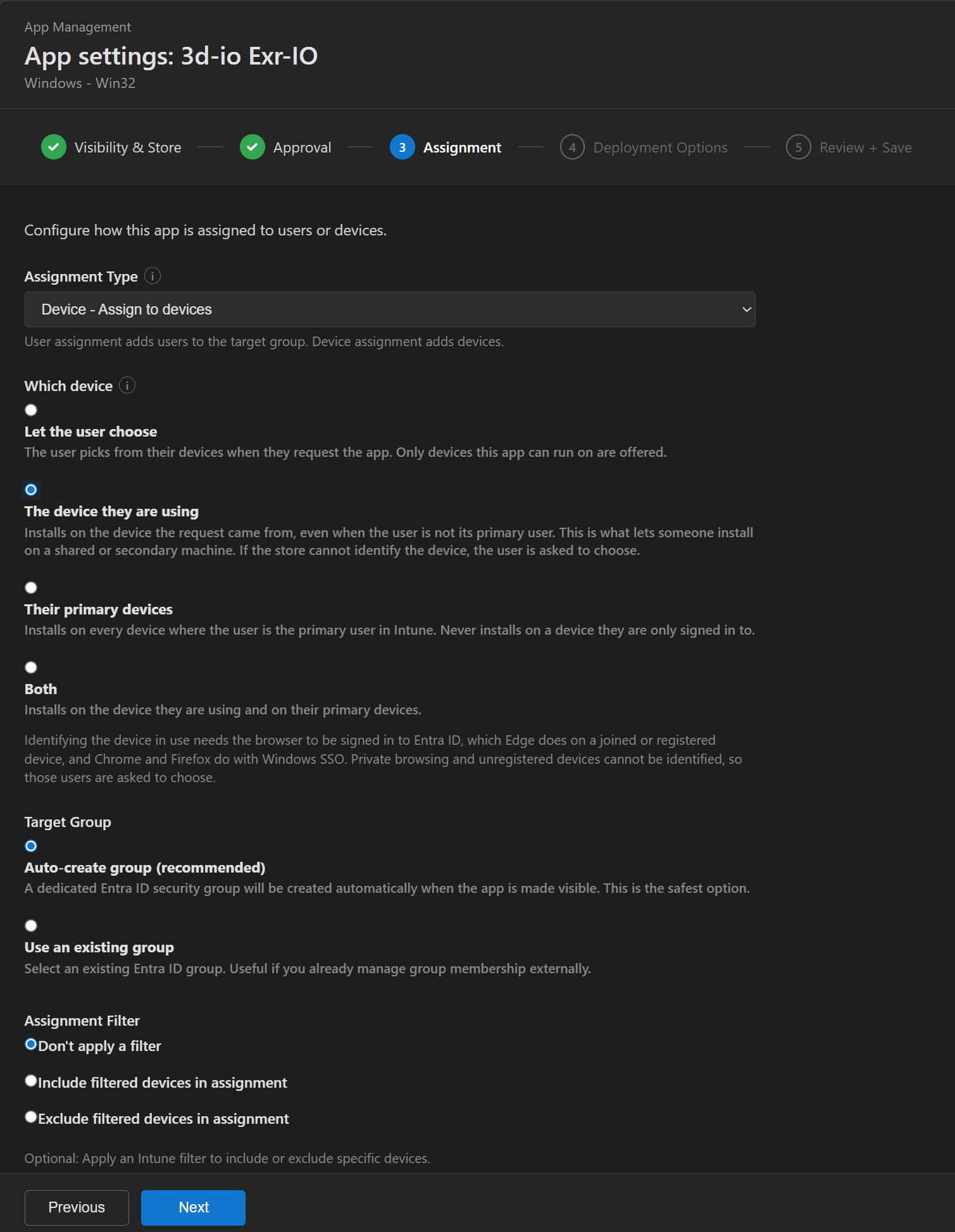
| Option | What happens |
|---|---|
| Let the user choose | The user picks from their devices when they request the app. Only devices the app can run on are offered. This is the default, and every app that existed before this setting is set to it, so nothing changed on upgrade. |
| The device they are using | Installs on the device the request came from, even when the user is not its primary user. This is what lets someone install on a shared or secondary machine, and it is the reason this setting exists. If the store cannot identify the device, the user is asked to choose. |
| Their primary devices | Installs on every device where the user is the primary user in Intune. Never installs on a device they are only signed in to. |
| Both | The device they are using, together with their primary devices. |
Only The device they are using falls back to asking. Their primary devices deliberately does not: choosing that option means excluding machines the user is merely sitting at, so falling back would install on exactly the device you excluded.
Whichever option applies, the resolved device or devices are added to the target Microsoft Entra ID group and Intune deploys the app to them.
Permissions. Device assignment depends on the managed identity holding Device.Read.All, which the setup snippet grants. Group membership is added by Entra directory object, so a device has to be resolved to one before the app can reach it.
Device detection logic:
- Browser detects the operating system (Windows, macOS, iOS, Android)
- Portal matches against the user’s registered Intune devices
- Matching devices are marked as “(Detected)” in the dropdown
- A helpful message confirms the auto-detection: “This device was automatically detected based on your current browser.”
Configuring approval workflows
Section titled “Configuring approval workflows”Select the Workflow button on any app to open the Approval Workflow Editor.
No approval required
Section titled “No approval required”For apps with “Approval” set to “No”, requests are auto-approved immediately. No workflow configuration is needed.
Simple approval
Section titled “Simple approval”For apps that just need one group to sign off:
- Set “Approval” to “Yes”
- Add a single pooled stage and point it at the Entra ID security group that should decide
- Any member of that group can approve
Manager + additional approvers
Section titled “Manager + additional approvers”- Enable Require Manager Approval
- Choose workflow type:
- Linear: Specific users approve in sequence
- Pooled: Any member of specified groups can approve
- Add approval stages as needed
Conditional stages (v1.8.2)
Section titled “Conditional stages (v1.8.2)”Each approval stage can be made conditional, so it only applies when specific criteria are met:
- Open the Approval Workflow Editor for an app
- Add a stage and assign an approver or group
- Toggle “Make this stage conditional”
- Add conditions using the condition builder:
- Select a condition type (Department, Cost Center, Job Title, Location, Platform, Request Count)
- Choose an operator (Equals, Not Equals, Contains, etc.)
- Enter the comparison value
- Add multiple conditions with AND/OR logic
- A human-readable summary of the conditions is shown on the stage card
See Approval Workflows for detailed condition types and operators.
See Approval Workflows for detailed workflow configuration options.
Version history and rollback
Section titled “Version history and rollback”The portal tracks version history for apps published from the App Catalog, so you can roll back to previous versions if a new version introduces issues.
Viewing version history
Section titled “Viewing version history”- Go to Admin > App Management tab
- Find the app in the app table
- Open the app’s detail view by selecting the row
- The Version History modal displays all recorded versions
Understanding version status
Section titled “Understanding version status”Each version in the history shows a status badge:
| Status | Description |
|---|---|
| Current (blue) | The version currently deployed in Intune |
| Archived (gray) | Previous version that was deployed, available for rollback |
| Failed (red) | Deployment or publish attempt that failed |
Version information displayed
Section titled “Version information displayed”For each version, you’ll see:
- Version number - The semantic version (e.g., “1.2.3”)
- Recorded date - When this version was detected/published
- Updated by - User who published this version (if available)
- Installer size - Size of the installer package
- Release notes - Change summary for this version
- Package ID - WinGet package identifier (e.g., “7zip.7zip”)
Rolling back to a previous version
Section titled “Rolling back to a previous version”If a new app version causes issues, you can roll back to a previous version:
- Open the Version History modal for the app
- Find the version you want to roll back to (must have “Archived” status)
- Select the Rollback button on that version
- Select Confirm Rollback to proceed
- The portal will:
- Assign the selected version’s Intune app to the app’s target group
- Remove the assignment from the version being rolled back from
- Point the portal at the selected version’s Intune app and mark it “Current”
- Archive the previously current version
The assignment is added to the restored version before it is removed from the current one, so devices are never left assigned to neither version (which Intune would treat as an uninstall).
Rollback can refuse, and says why:
- The selected version has no Intune app recorded (it was never published as its own Intune app). Repackage that version instead.
- The selected version is already the deployed version.
- The restored version could not be assigned in Intune. Nothing is changed in that case; the portal and Intune still agree.
If the restored version was assigned but the old assignment could not be removed, the rollback stands and the message tells you that the previous version is still assigned in Intune and should be unassigned by hand. Every rollback is written to the audit log with both Intune app ids.
A rollback pauses automatic updates for that app
Section titled “A rollback pauses automatic updates for that app”Rolling back says the newer version is bad, so App Store stops deploying newer versions of that app automatically:
- Automatic deployment is paused for that app, whatever the global or per-app auto-deploy setting says. In App Updates, the app’s row says Auto-deploy paused (rollback), and its detail view shows Paused by rollback under Auto-Deploy Updates, with the reason.
- Update checks carry on. When a version newer than the one you rolled back from is published, it appears in App Updates as normal, and you can select Deploy Update by hand. Doing so doesn’t end the pause.
- The version you rolled back from is declined: it shows as Declined and is never offered or deployed automatically. To deploy it anyway, select Deploy anyway and confirm that you are overriding the decline. This doesn’t end the pause either.
- A restart, a manual deployment or a later update check doesn’t end the pause.
To end the pause, select Resume Auto-Deploy on the app’s row or in its detail view, then confirm. Resuming is recorded in the audit log with who did it. It doesn’t un-decline the version you rolled back from.
Version history limitations
Section titled “Version history limitations”- WinGet apps only: Version history is only tracked for apps published from the App Catalog
- Manual Intune apps: Apps added directly to Intune (not via portal) do not have version history
- Retention policy: By default, the portal keeps all versions indefinitely. Admins can configure retention limits under Store Administration
Troubleshooting rollback issues
Section titled “Troubleshooting rollback issues”Rollback button is grayed out:
- Only “Archived” versions can be rolled back to
- Ensure the version’s installer is still available
Rollback fails:
- Check Graph API permissions (
DeviceManagementApps.ReadWrite.All) - Verify the installer URL is still accessible
- Review API logs for detailed error messages
Version history is empty:
- Version history only tracks apps published through the portal
- If you synced an existing Intune app, its pre-sync versions are not tracked
- Only new publishes/updates will appear in history