Browsing Apps
Home page
Section titled “Home page”The home page displays:
- Hero app: a featured application highlighted by your admin
- Featured apps: curated apps recommended for your organization
- Browse by category: quick links to app categories (Productivity, Development, Communication, and so on)
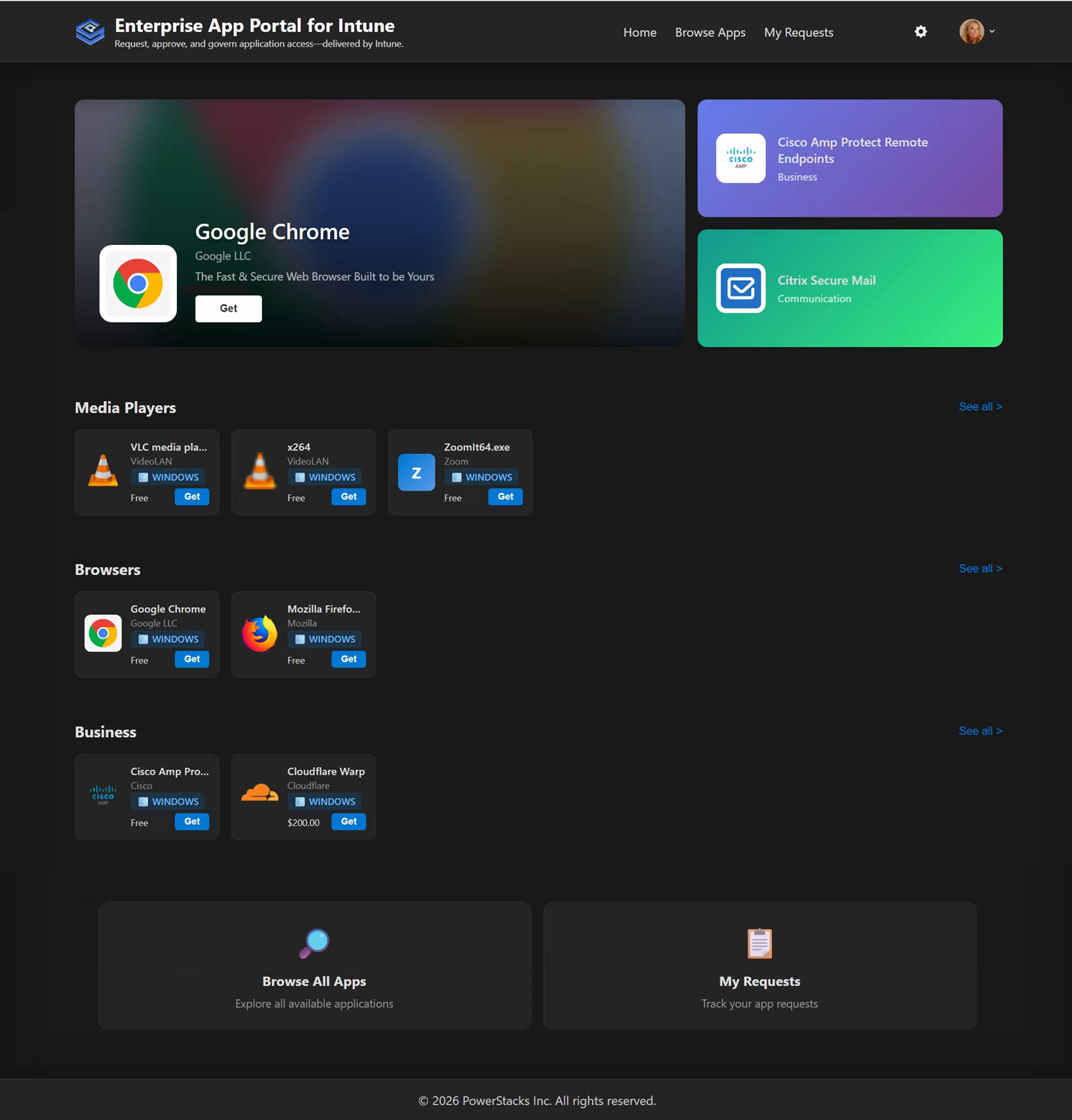 The home page showing featured apps and hero app
Browse apps page
Section titled “Browse apps page”Select Browse Apps in the navigation to see all available applications.
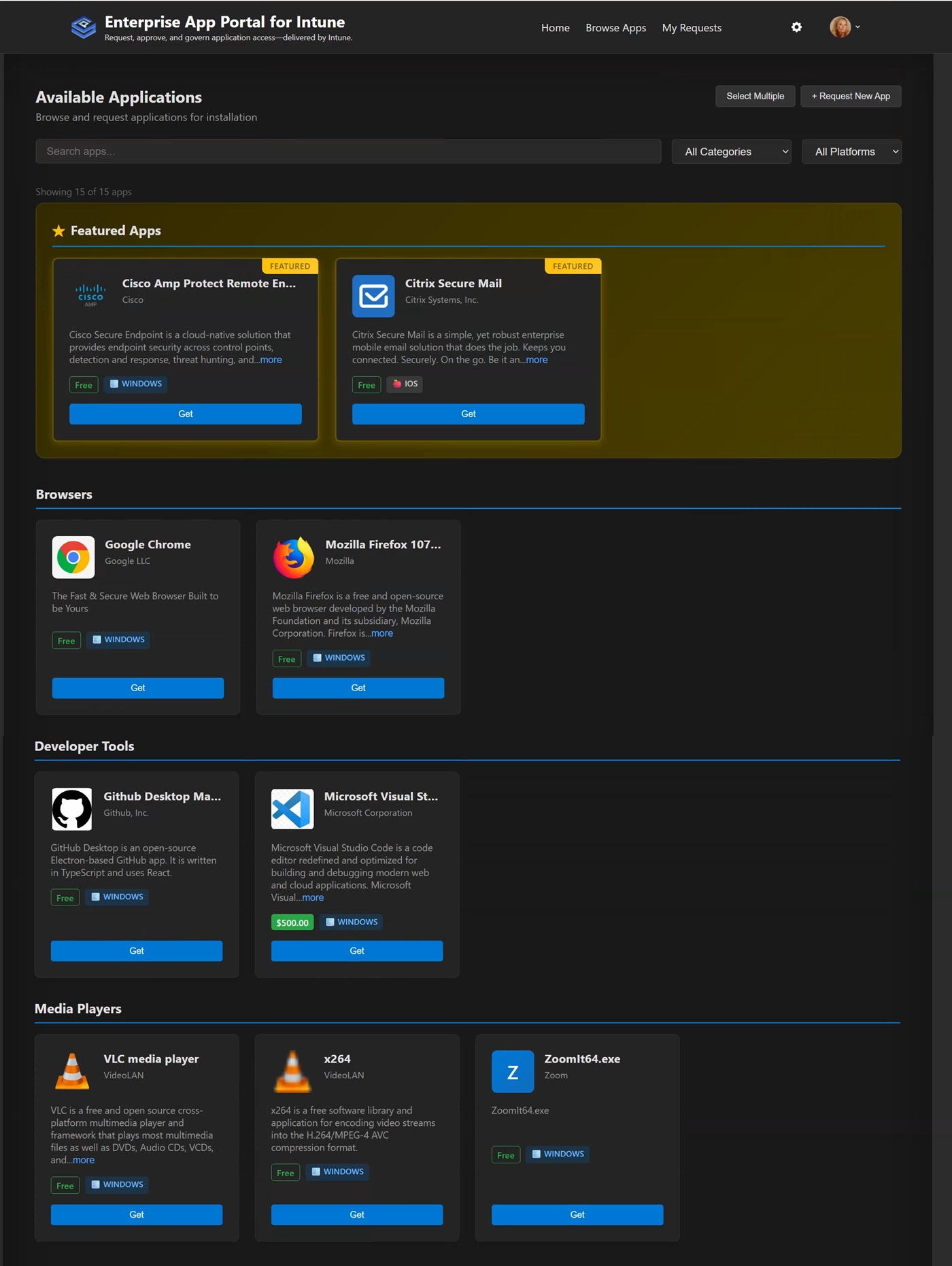 The browse apps page with search and filters
Filtering and search
Section titled “Filtering and search”- Search apps: enter an app name, publisher, or description to search
- All Categories: filter by app category
- All Tags: filter by a tag your administrator set
- All Platforms: filter by Windows, iOS, Android, macOS, or Web. If your administrator turned on the compatible-apps filter, the page may show only apps for the device you’re browsing from, for example Showing Windows apps.
To request several apps at once, select Select Multiple. See Request several apps at once.
App cards
Section titled “App cards”Each app card shows:
- App icon
- App name
- Publisher
- Platform icon (Windows, iOS, Android, and so on)
- Brief description
- Cost estimate (if configured)
- A Get button
Visual indicators on cards:
- Platform badge: the app’s target platform
- New badge: apps added within the last 14 days
- Featured badge: featured apps
- Price indicator: cost, or a “Free” label
App detail page
Section titled “App detail page”Select any app card to open its detail view, which includes:
- A hero banner with the app icon
- App name, publisher, and category
- The full description
- App information (publisher, version, category, platform, approval status)
- A Get button to request the app