Sign in and Verify
The portal is deployed, the App Service has its Graph permissions, and the App Store app registration has the production redirect URI. This page walks through the first sign-in and the in-portal Setup Wizard that finishes configuration.
Verify the portal is healthy
Section titled “Verify the portal is healthy”Open these two URLs in a browser:
https://<sitename>.azurewebsites.net/health, returns200 OKwhen the portal is running and the Key Vault references resolve.https://<sitename>.azurewebsites.net/health/migrations, returns"pendingCount": 0when all database migrations have applied.
If either endpoint reports an error, see Troubleshooting.
Who can sign in as an administrator
Section titled “Who can sign in as an administrator”- The account that ran the deployment is the portal’s initial administrator. Sign in with it.
- Members of the Admin Group, if you supplied one during the deployment, are administrators too.
Nothing needs to be configured or restarted first.
First sign-in
Section titled “First sign-in”-
Open your portal URL in a browser.
-
Sign in with the account that ran the deployment, or with a member of the Admin Group. No Entra directory role (Global Administrator, etc.) is required. An Admin link in the top bar confirms you are an administrator.
-
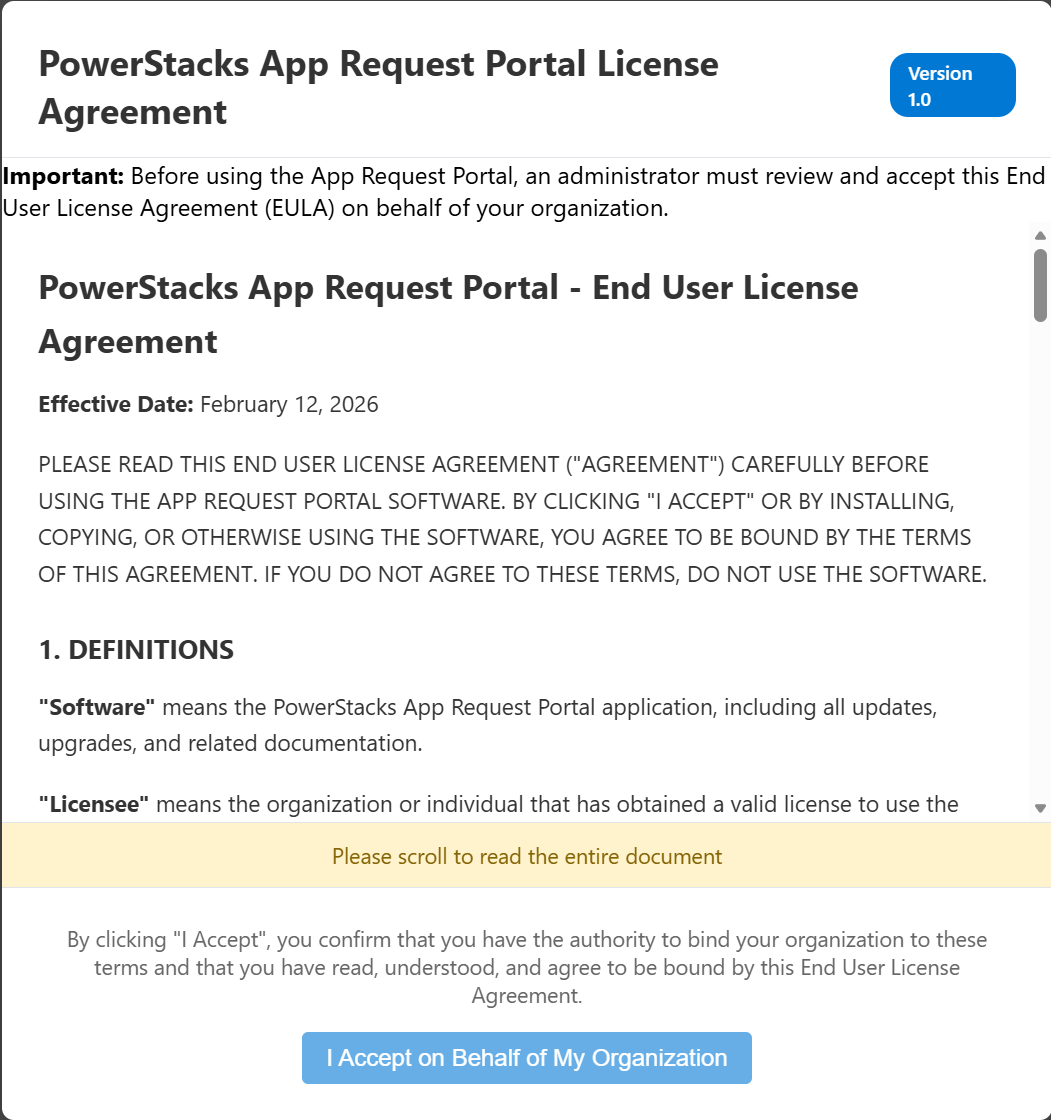
The license-acceptance gate appears on first sign-in. Select Accept to acknowledge the terms.
Complete the Setup Wizard
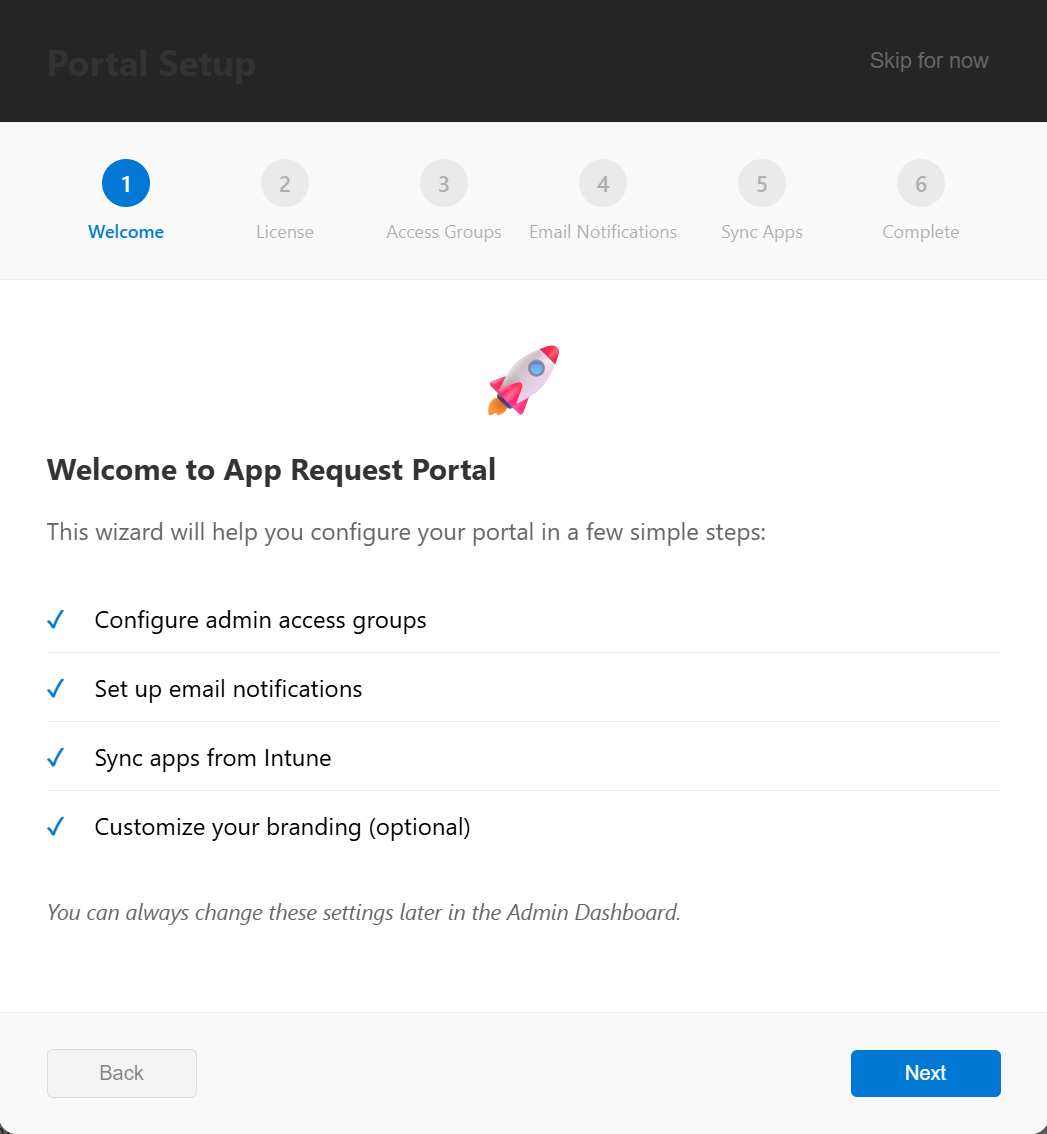
Section titled “Complete the Setup Wizard”Once you’re signed in as an admin, open the Setup Wizard from Admin → Getting Started → Setup Wizard. The wizard opens on a welcome screen, then walks through four steps before a completion screen.
-
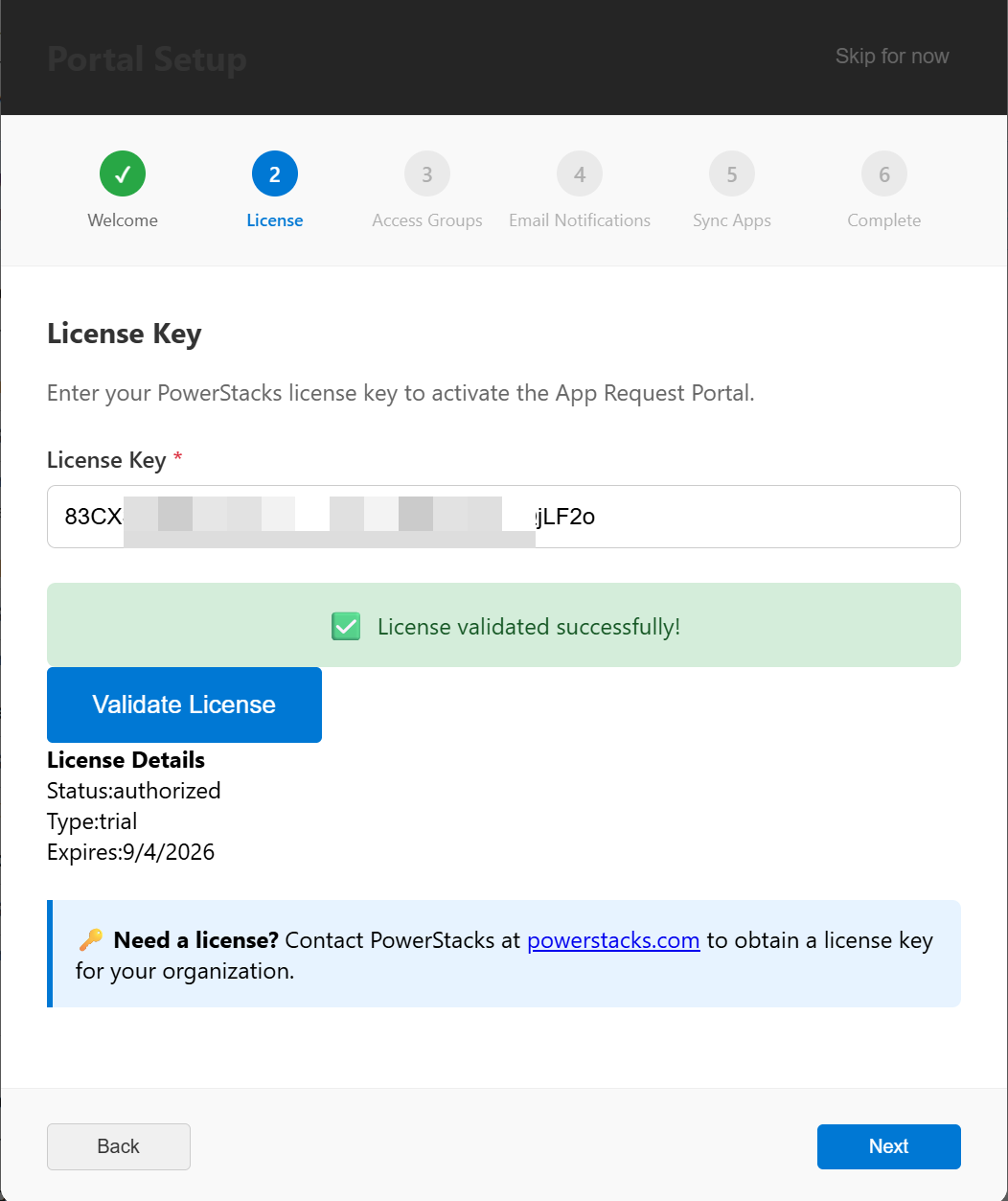
Activate your license. Enter the license key supplied by PowerStacks. The wizard validates the key against the licensing service and displays the expiration date and enabled features. If you don’t have a key yet, choose a plan or start a trial at powerstacks.com/plans.
-
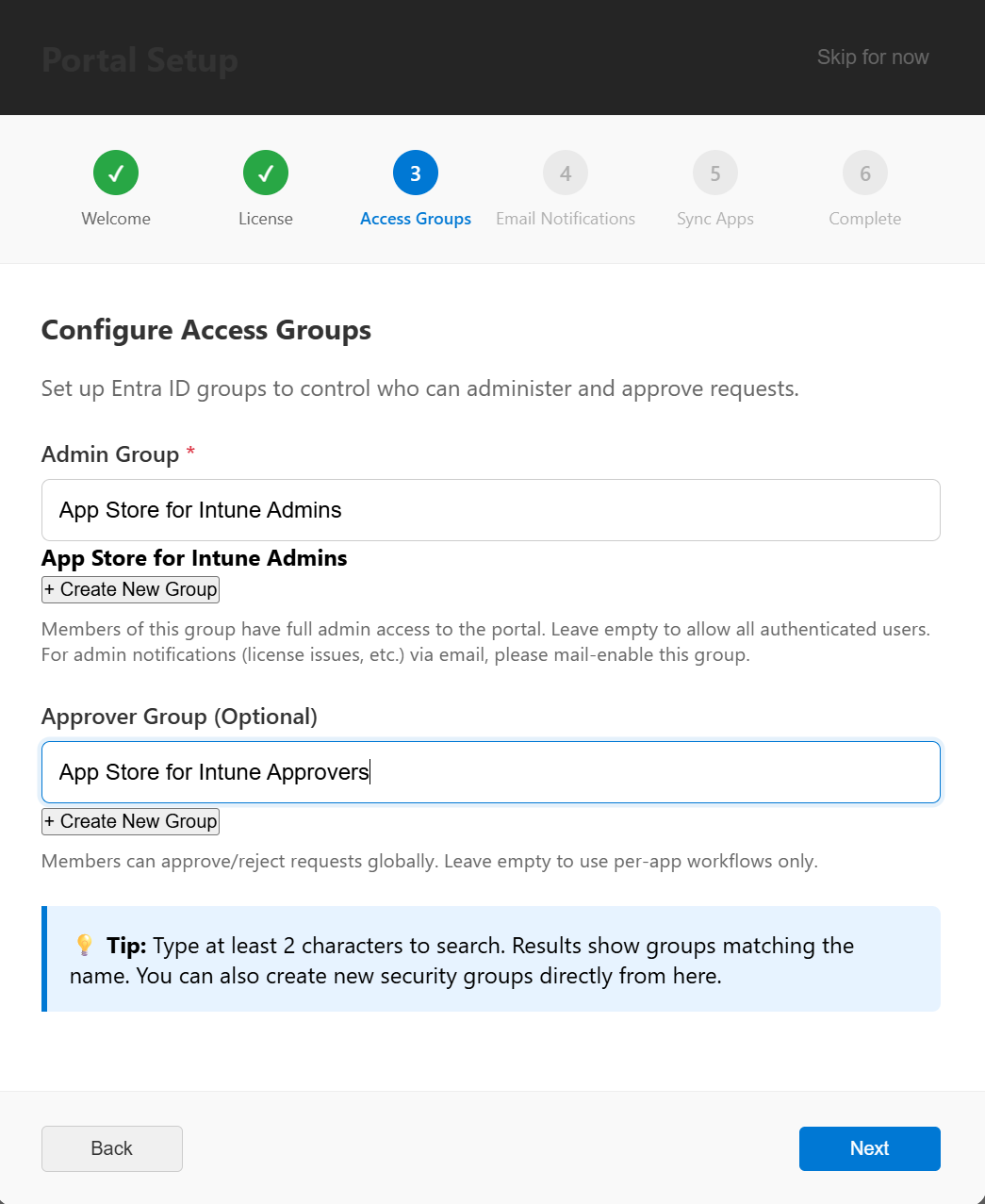
Choose your admin security group (optional). Select an Entra security group whose members should also administer the portal. The group works alongside the initial administrator and never replaces them. You can skip this step and add a group later under Store Administration > Permissions.
-
Configure email notifications. Optional. Select an Entra ID user mailbox to send notifications from, and enter the From address that recipients will see. You can skip this step and configure email later from Admin > Communications.
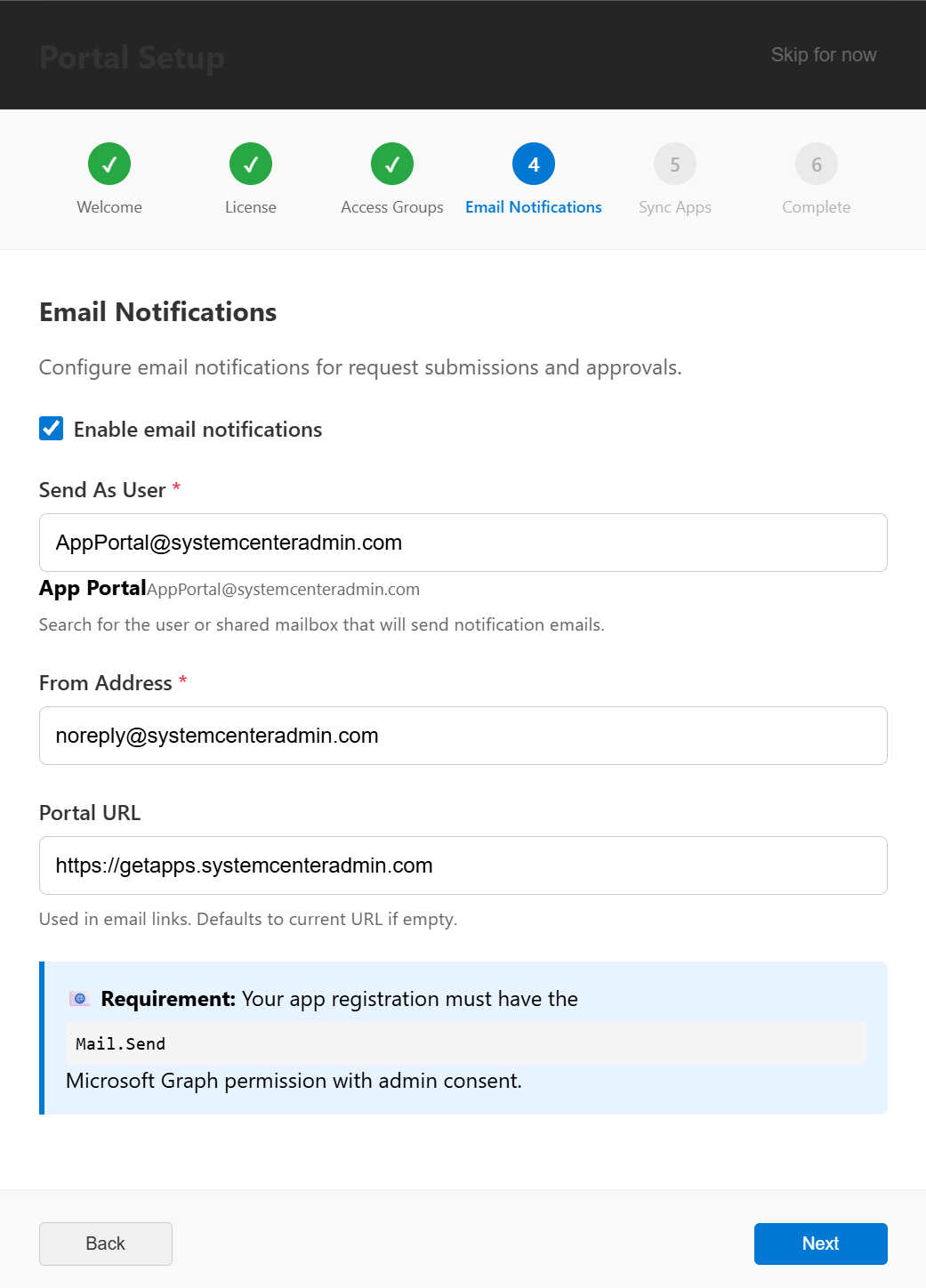
-
Run the first Intune sync. Pulls the existing Intune app catalog into the portal so the admin App Catalog tab is populated immediately. This typically takes 30 to 60 seconds depending on catalog size.
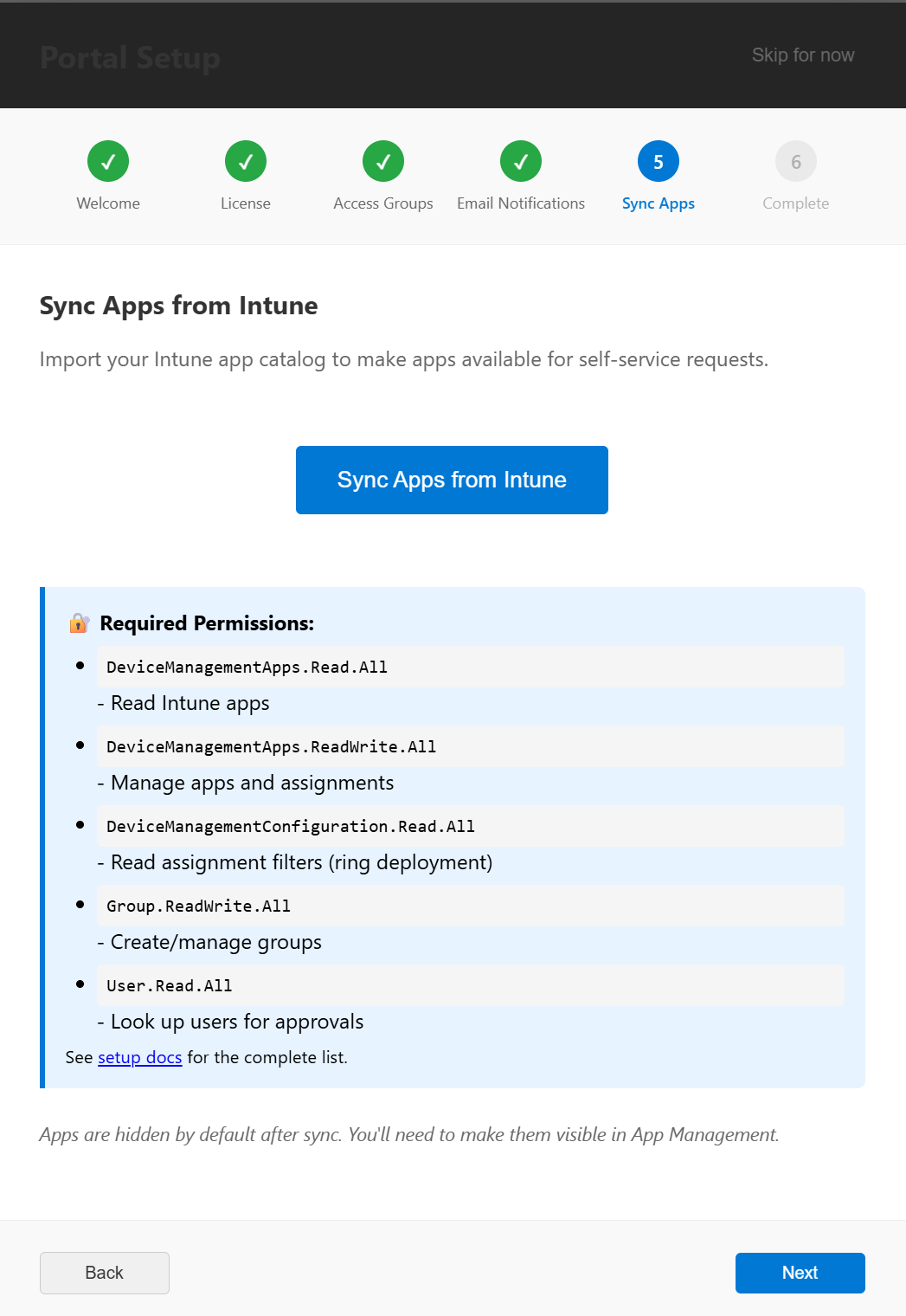
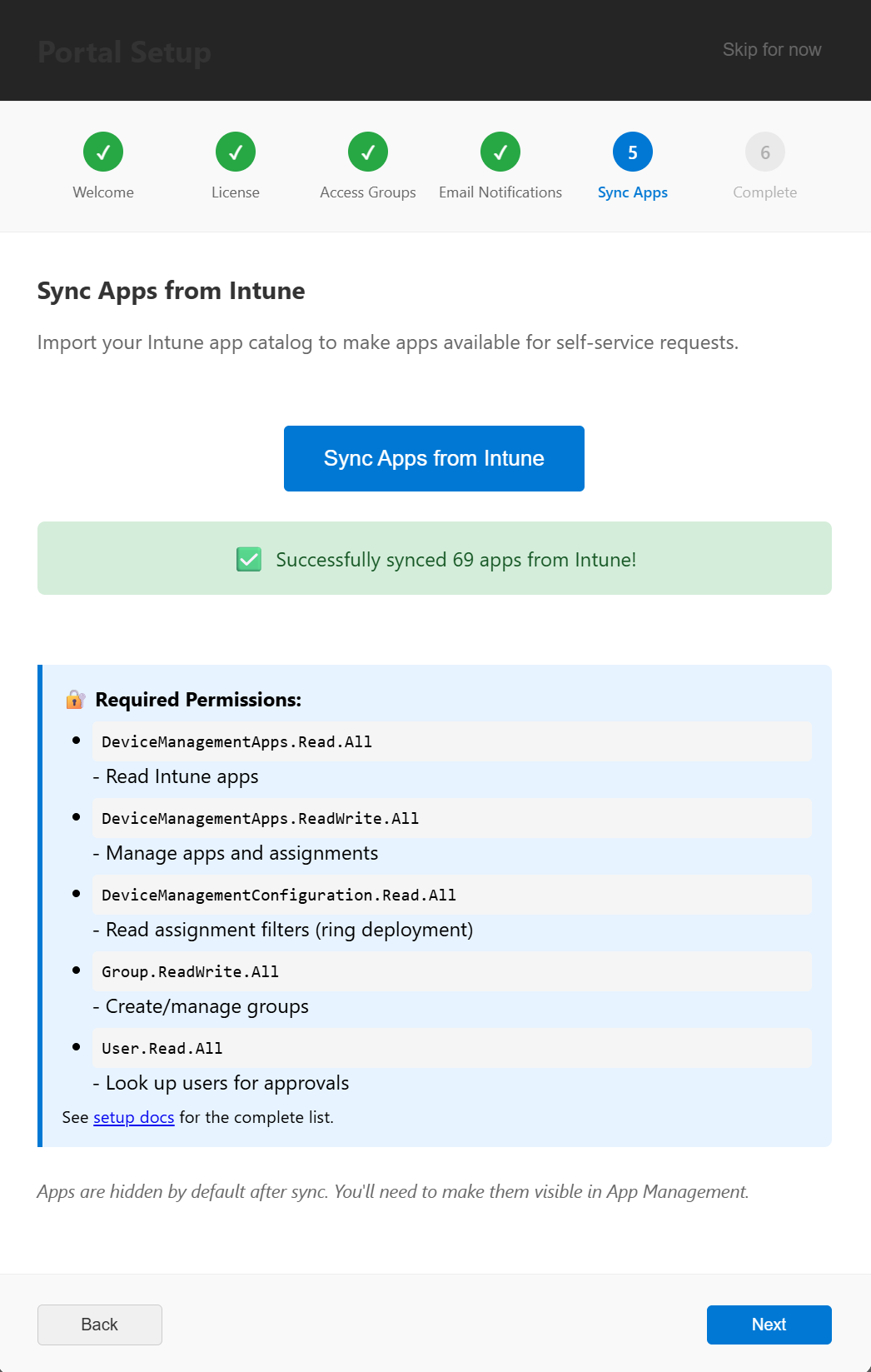
Select Finish. The wizard saves the settings to the database and routes you to the admin dashboard.
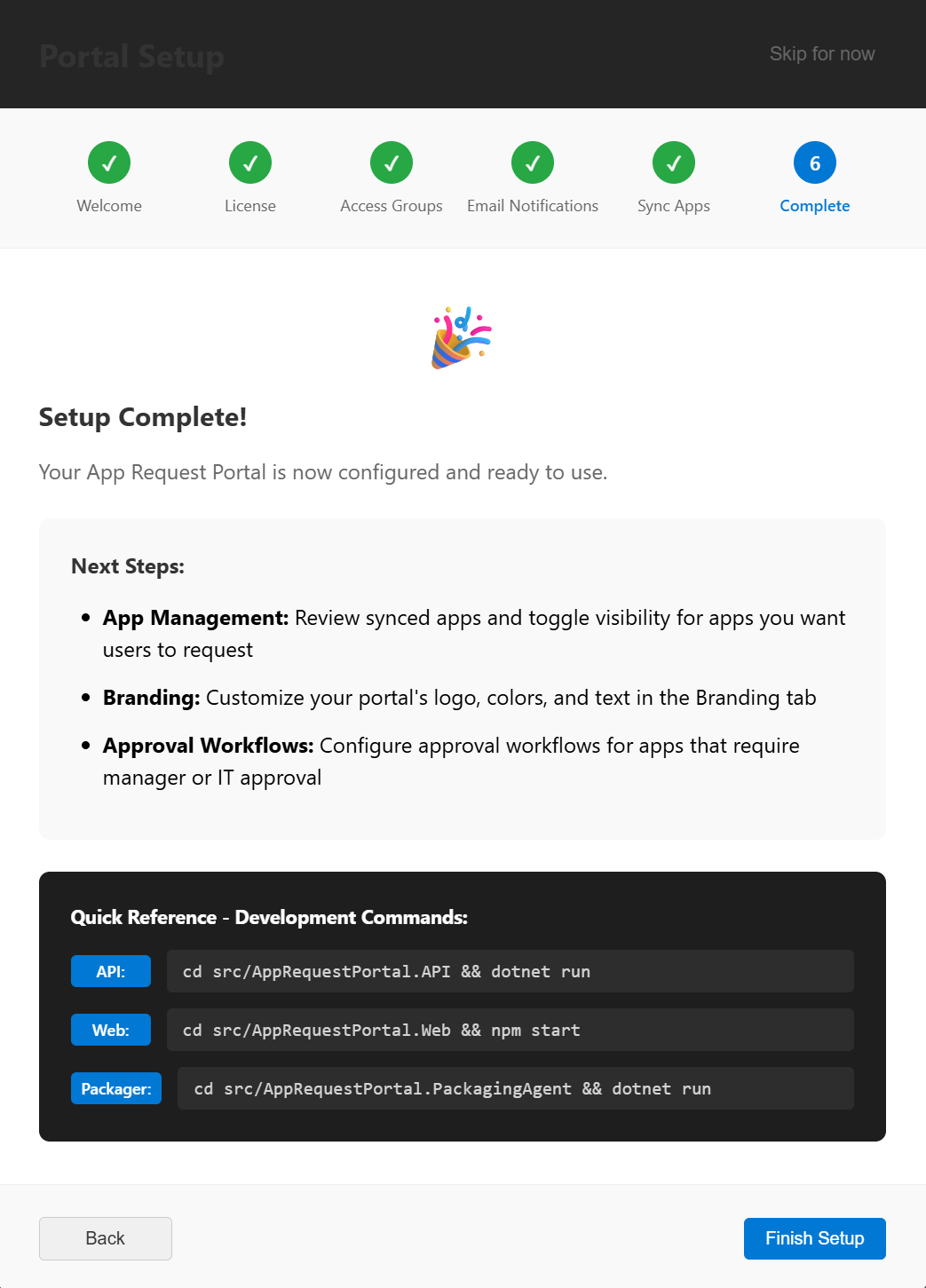
What “done” looks like
Section titled “What “done” looks like”After Finish, the admin dashboard loads. Admin > App Catalog shows the apps synced from Intune. Store Administration > Permissions shows the Admin Group, if you selected one. The portal is fully operational.
Next step
Section titled “Next step”The install is complete. Continue with optional configuration as needed:
- Configure email notifications, if you skipped this step in the wizard or want to refine the settings.
- Configure Microsoft Teams Bot, finish the Teams app manifest upload if you enabled the bot at deploy time.
- Configure Application Insights, application logging and telemetry.
- Custom domains, replace the default
*.azurewebsites.netURL with a custom domain (if you didn’t already set one up during the install).
For ongoing administration, see the Admin Guide.