Request an App
Use these steps to request an app that’s already in the catalog. To request an app that isn’t listed, see Ask IT to add an app.
Basic request
Section titled “Basic request”- Find the app you want to install.
- Select Request on the app card.
- Fill out the request form:
- Justification (required): explain why you need this app
- Device (for device-targeted apps): where the app installs, which for some apps you choose and for others the store decides. See Device selection
- Select Submit Request.
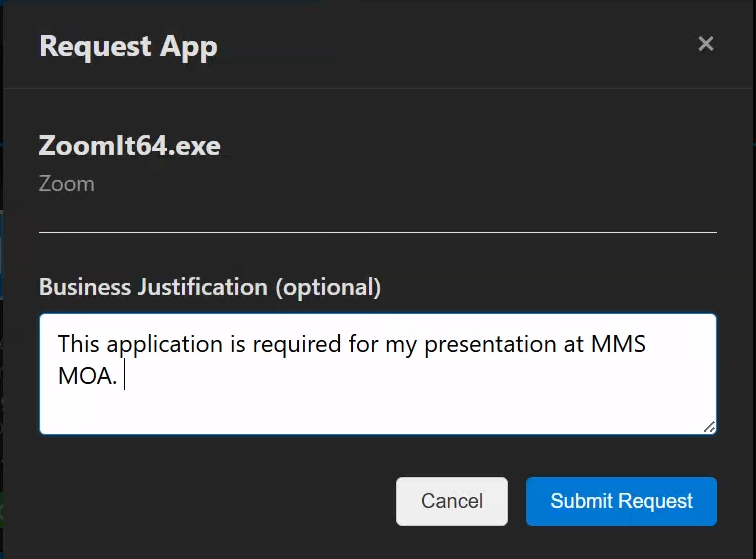 The app request form with justification field
Device selection
Section titled “Device selection”Some apps install on a device rather than being granted to your user account. What happens next depends on how your administrator set the app up, and you are told which applies before you submit.
| How the app is set up | What happens |
|---|---|
| You choose | A Select Device dropdown lists your enrolled devices. Only devices the app can actually run on are offered, so a Windows app does not list your phone. |
| The device you are using | The app installs on the device you are browsing from, even if it is a shared or secondary machine you are not the main user of. |
| Your primary devices | The app installs on the devices you are the main user of. The machine you happen to be sitting at is not included unless it is one of them. |
| Both | The device you are using, together with your primary devices. |
If none of your devices can run the app, the store tells you rather than accepting a request that could not be filled.
You can see the devices enrolled for you, and whether each one can access company resources, on the My Devices page.
Approval requirements
Section titled “Approval requirements”Apps may have different approval requirements:
- No approval required: automatically approved and deployed
- Manager approval: your direct manager must approve
- Designated approver: a specific person or group must approve
- Multi-stage approval: multiple approvers in sequence
You’ll see the approval requirements before submitting.